Surfaces

Tell Friday what to do.

Add a client, draft the proposal, send it for signature, book the call, raise the invoice. Friday works across all of it, and you can open any page and do it yourself.

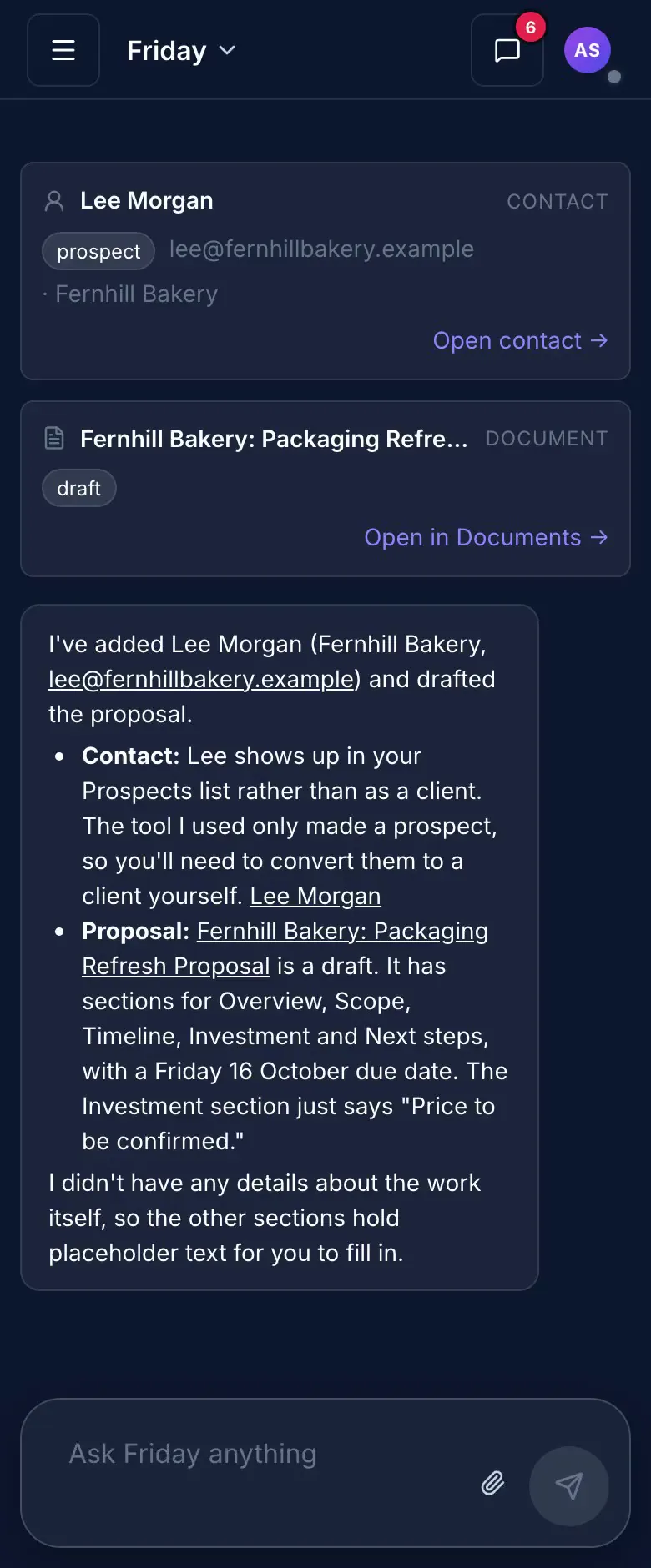
A phone recording of Friday. A request is typed: a bakery wants a proposal for a packaging refresh by Friday, add them as a client and draft it from a blank page. Friday searches, adds the contact, creates the proposal document and reports back.
01 · Win work

Your website was out of date the day it launched.

Sites. Describe your business and get a full website with real copy. Pages that list your roles or services update from your records.

Sites

Your site, built and kept current.

Scroll to watch it work.

01
Site builderPages and copy from a brief.
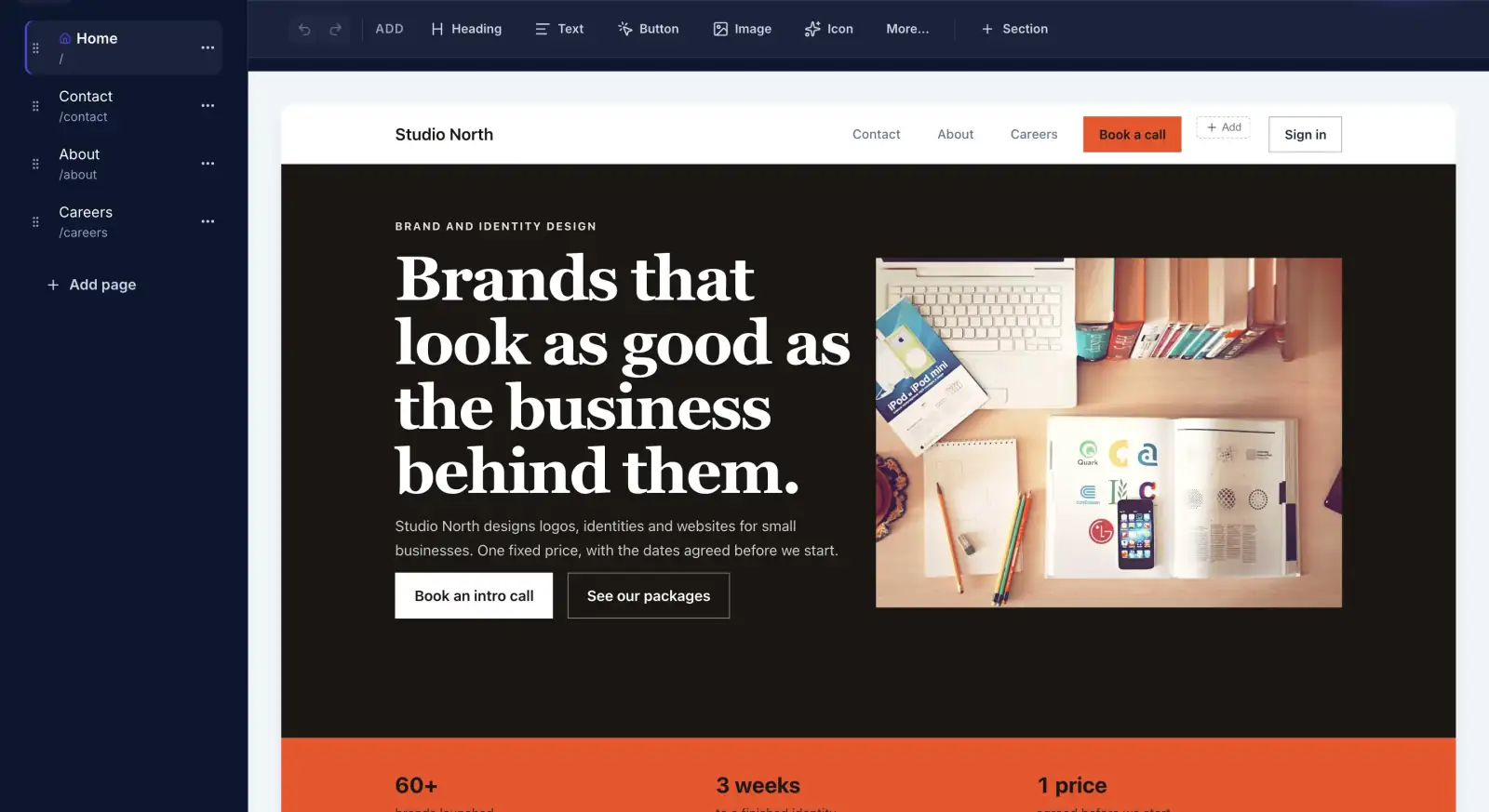
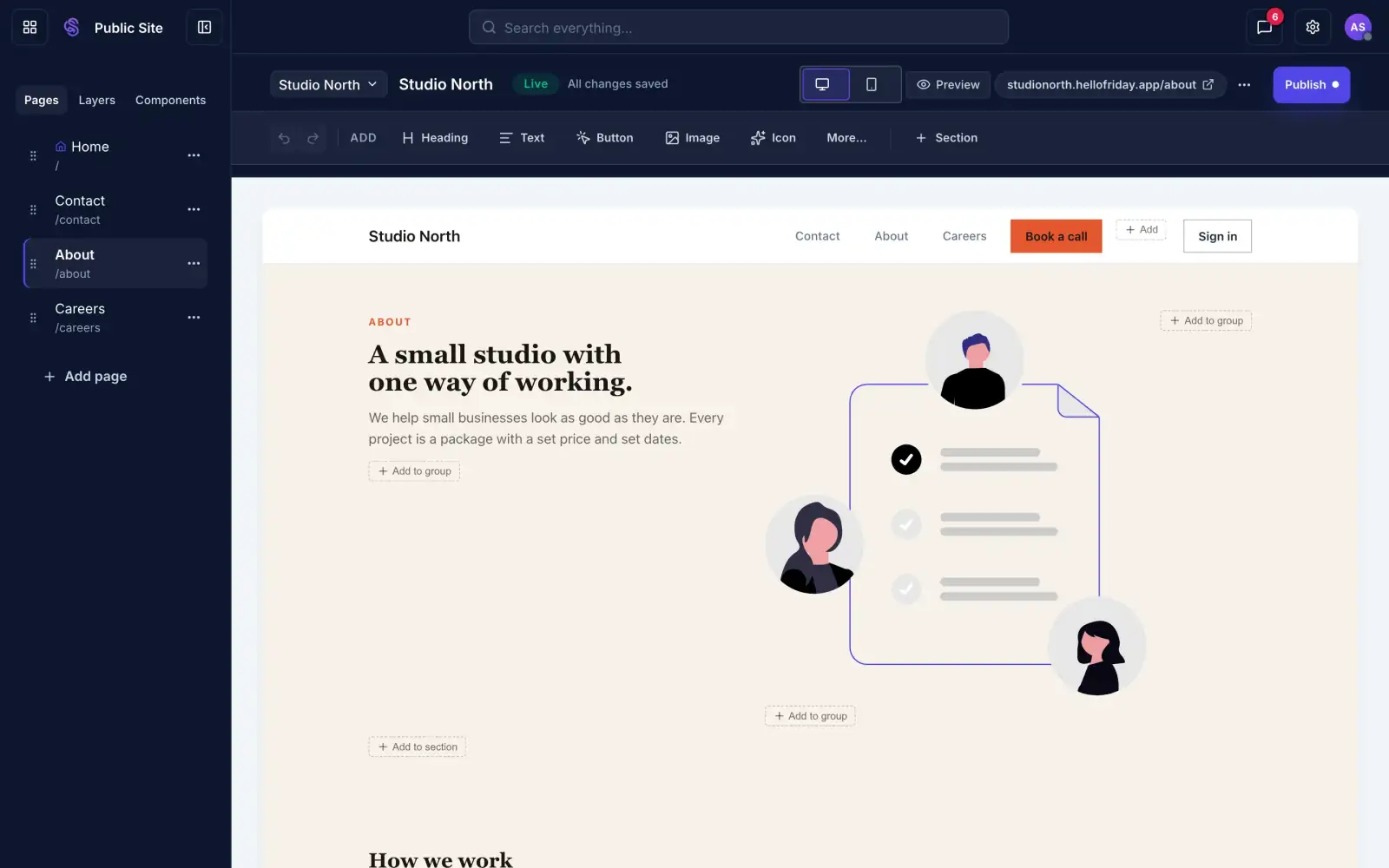
The Sites builder showing a finished home page
Tell Friday what you do. It builds the site.Home, About, Contact and Careers pages, with real copy.Change anything you like, then publish.
A full site from a short brief
02
ComponentsReusable sections.
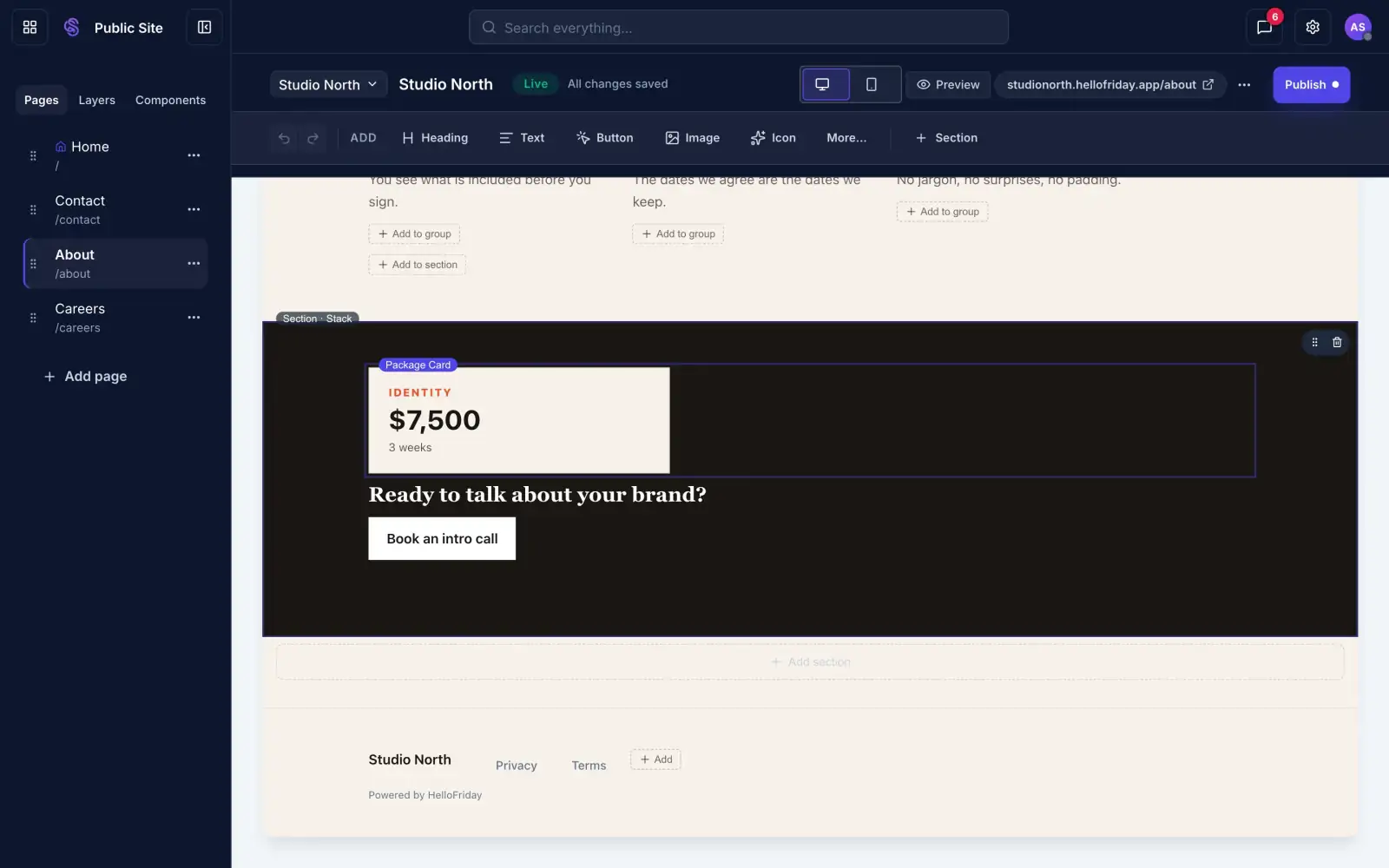
A package card selected in the Sites builder as a reusable component
Fix a price in one place, not on every page.Update every page that uses the card in one go.Nothing changes on a page until you say so.
One edit updates every page
03
Live listingsPages that read your records.
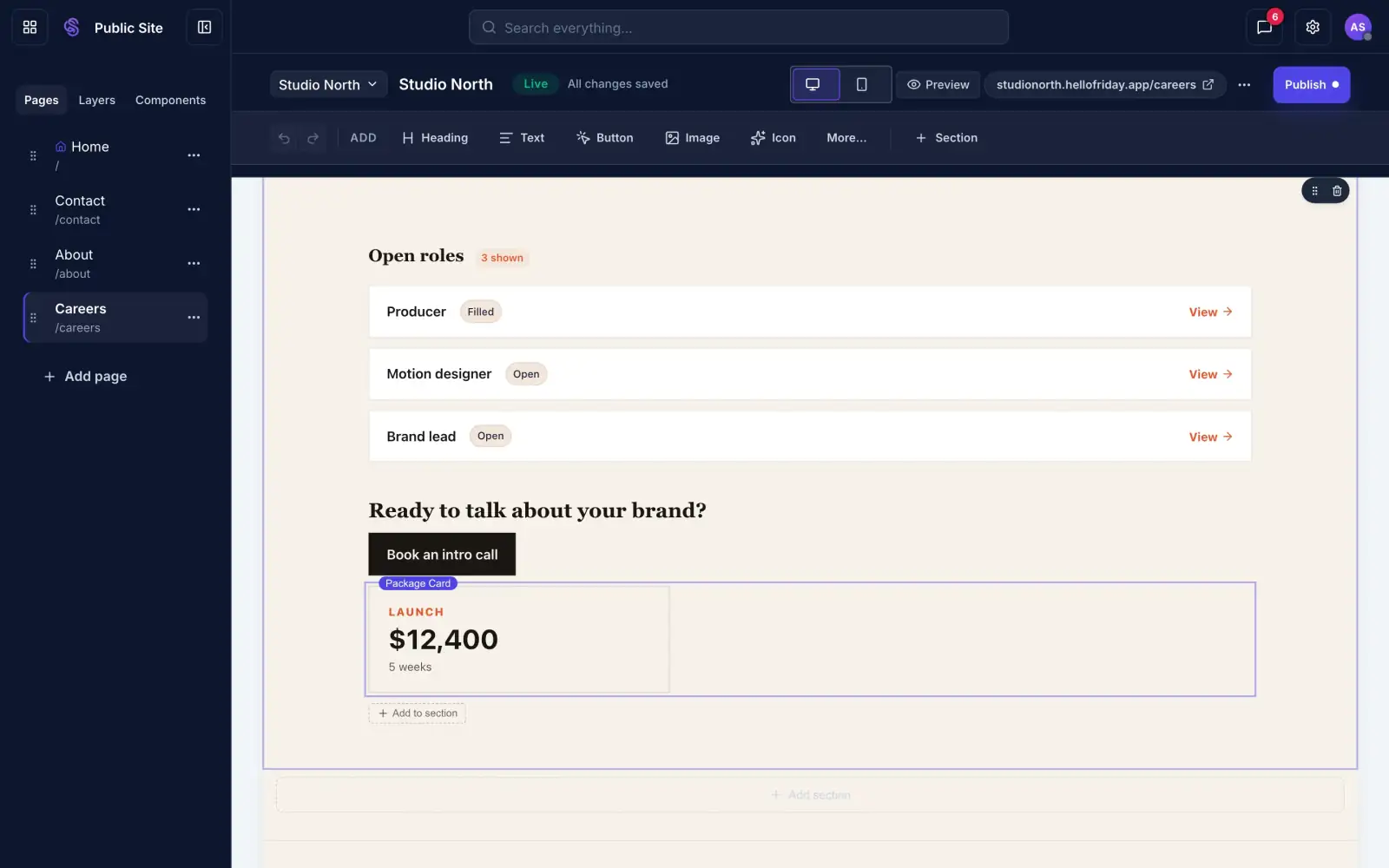
A live list of open roles on a Sites page, read from your records
Your open roles come straight from your records.Add a role and it appears on the page.Mark it filled and the page says so.
Updates when your records change
04
Custom domainsYour own web address.
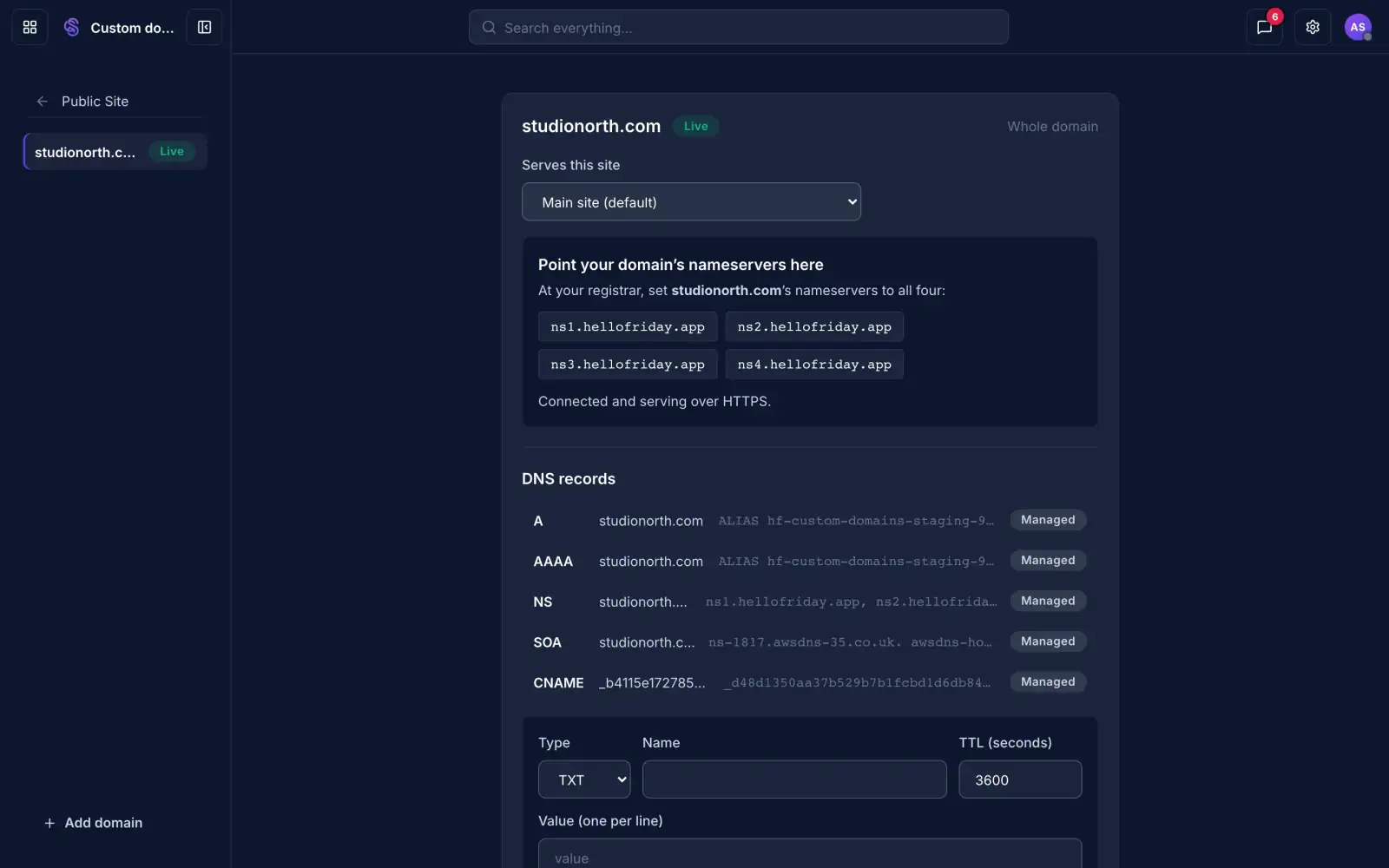
A custom domain connected and serving over HTTPS
Use your own domain, like studionorth.com.Point your nameservers at us once.We set up the HTTPS certificate.
You connect the domain, once
05
Drafts and publishingReview before anything goes live.
The Sites builder with the Publish button
Changes stay in draft until you press Publish.Friday edits the draft. Visitors still see the live site.Publish when you're happy with it.
Nothing goes live until you publish
Sites

A full website from a short description.

Builds pagesWrites copyBinds your dataDrafts changes
Discover Sites
02 · Win work

Enquiries land in an inbox and go nowhere.

Forms. Build a form from a short description. Every response lands in a table, and enquiries go straight to your leads.

Forms

Forms that land as work.

Scroll to watch it work.
01
Conditional stepsShow or skip steps by answer.
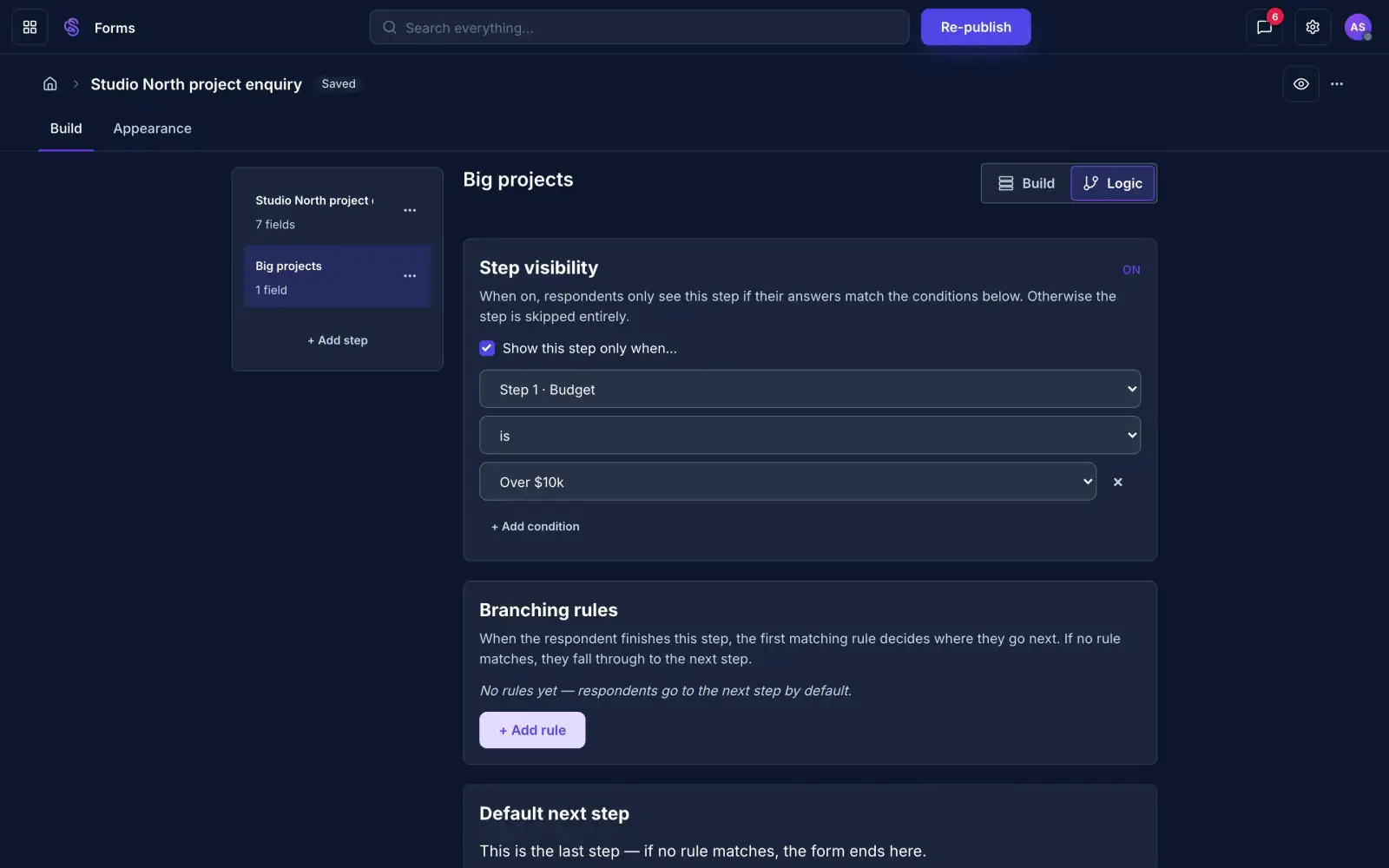
The form builder showing a step that appears only when the budget is over $10k
Show a step only to the people who need it.Here, the extra questions appear for budgets over $10k.Everyone else skips straight past them.
Built from a short brief
02
File uploadsAllowed types, size limit, safety scan.
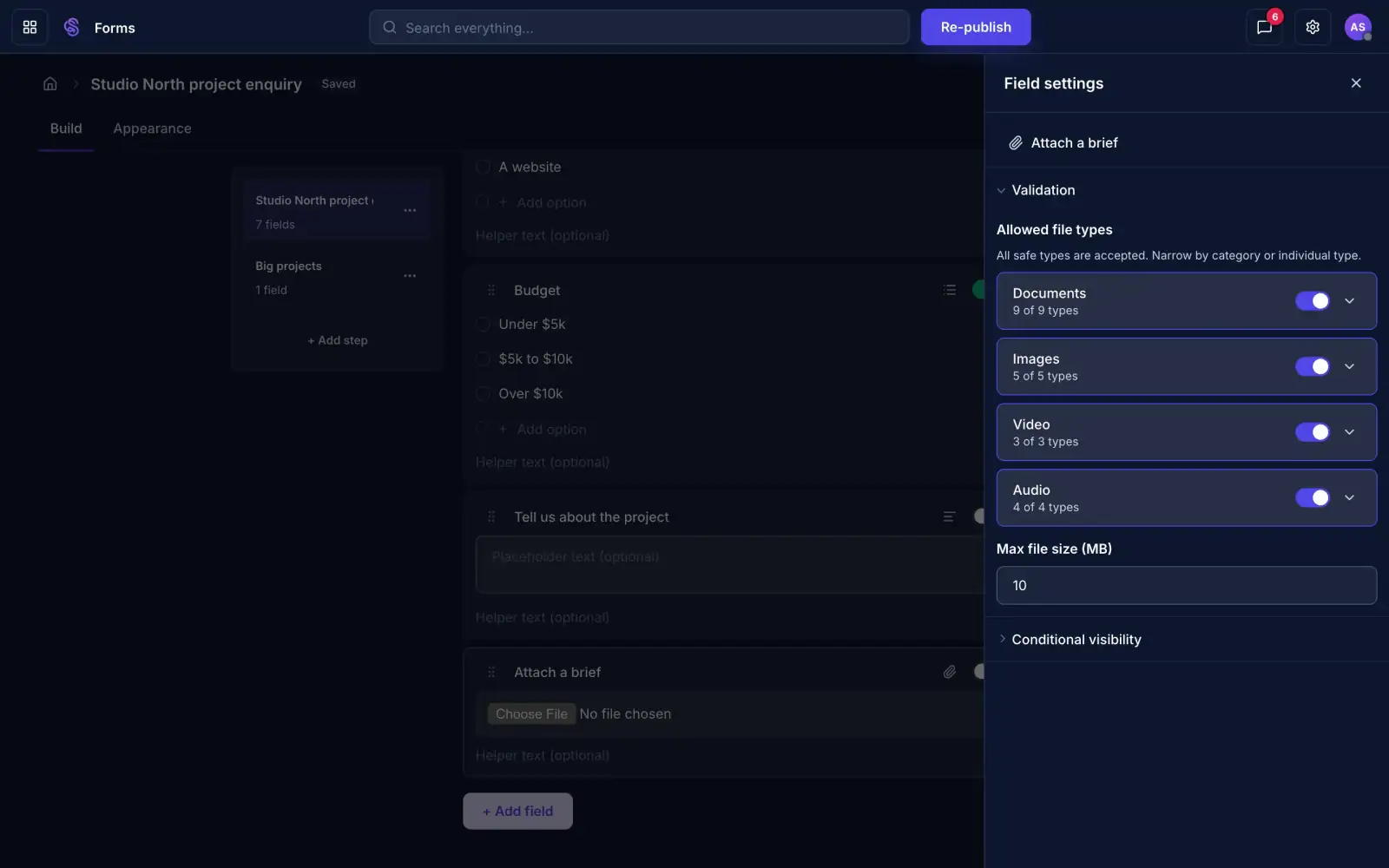
File field settings showing which file types are allowed and the size limit
Choose which files people can send you.Pick the types and set a size limit.Every upload is scanned before anyone can open it.
Scanned before anyone opens it
03
SharingLink, embed or invite people.
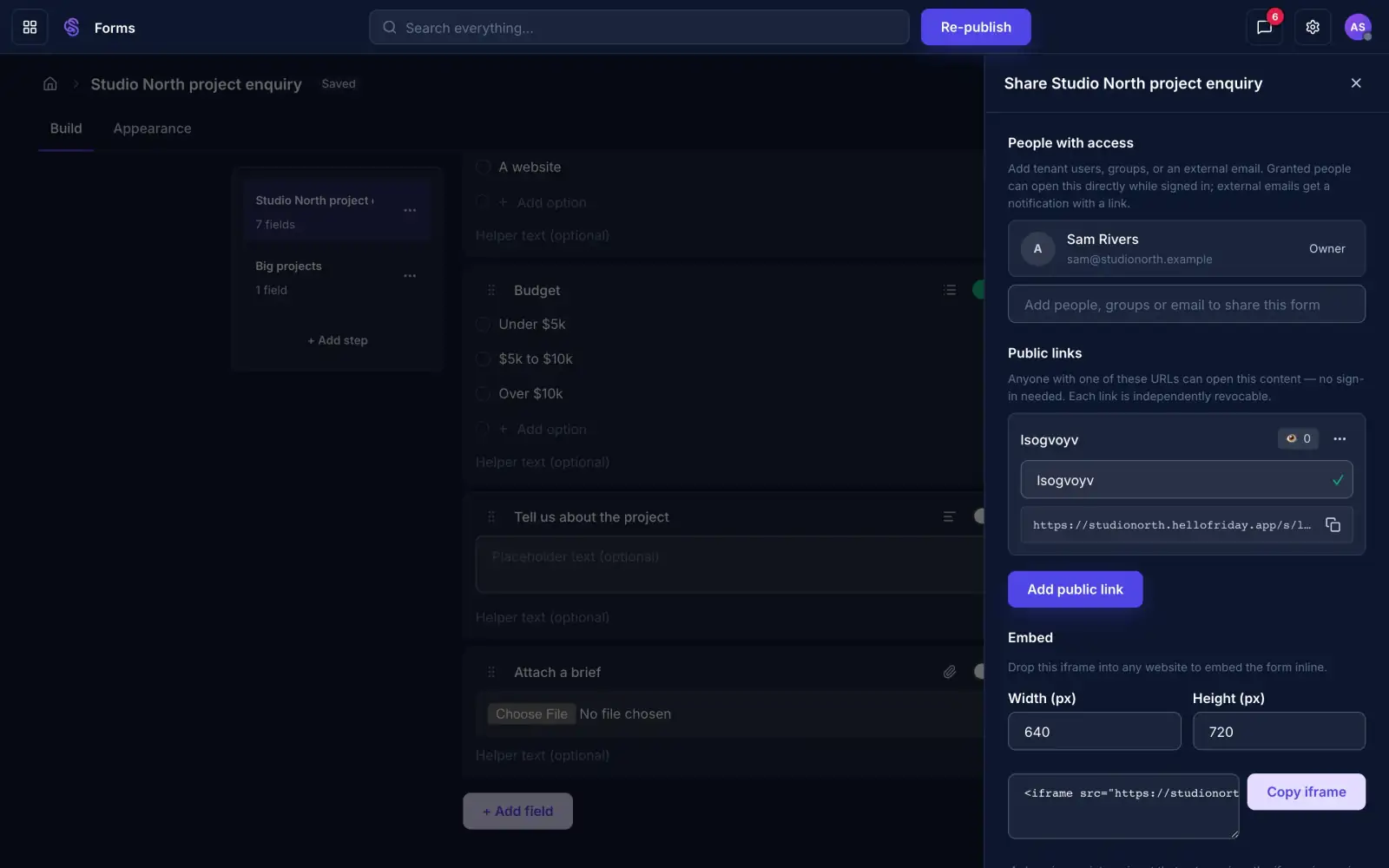
The share panel with a public link and embed code
Share the form as a link or embed it on your site.Each link can be revoked on its own.Add people by email to give them access too.
Spam stopped before it lands
04
ResponsesEvery answer in a table.
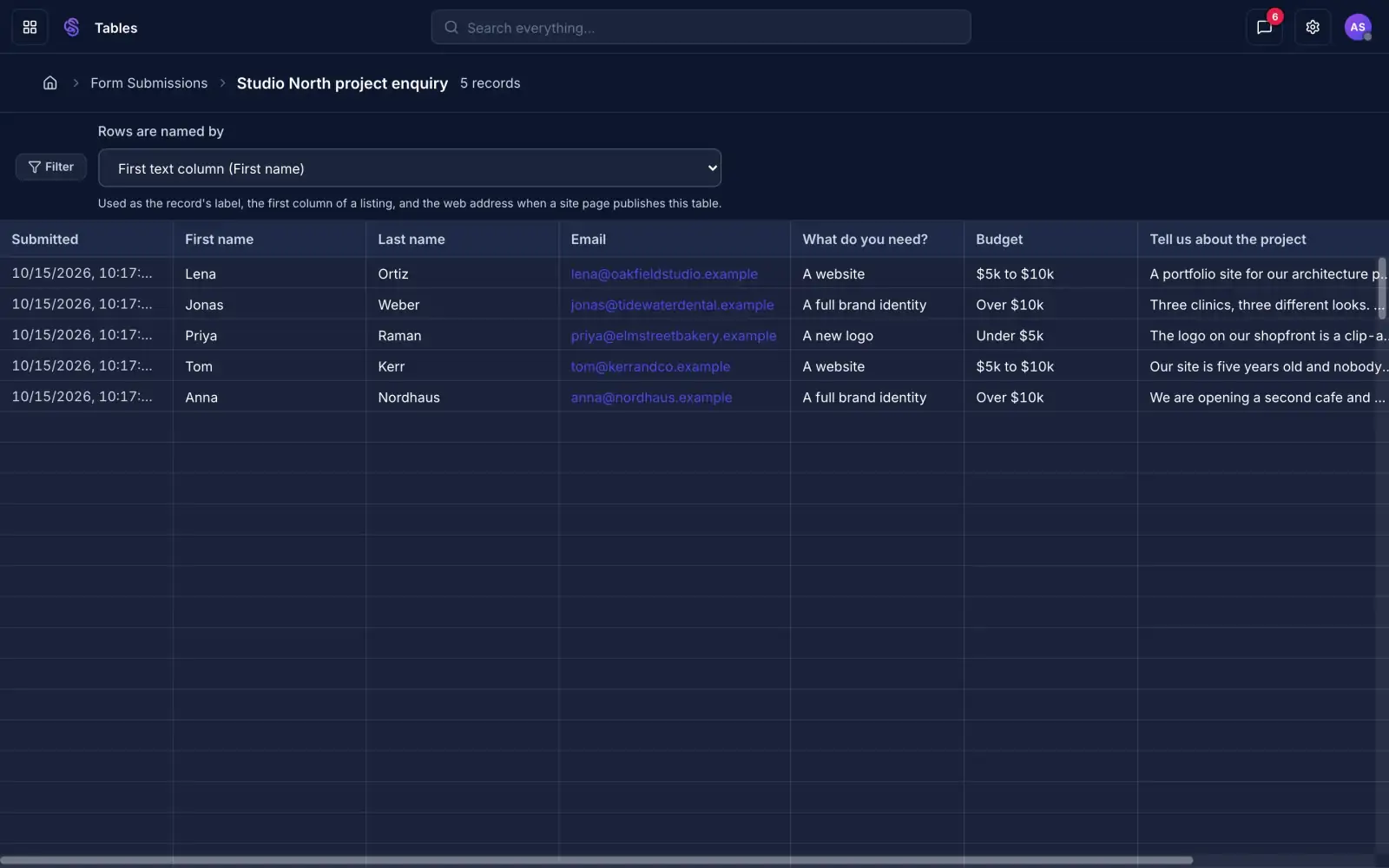
A table of form responses with a column for each answer
Every response lands in a table.Name, email and each answer get their own column.Files stay attached to the response they came with.
Every answer in its own column
05
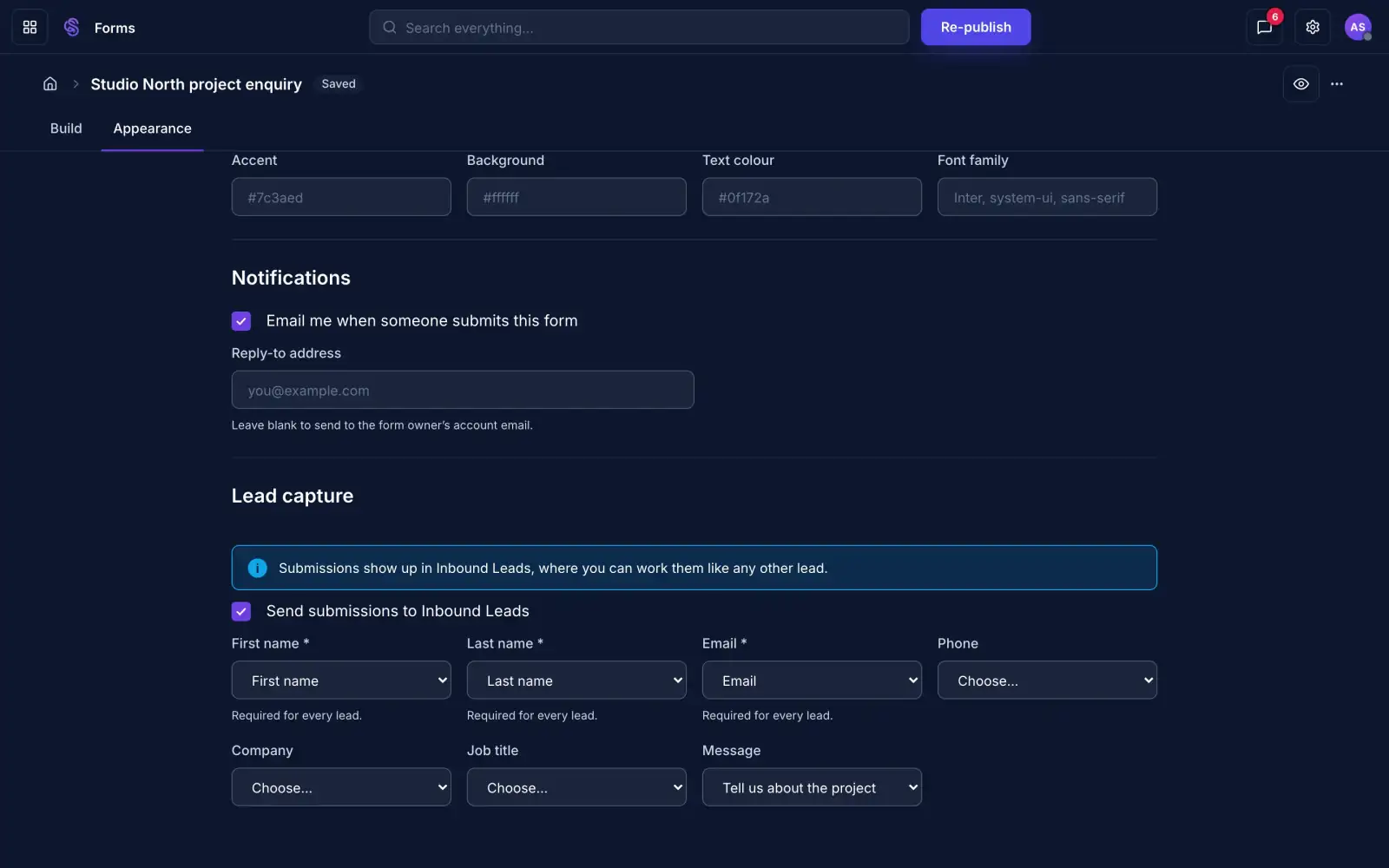
Lead captureSend enquiries to your leads.
Form settings with lead capture turned on and email notifications
Send each enquiry straight to your leads.Match the form's fields to a lead's name, email and message.Get an email each time someone submits.
Each enquiry becomes a lead
Forms

Every response filed. Every enquiry a lead.

Builds formsReads responsesAdds contactsUpdates forms
Discover Forms
03 · Win work

Half of what you know about a client lives in someone's head.

CRM. Every contact, call, note and stage on one page per client. Open it before a call and you're caught up.

CRM

Every client in one record, always current.

Scroll to watch it work.

01
Client pageHistory, stages and details.
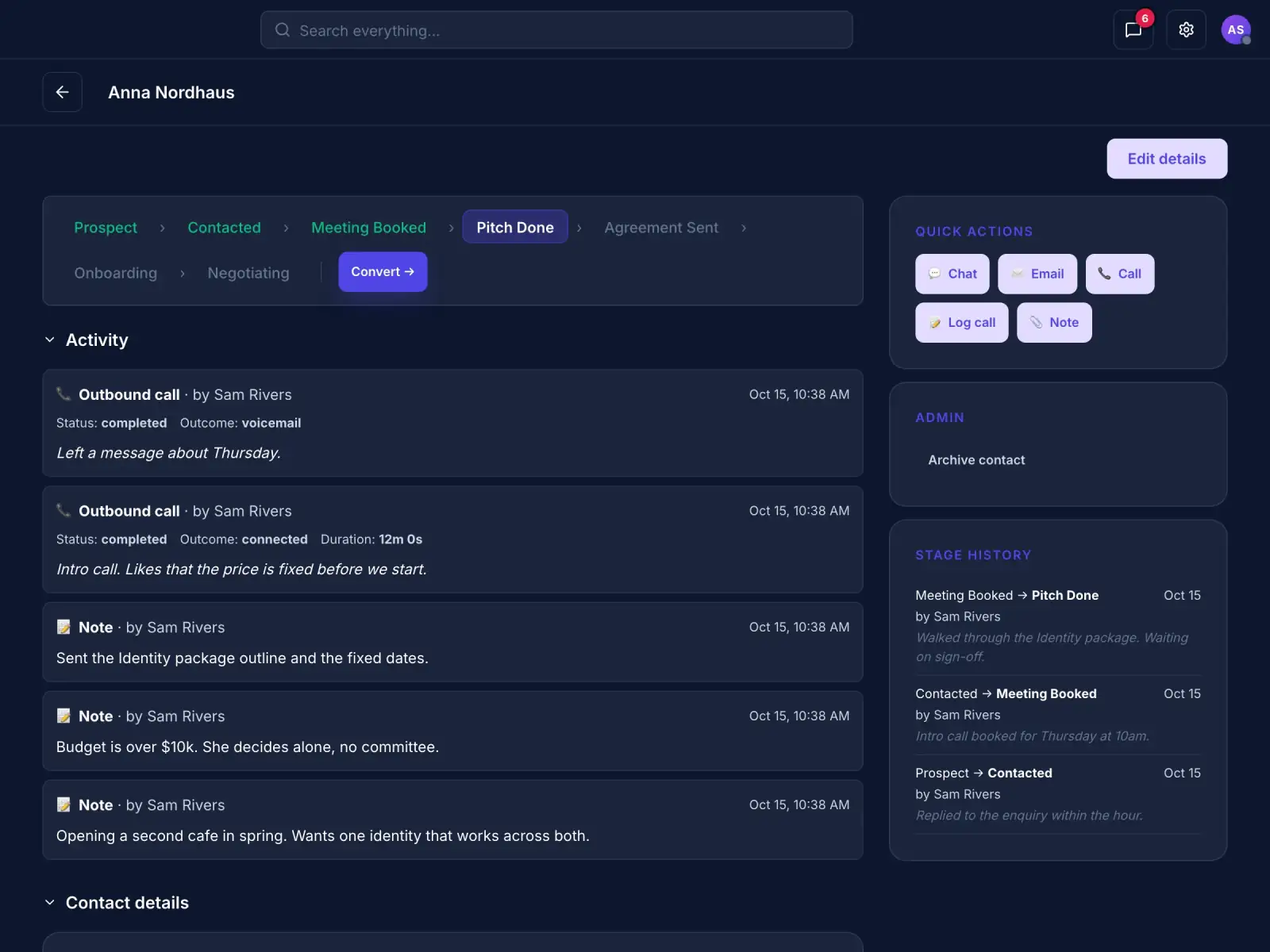
A client page with stages, activity and stage history
Calls, notes and stage changes all on the client's page.Open it before a call and you're caught up.Contact details and the stage history sit alongside.
The whole history in one place
02
StagesYour pipeline on one board.
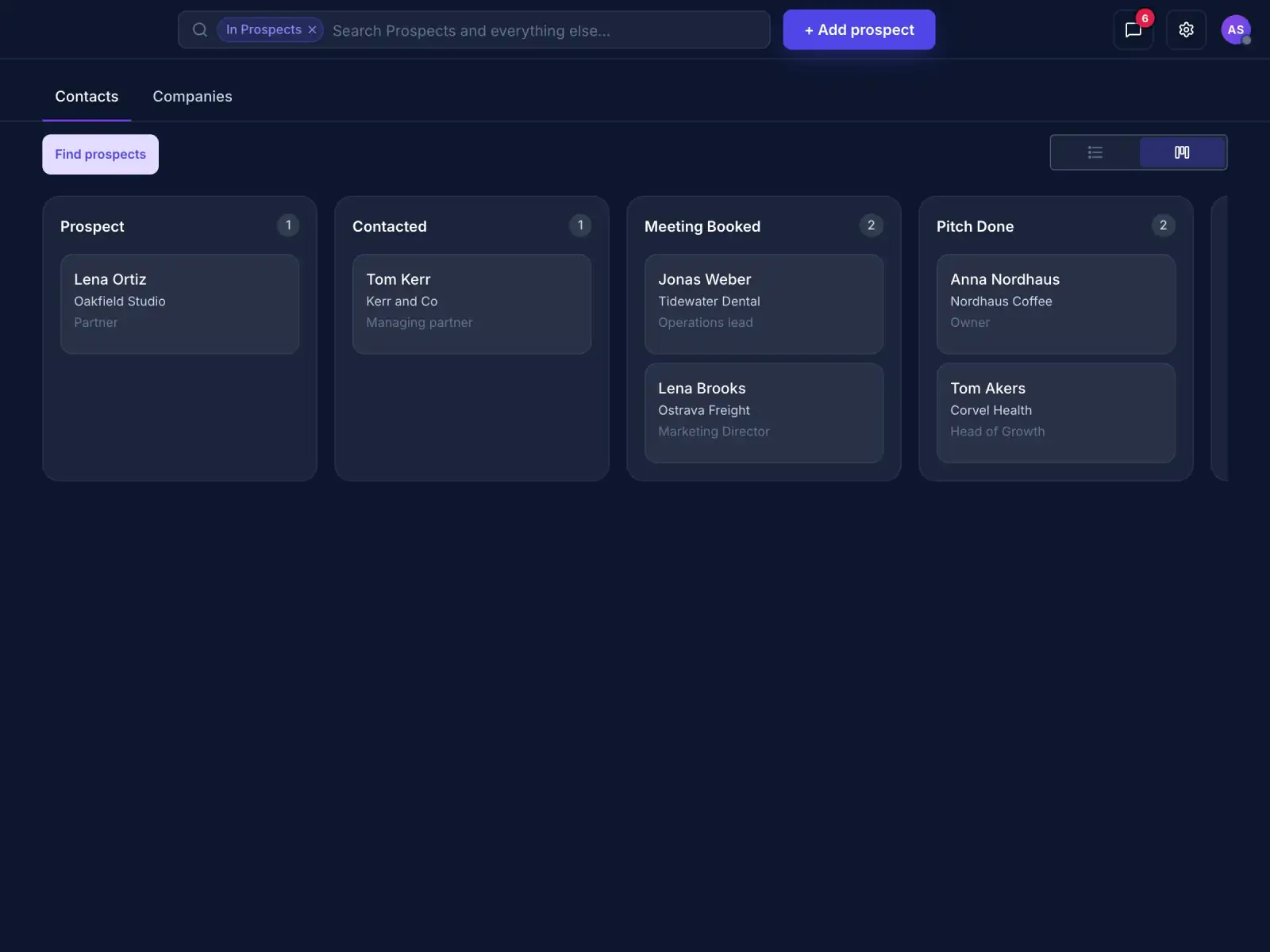
A board of clients grouped by stage
Move a client through your own stages.See every client's stage on one board.Each move records who made it and why.
Every move is recorded
03
Quick actionsChat, email, call and log.
Quick actions for chat, email, call and notes on a client page
Start a chat, email or call from the client's page.Calls and notes land on the same timeline.Made a call yourself? Log it with an outcome and a note.
Calls and notes on one timeline
04
Contact detailsTitle, location, industry.
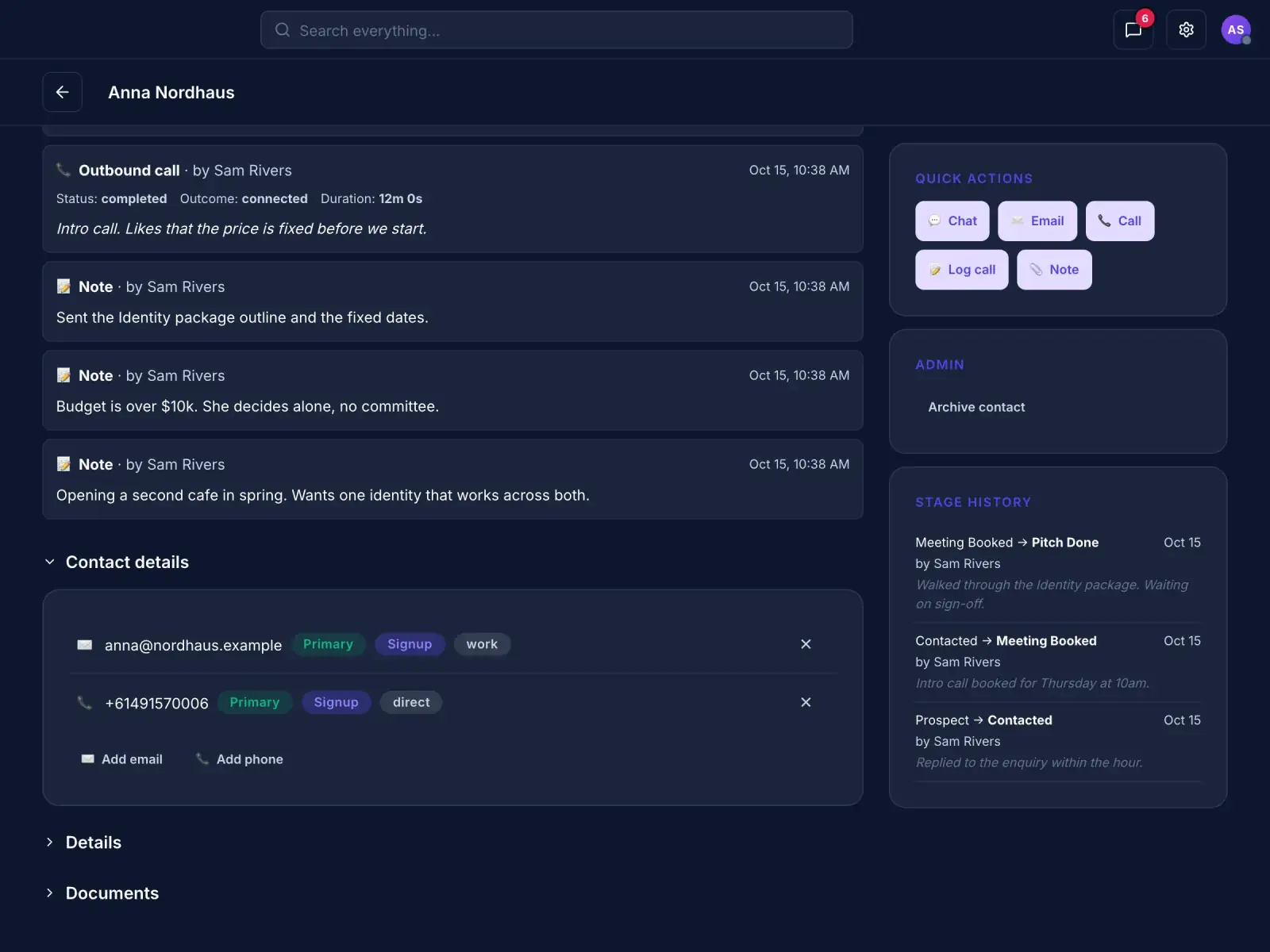
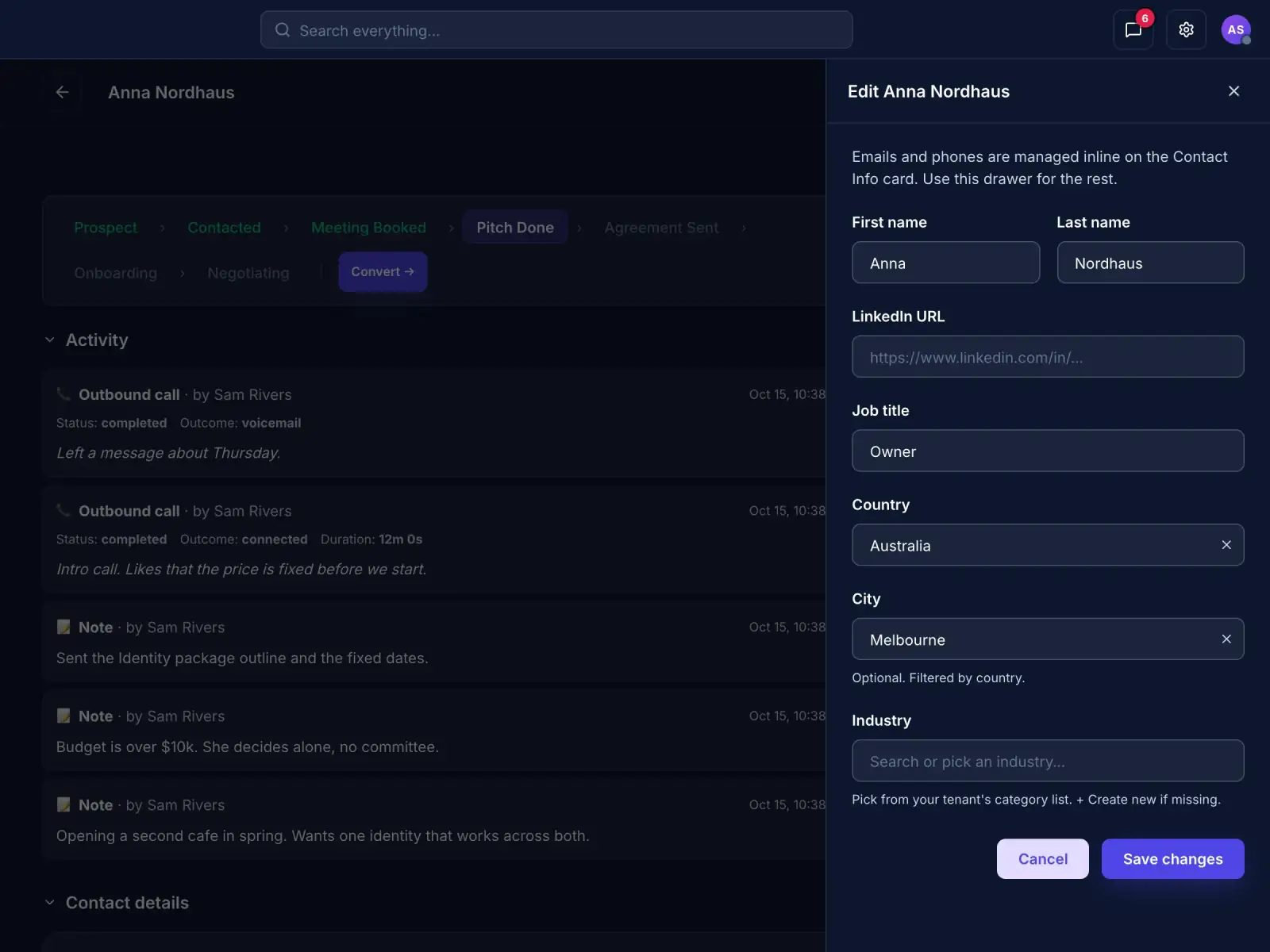
The edit panel for a client's job title, location and industry
Add what you learn as you learn it.Job title, location, industry and LinkedIn.Emails and phone numbers sit on the contact card.
Details added as you learn them
05
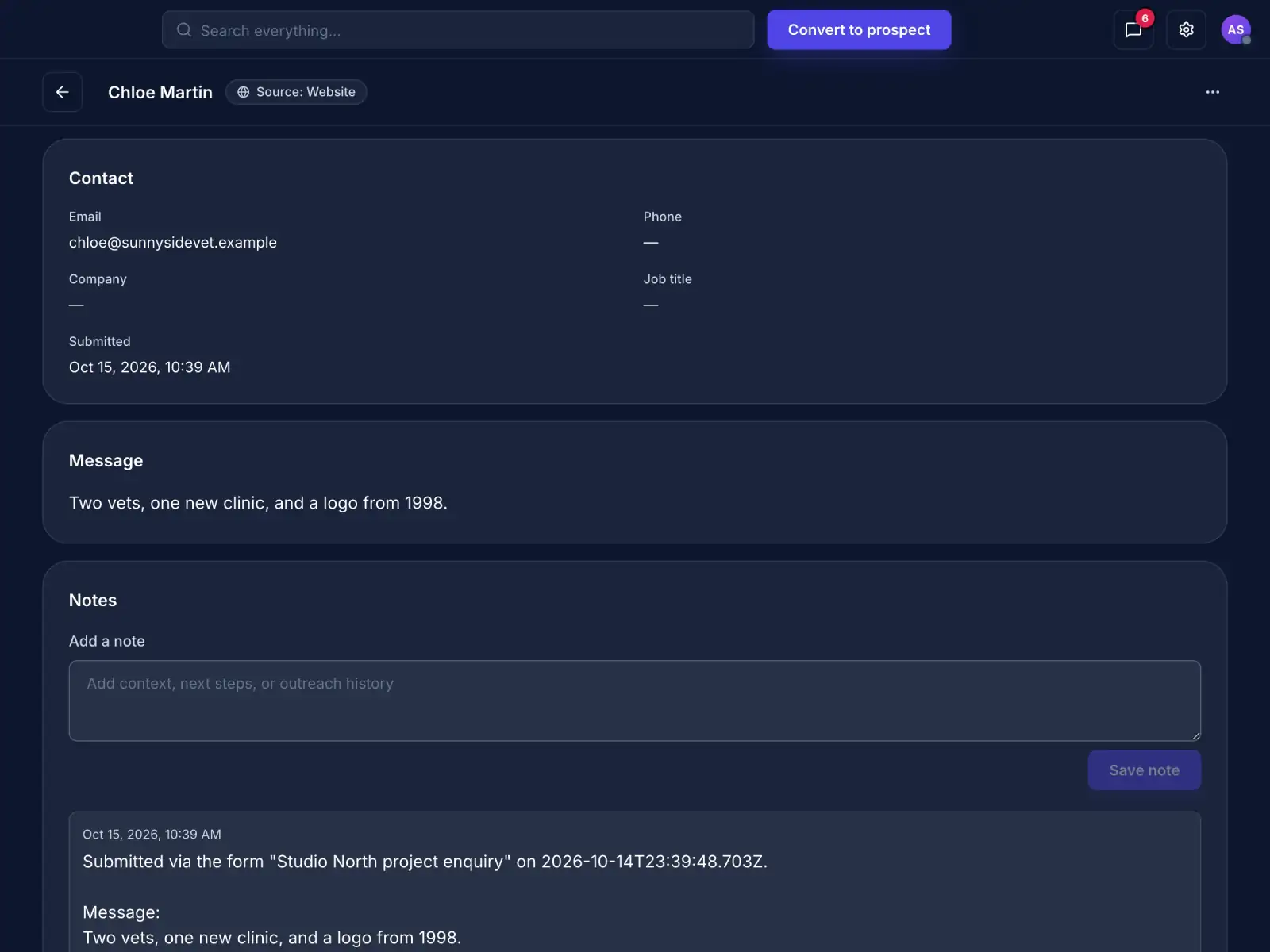
Inbound leadsEnquiries from your forms.
An inbound lead with its message and a Convert to prospect button
Every form enquiry arrives as a lead.Each lead keeps the message and the form it came from.Convert it to a prospect when it's worth chasing.
Each enquiry becomes a lead
CRM

One record per client, with the full history.

Adds contactsLogs notesMoves stagesFills in the gaps
Discover CRM
04 · Win work

Booking one call takes six emails.

Meet. Share one link and people book a time that suits you. Each meeting is saved against the client.

Meet

Booking pages, availability and video calls.

Scroll to watch it work.

01
Booking pageOnline booking page.
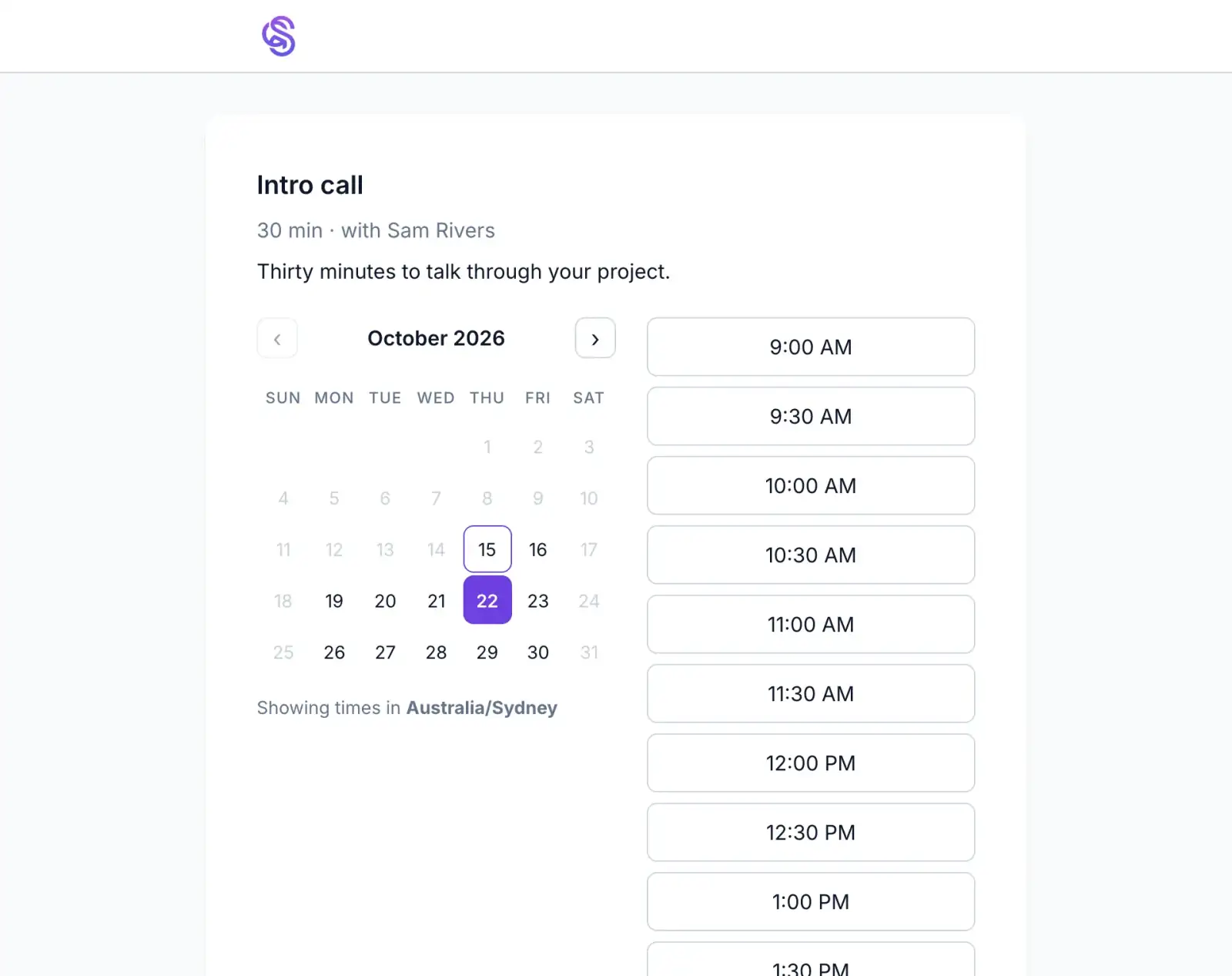
A public booking page with a calendar and open times
People book a time without the email back and forth.They see only the times you're free.Times show in their own timezone.
Booked without the emails
02
AvailabilityWorking hours and rules.
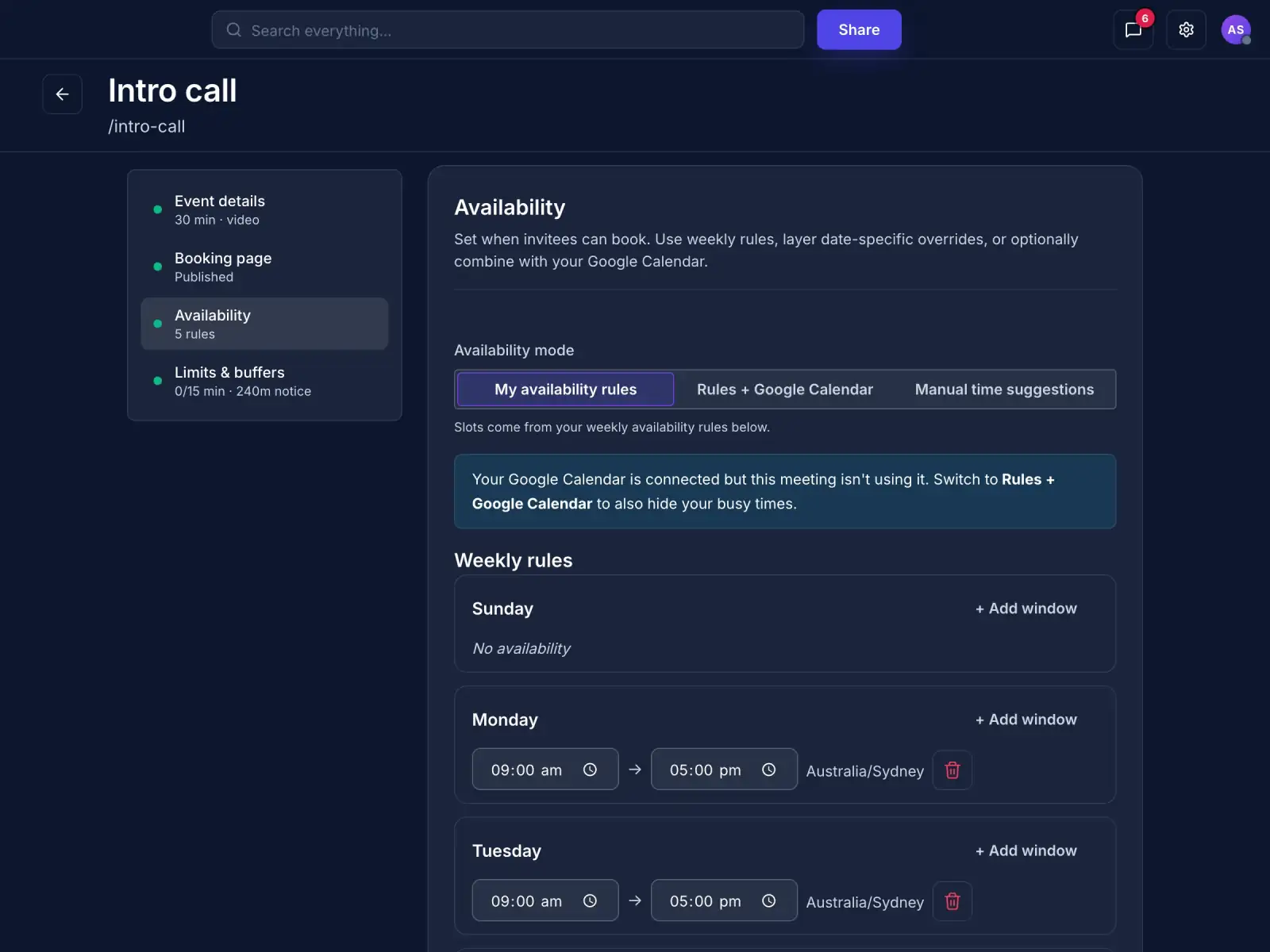
Weekly availability rules for a meeting type
Set your hours once.Weekly rules, with exceptions for particular dates.Optionally hide times you are busy on your Google calendar.
Set once, used for every booking
03
Meet nowInstant video rooms.
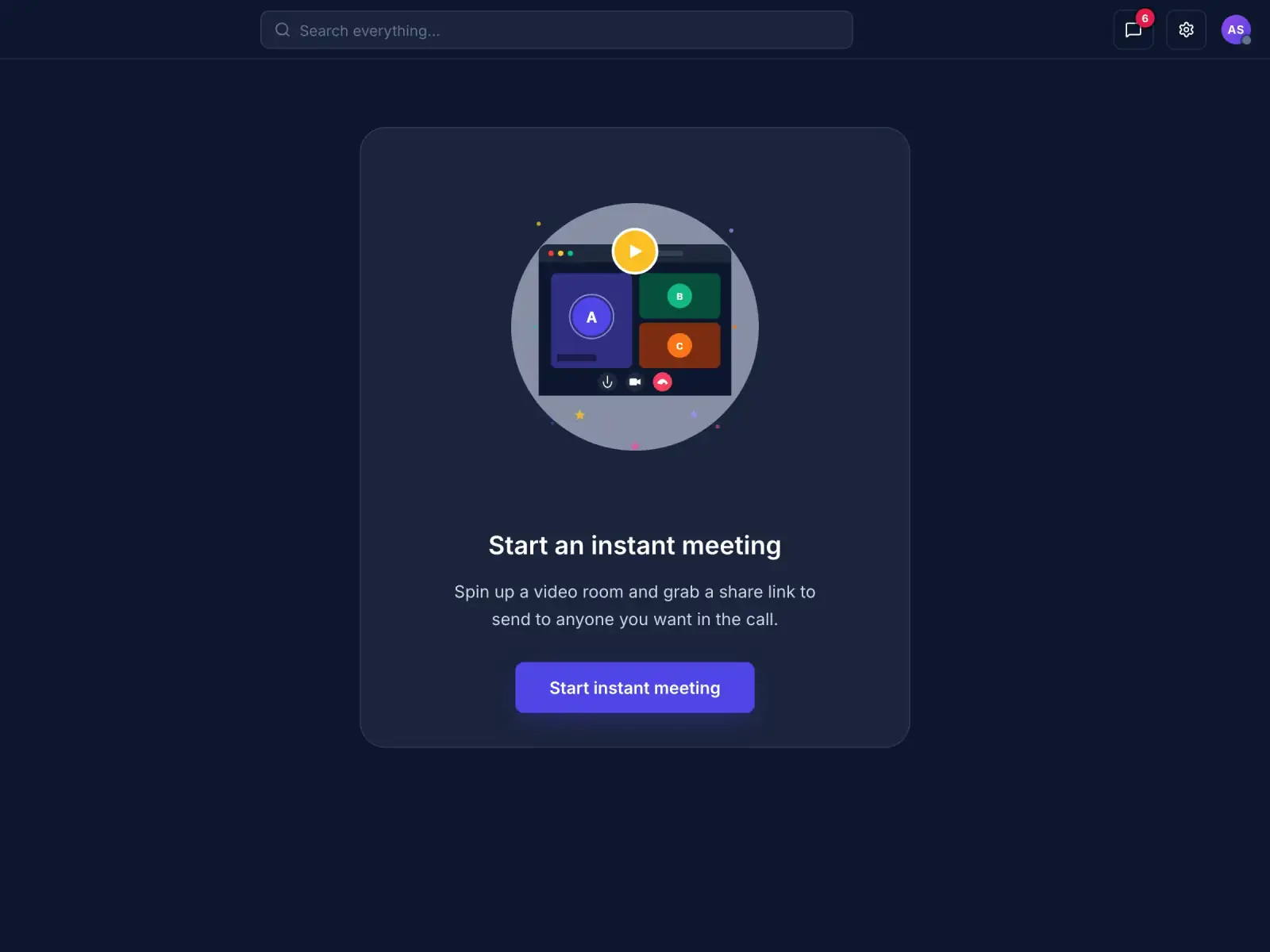
The Start instant meeting screen
Start a video call in one click.Spin up a room and share the link.Send it to anyone you want in the call.
Anyone joins from a link
04
BookingsMatched to your clients.
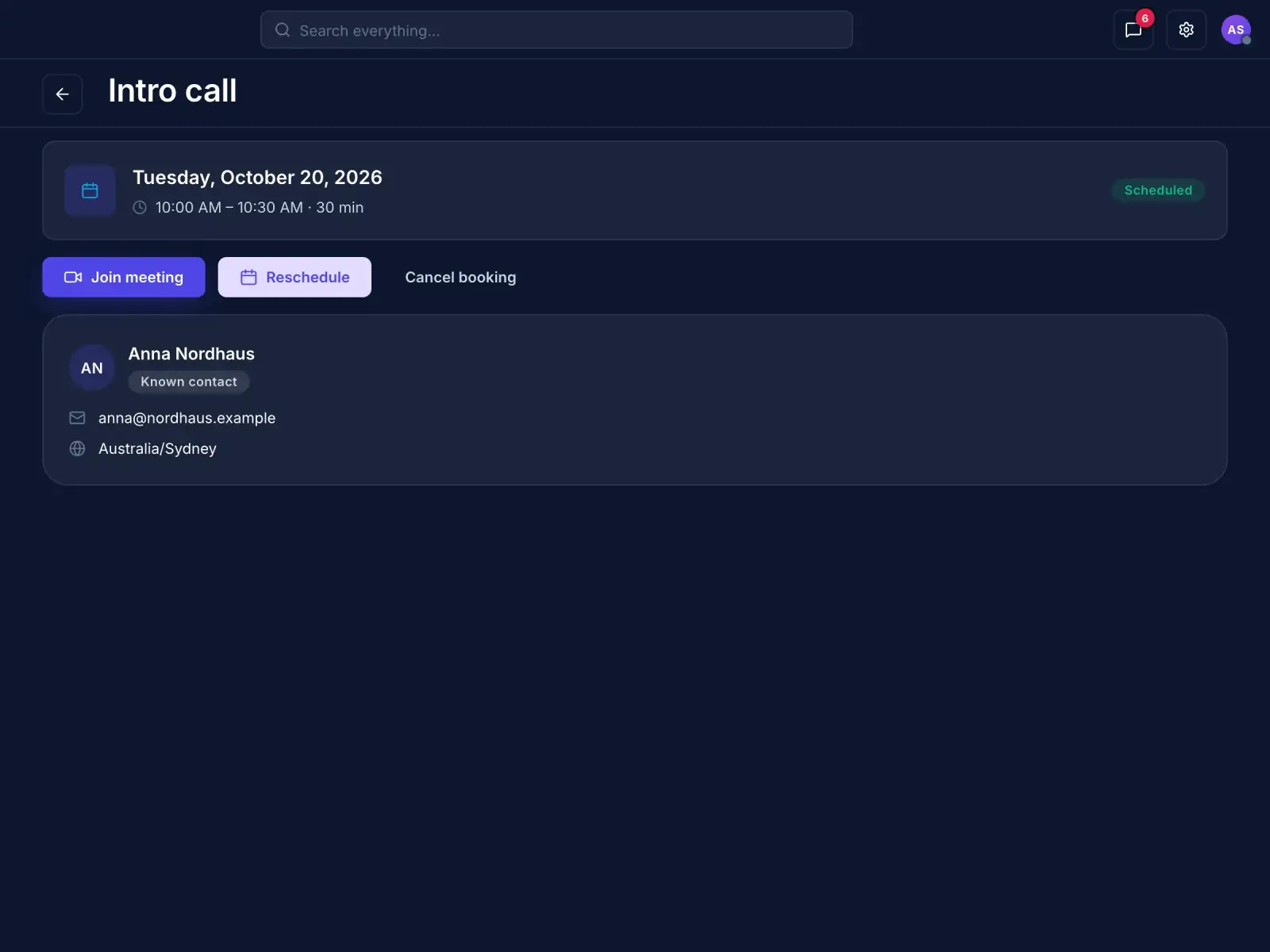
A booking showing the invitee marked as a known contact
Each booking shows who booked and when.People already in your CRM are marked as known contacts.Join, reschedule or cancel from the booking.
Saved on the client's record
05
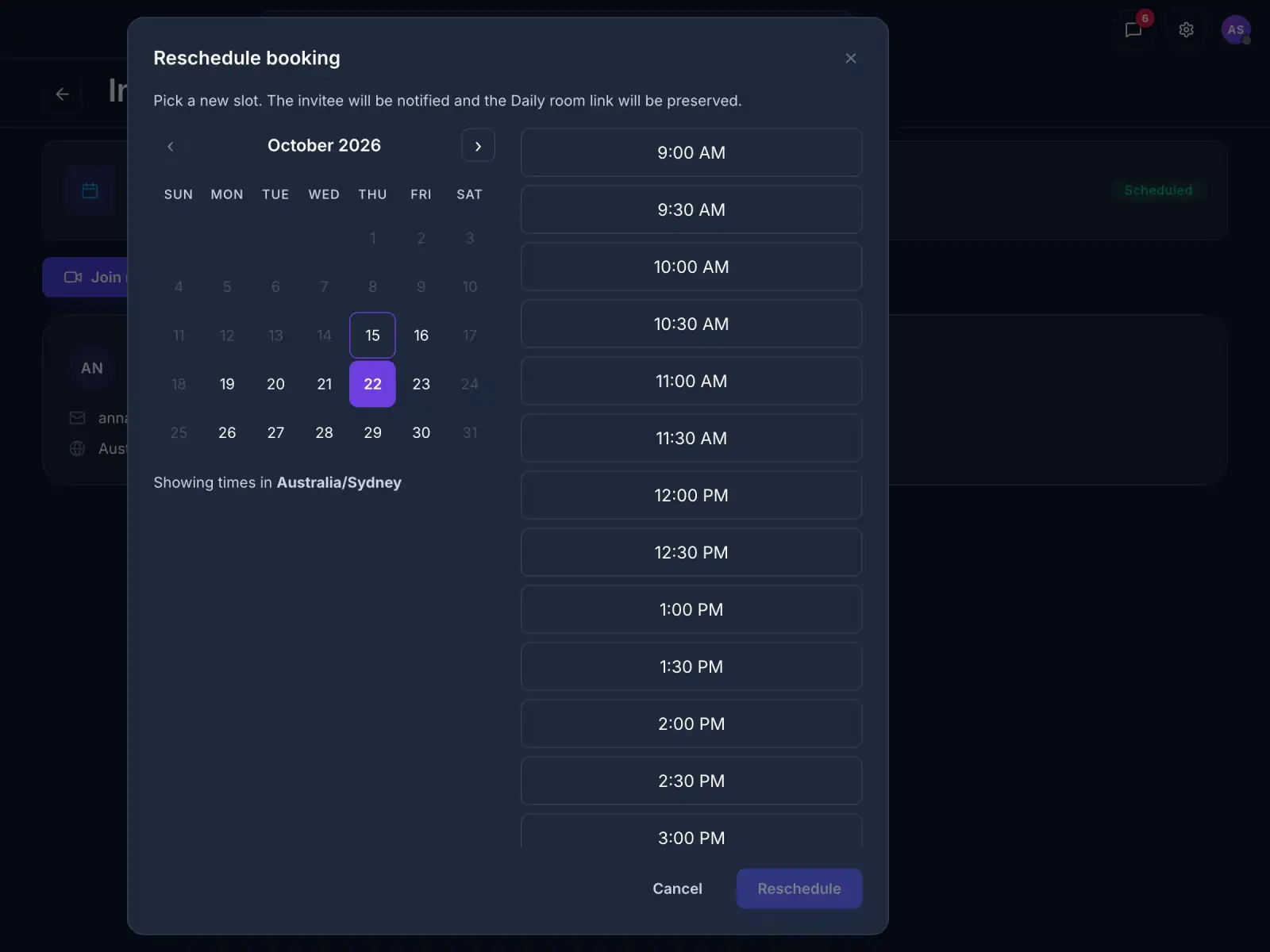
ReschedulingNew time, same link.
The reschedule panel with open times for a new date
Move a booking without losing the link.Pick a new time from your open slots.The invitee is notified.
The invitee is told
Meet

Every meeting saved on the client's record.

BooksReschedulesCancelsSets your hours
Discover Meet
05 · Win work

The deck is due and the designer is booked.

Design. Make decks, posts and ads in your brand, then record yourself presenting them.

Design

Decks, posts and ads, then record yourself presenting.

Scroll to watch it work.

01
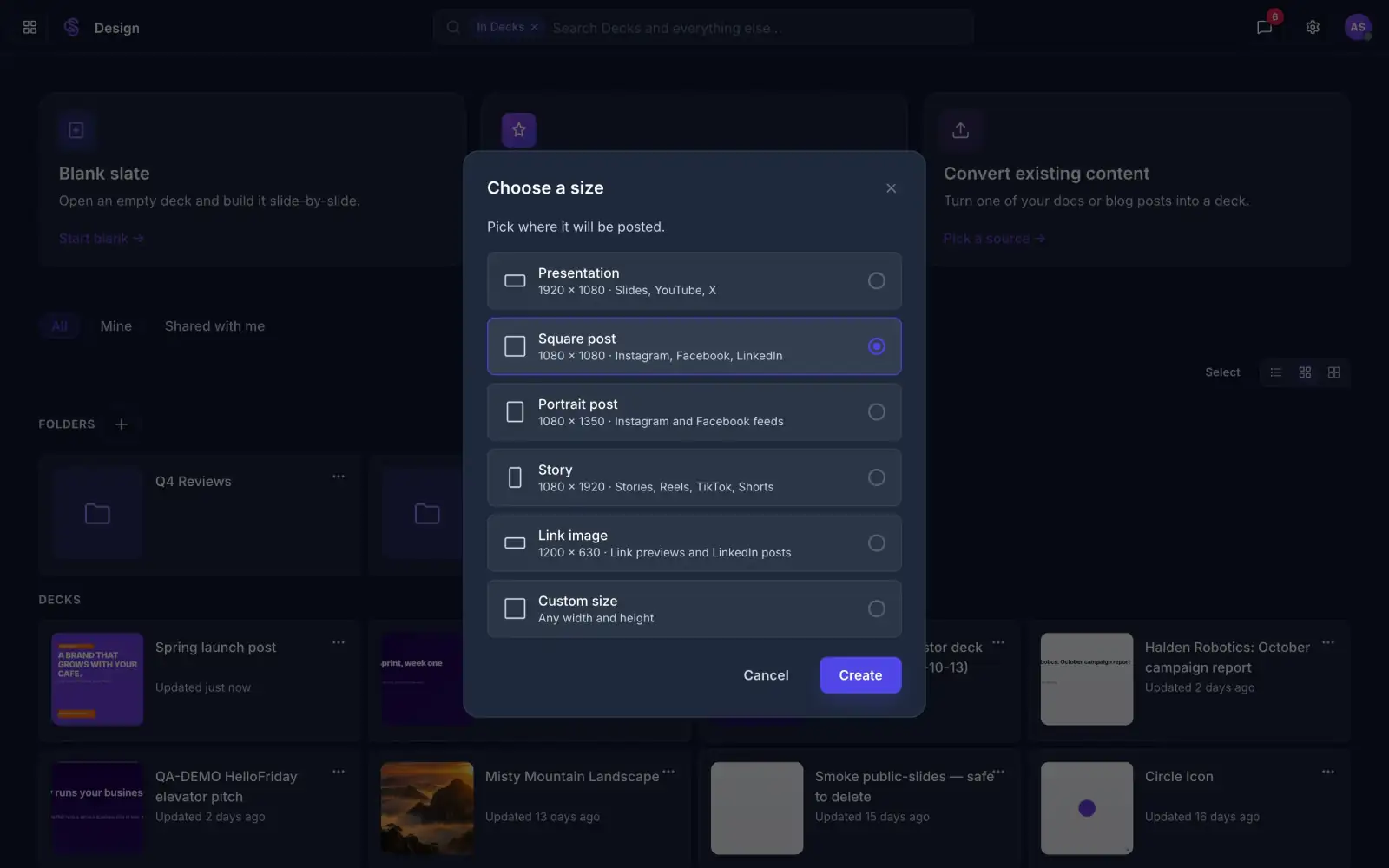
Canvas sizesSlides, posts, stories, ads.
Canvas sizes
Design for any size you need.Presentation, square, portrait, story and link image.Or set your own width and height.
Any size, ready to use
02
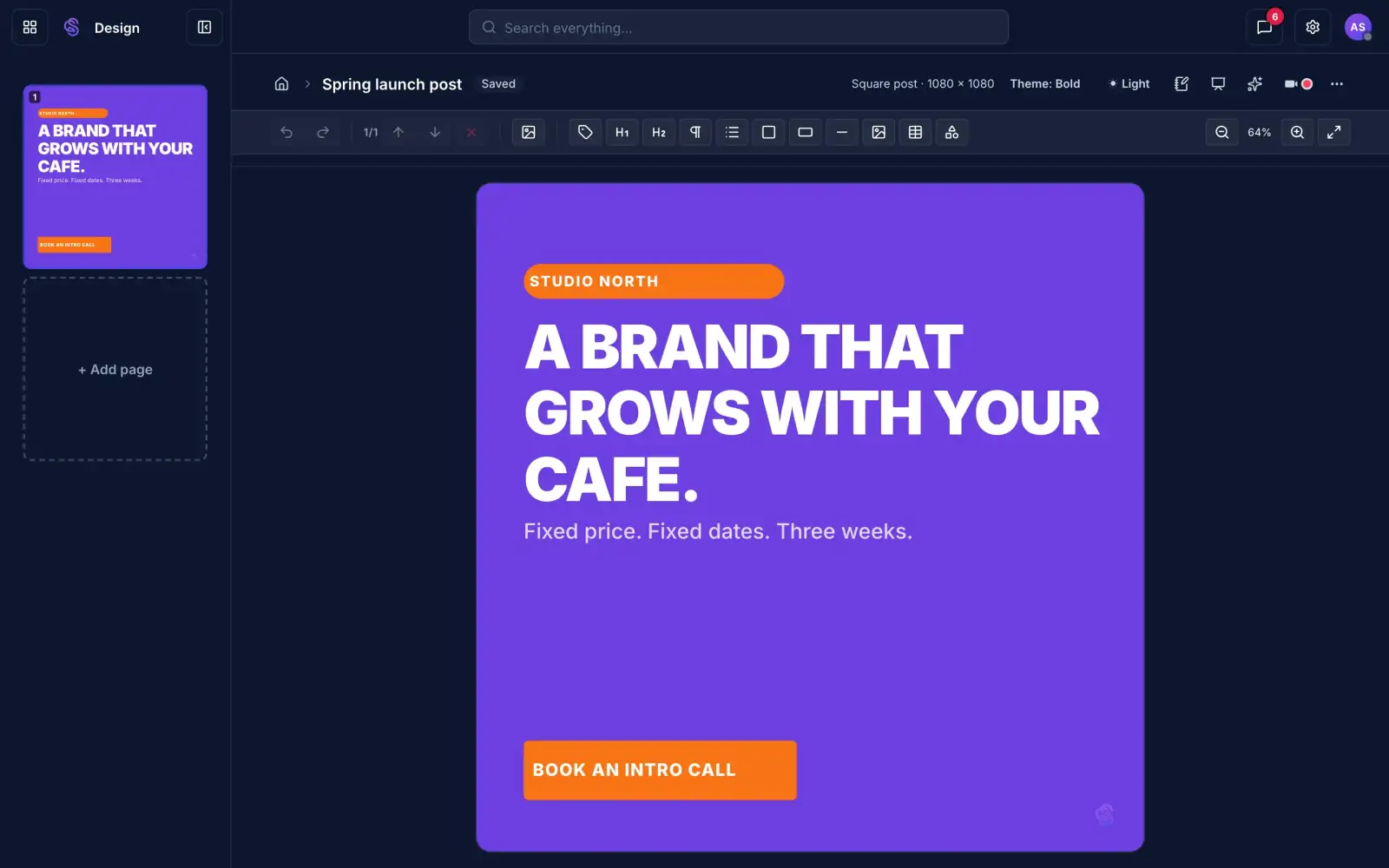
Posts and adsMade for the feed.
Posts and ads
Make a post or ad that fits the feed.Square for the grid, portrait for the feed, story for Reels.Export it as an image when it is done.
Sized for the feed
03
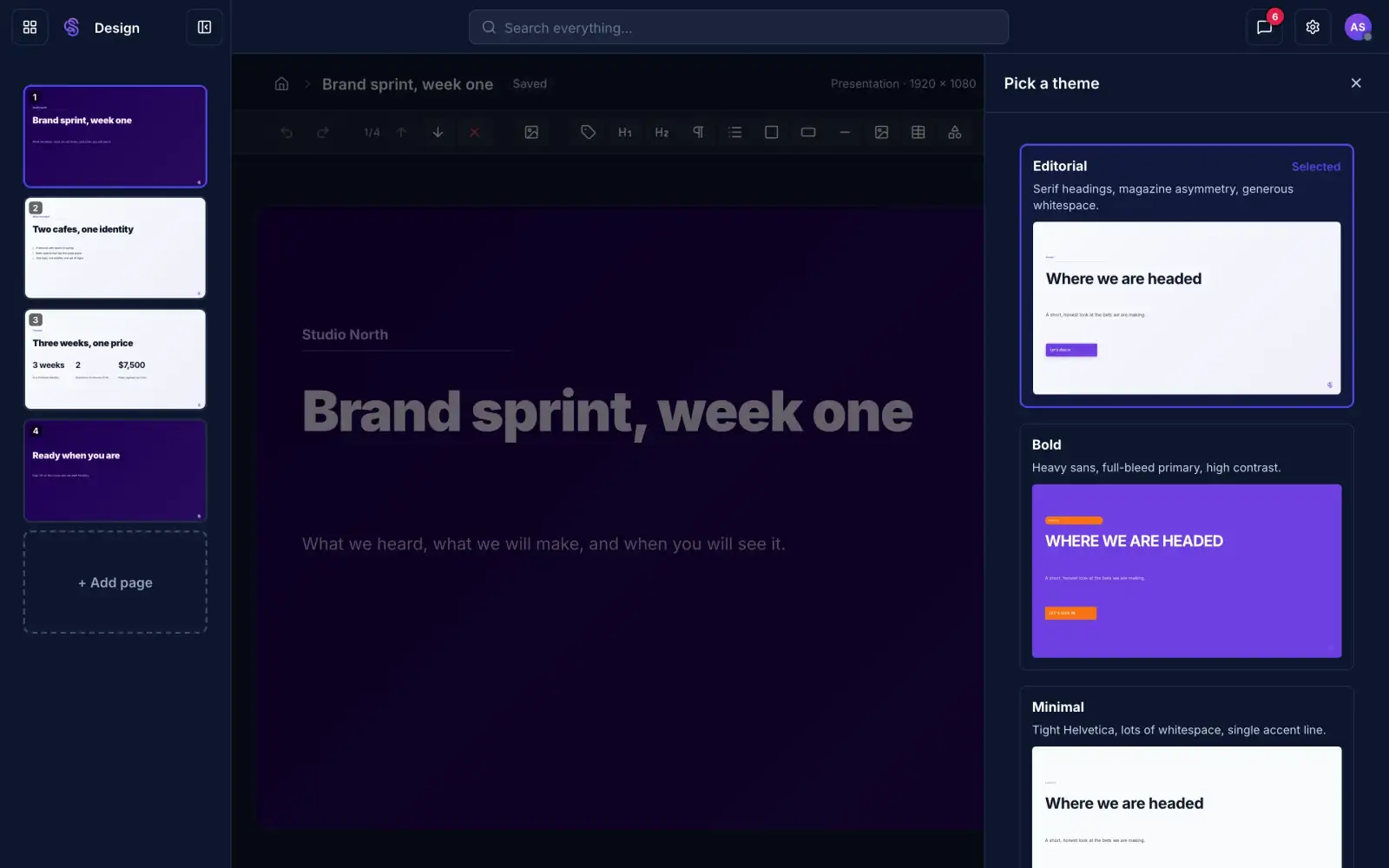
ThemesOne look for the whole design.
Themes
Change the look of every page at once.Ten themes, from editorial to playful.Pick one and everything follows.
One theme, every page
04
Record narrationTalk through your slides.
Record narration
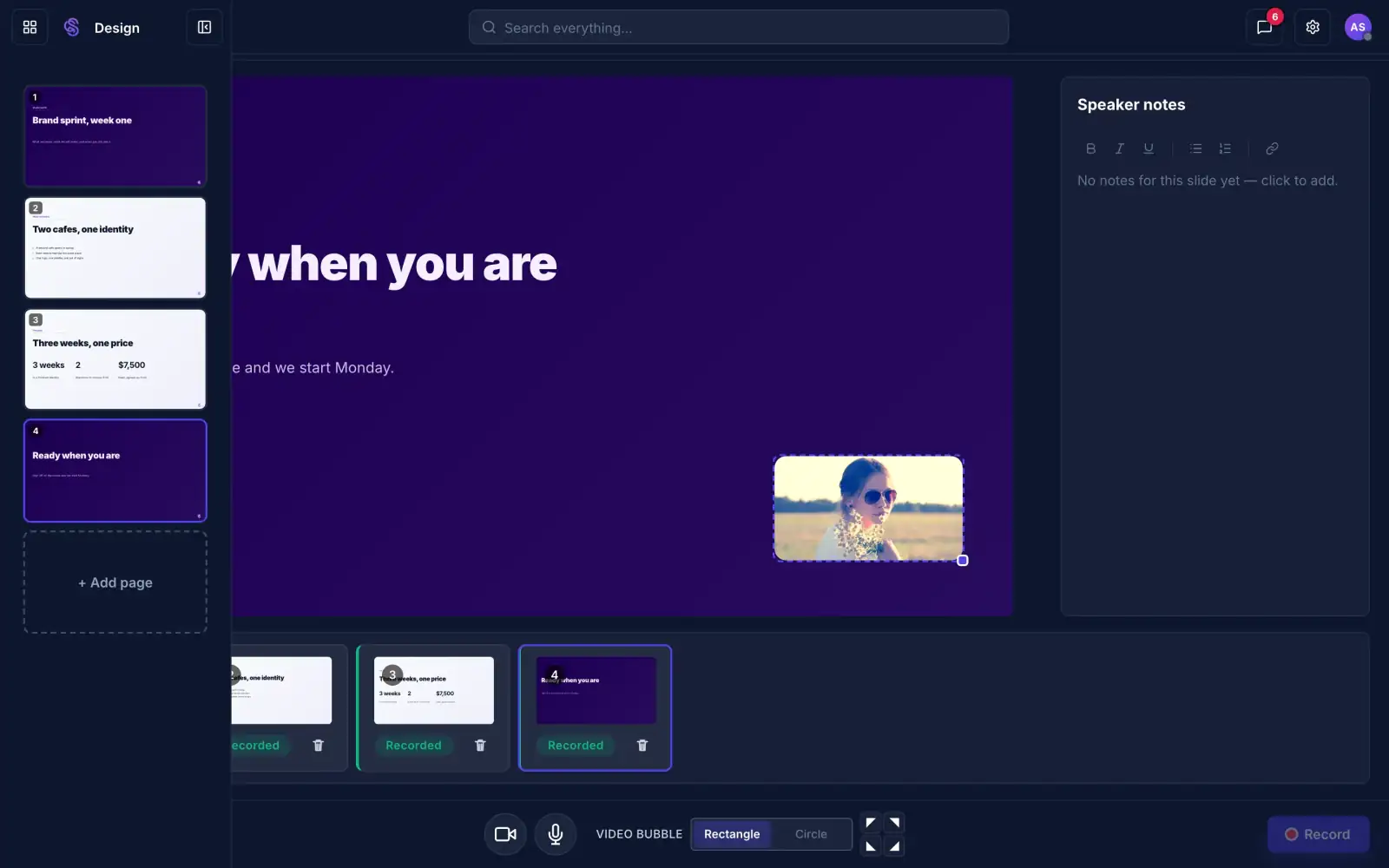
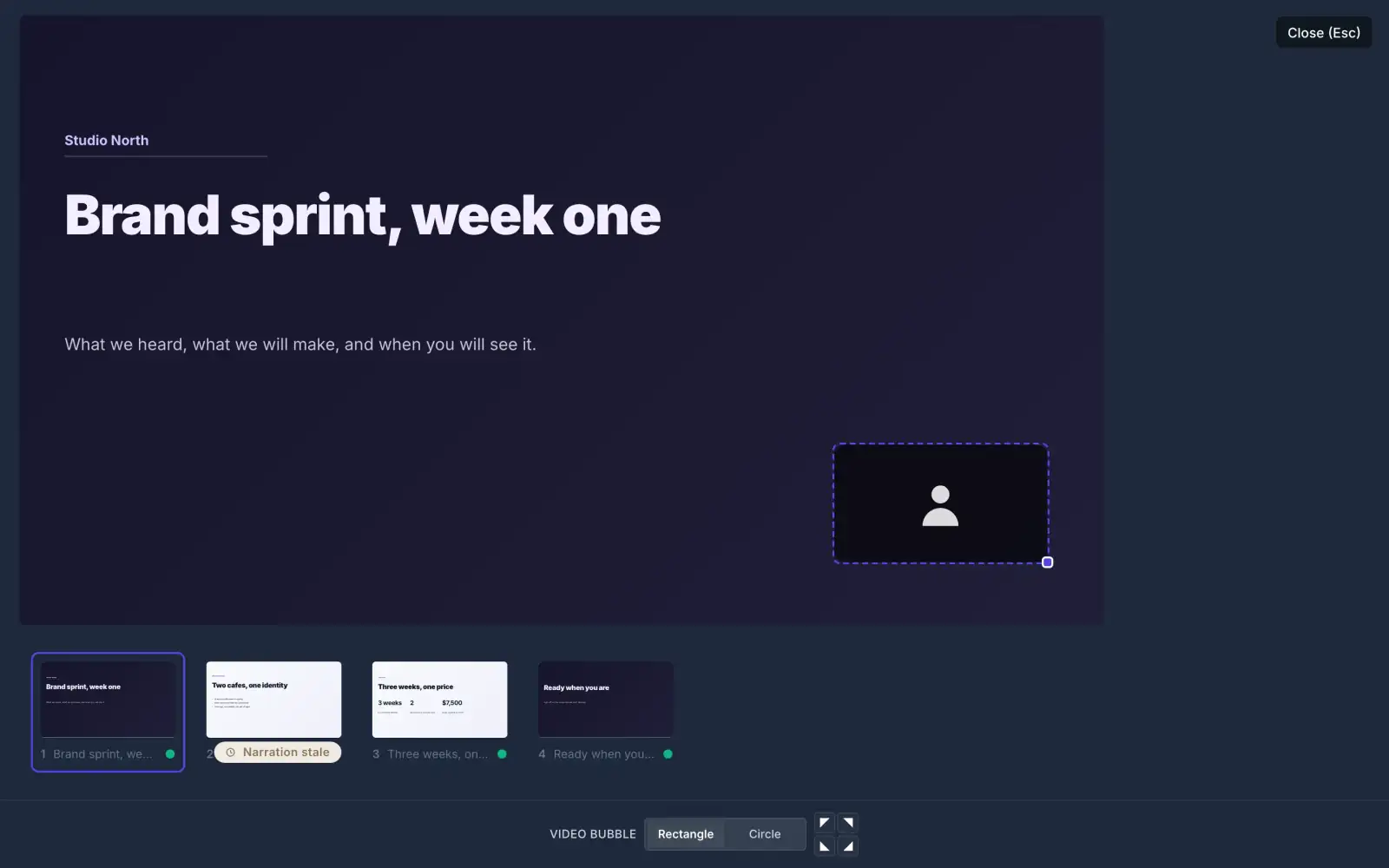
Record yourself talking through your slides.Your camera sits in a bubble on the slide.Each slide shows Recorded once you have done it.
Recorded slide by slide
05
Narration layoutWhere you appear.
Narration layout
Choose how you appear on screen.Pick a rectangle or a circle, and a corner.Set it for every slide or one at a time.
Set for all slides or one
06
Narration previewWatch it back.
Narration preview
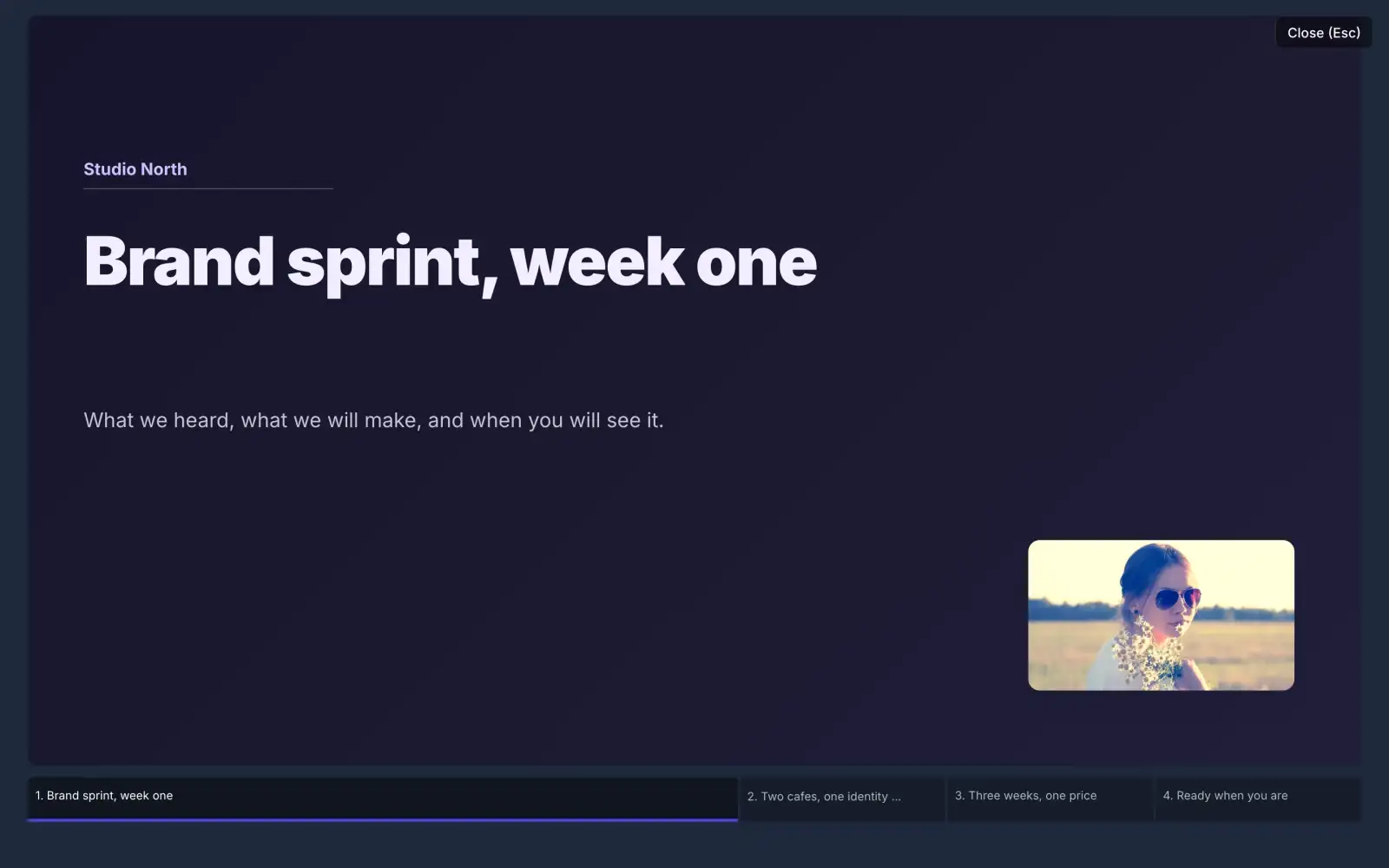
Watch your narrated slides before you share them.Your recording plays with the slides.Re-record any slide that needs another go.
Re-record any slide
07
Export and shareLink, PDF or image.
Export and share
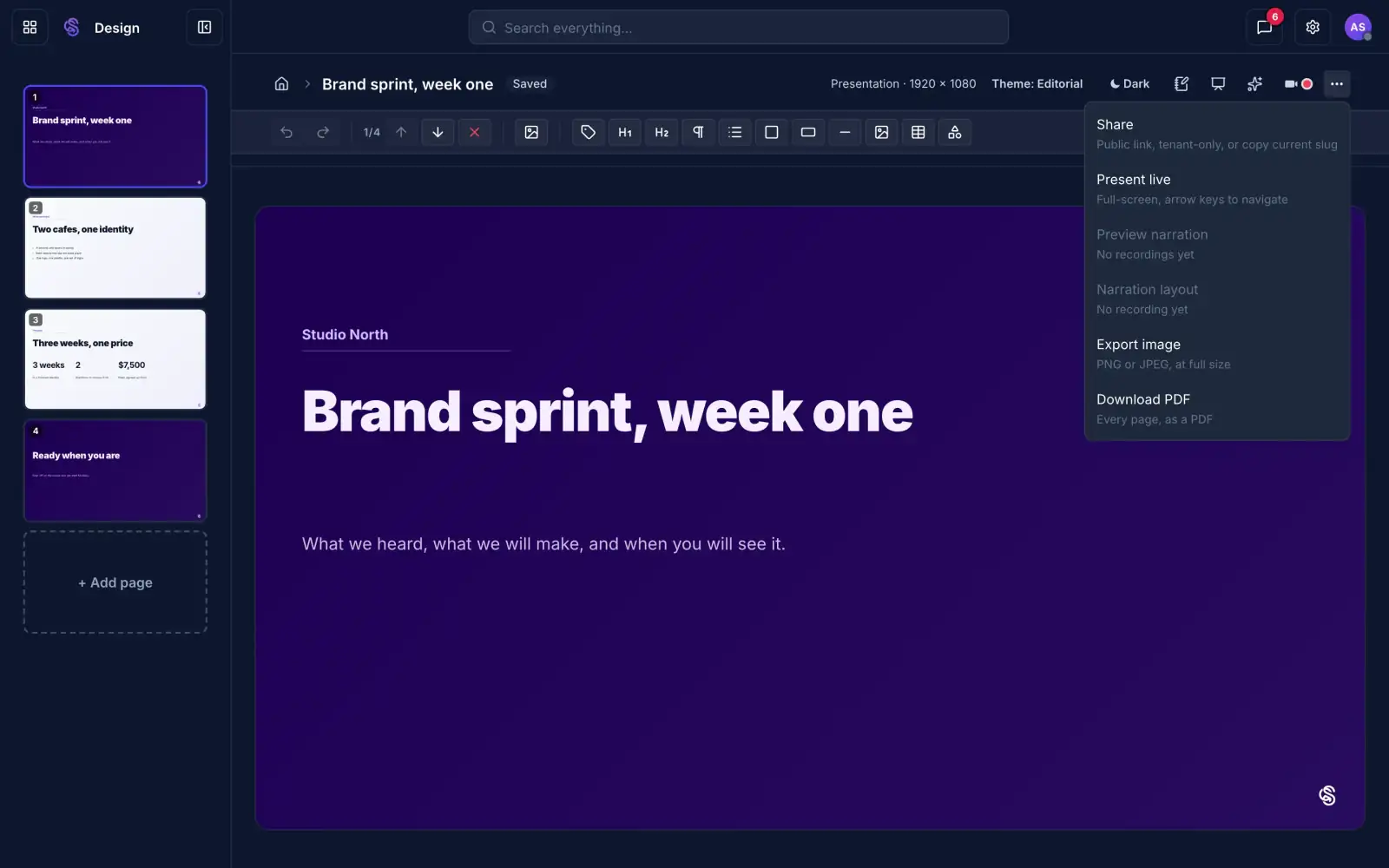
Send it as a link, a PDF or an image.Present live in full screen.Share with a public link, or only with your team.
Saved to Files
Design

Decks, posts and ads in your brand.

Builds designsSets themesWrites copyExports
06 · Get paid

Every proposal starts from a blank page.

Documents. Write proposals and agreements from a short description, review them with comments and send them for signature.

Documents

Draft, review and sign in one place.

Scroll to watch it work.

01
Ask Friday to draftDescribe the page.
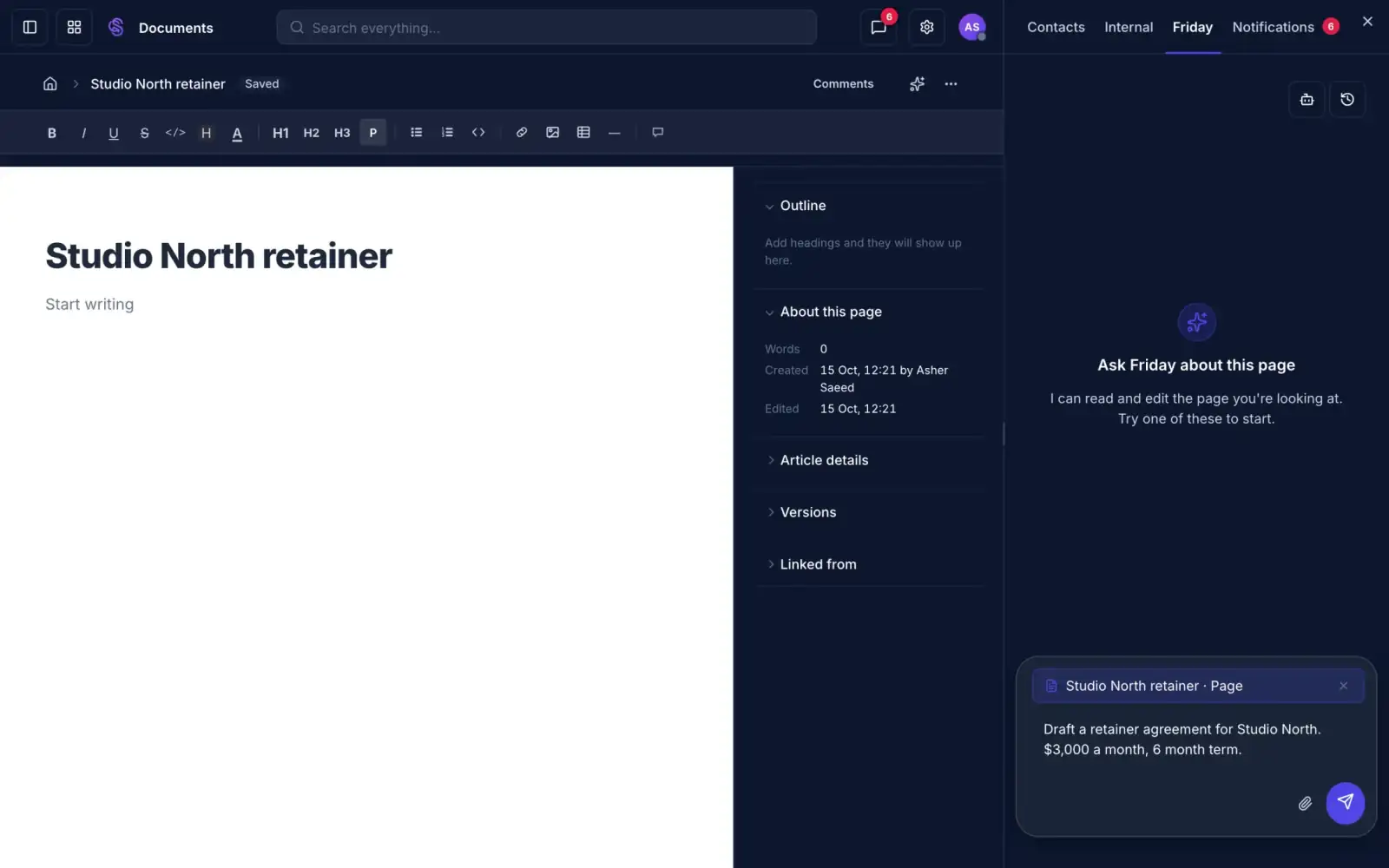
A blank page with the Ask Friday panel and a drafting request typed in
Describe the page. Friday writes the first draft.A proposal, a brief or an agreement, in your own words.Edit anything before it goes anywhere.
A first draft from your description
02
EditorOne place to write it.
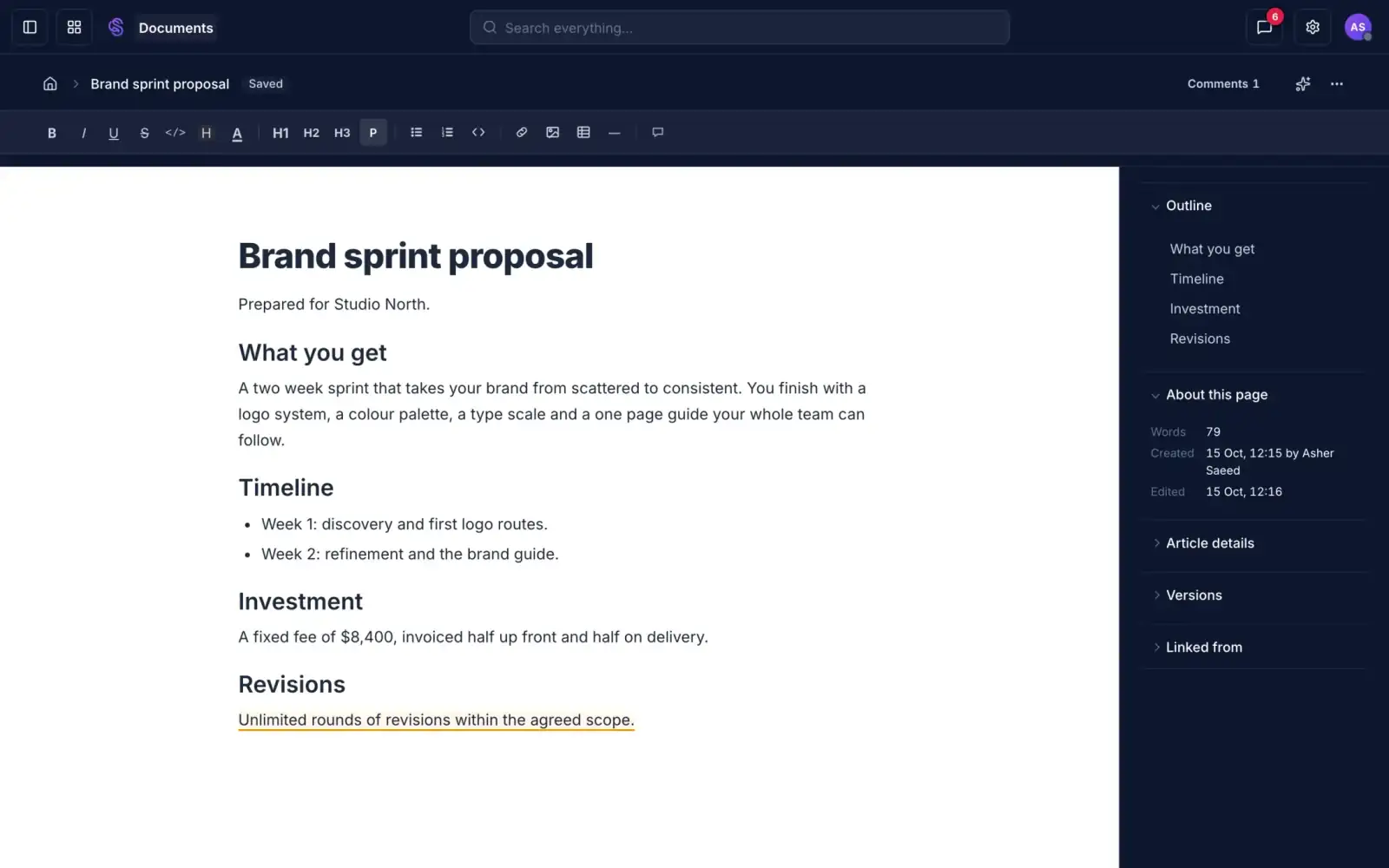
A proposal open in the Documents editor with its outline
Write the proposal once, in one place.Headings, tables and images.The outline updates as you write.
Everything in one editor
03
Review statusDraft, in review, finalized.
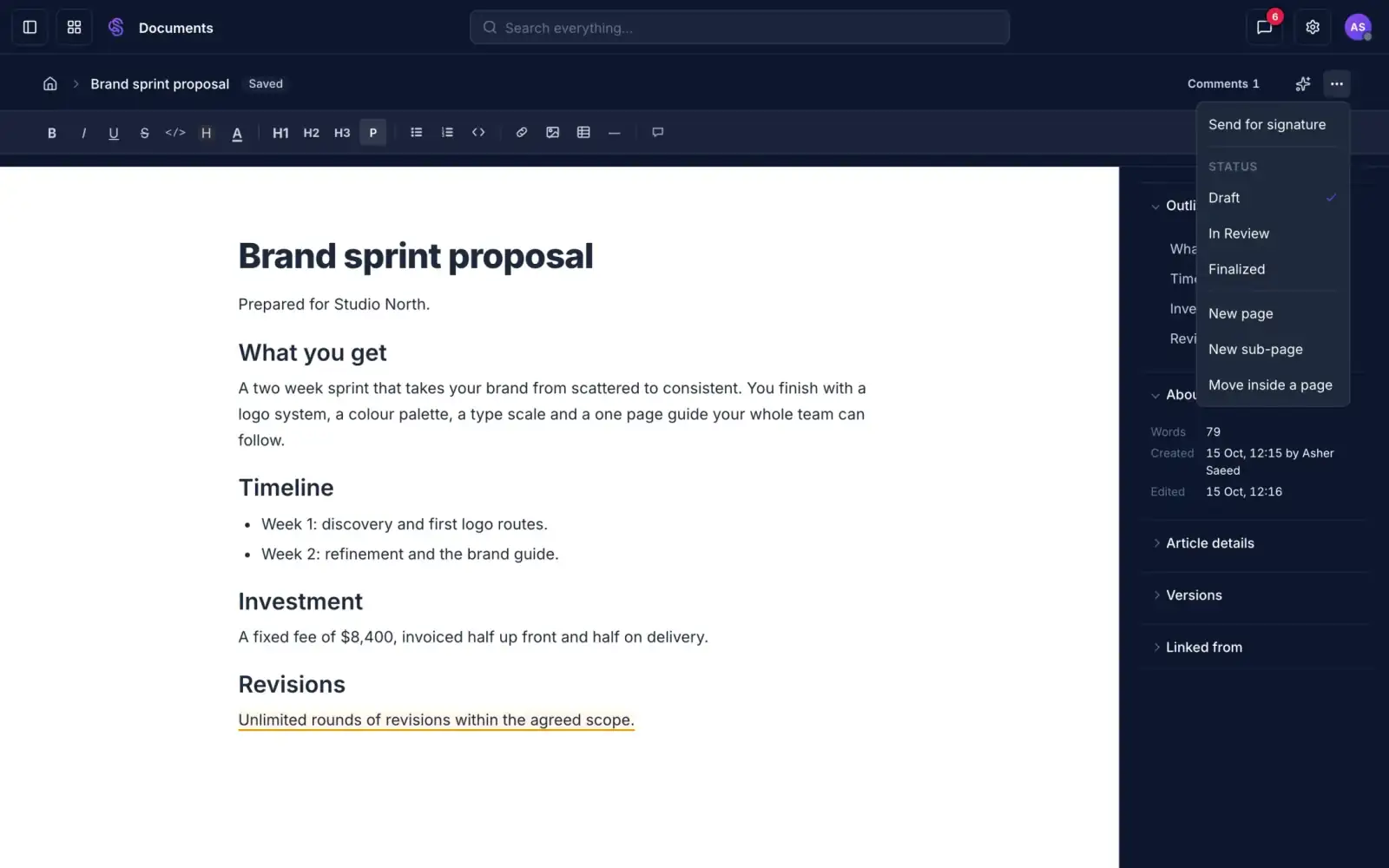
The page actions menu showing Draft, In Review and Finalized
Everyone knows which version counts.Mark a page In Review while people comment.Finalize it when it is done.
Everyone sees the status
04
CommentsFeedback beside the text.
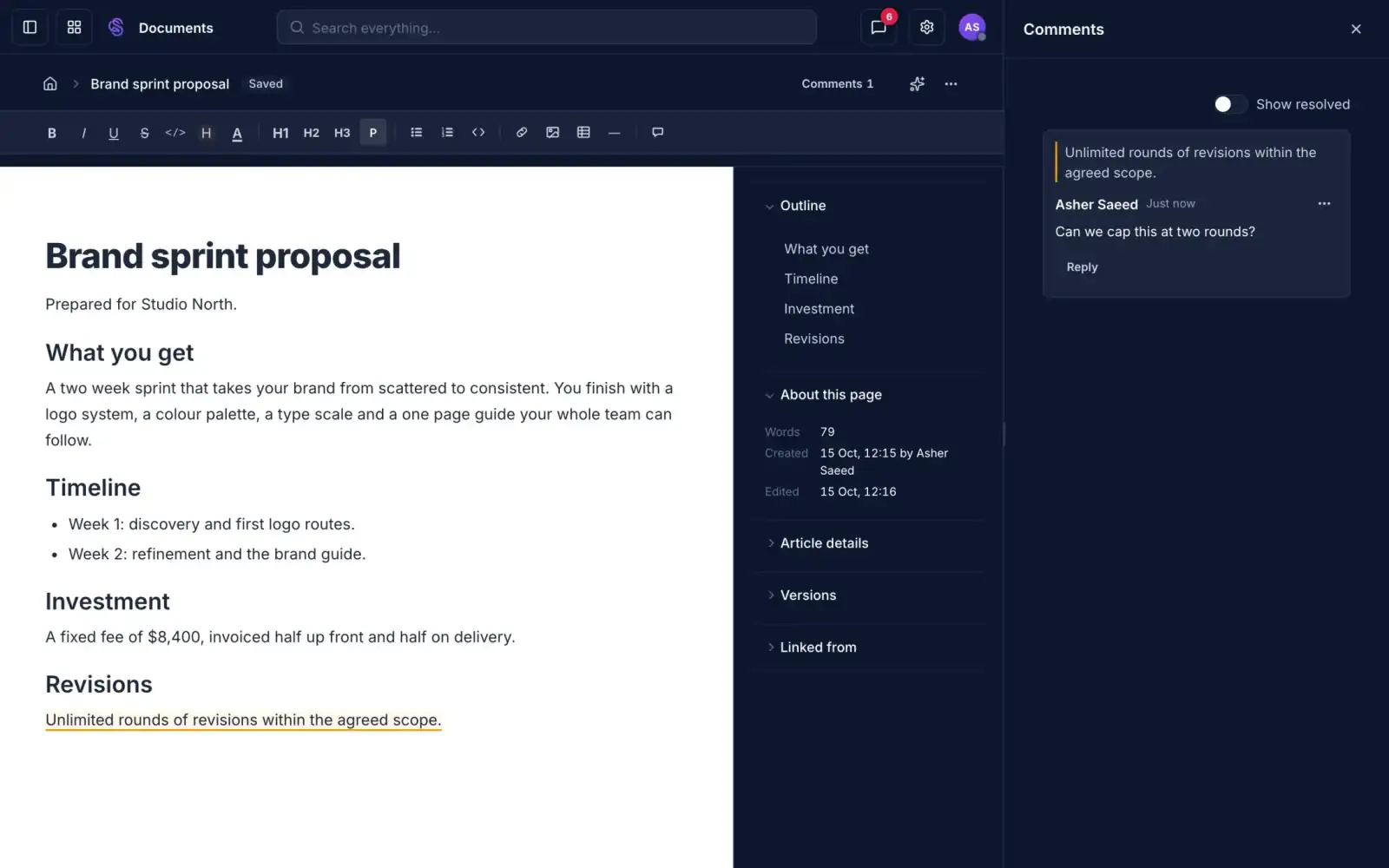
A comment thread attached to a highlighted line in a proposal
Feedback sits next to the words it is about.Comment on any passage, or mention a teammate.Resolve a thread when it is dealt with.
Feedback stays with the text
05
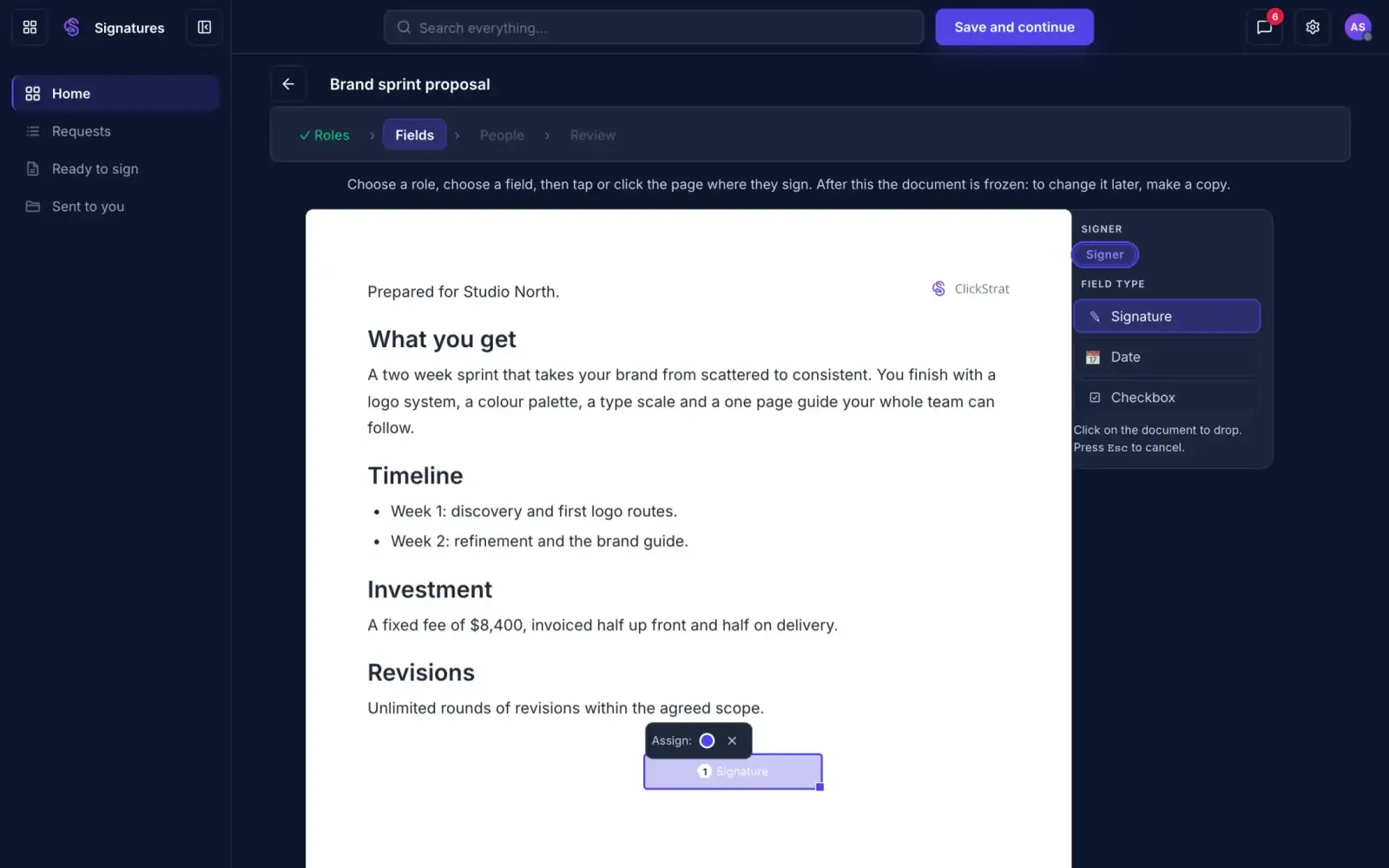
Send for signatureShow where to sign.
A signature field placed at the bottom of a proposal
Show them exactly where to sign.Place signature, date and checkbox fields on the page.Once it is sent, the page is frozen. What they sign is what you sent.
You choose who signs
Documents

From first draft to signed copy.

DraftsReviewsCommentsSends for signature
Discover Documents
07 · Get paid

The contract only gets signed if someone remembers to chase it.

Signing. Send a document for signature and see who has signed. Signers need no account.

Signing

Send, track and collect signatures.

Scroll to watch it work.

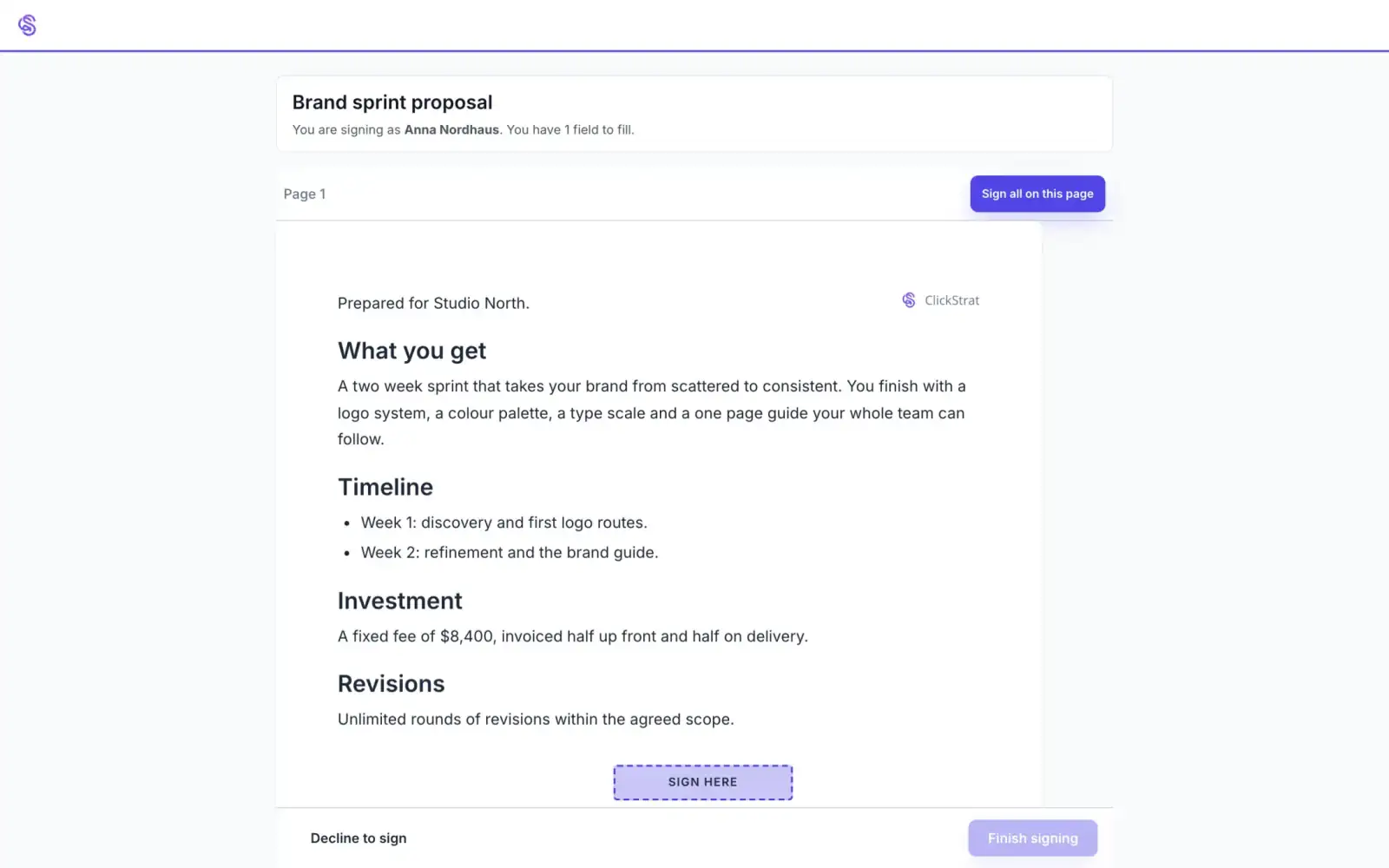
01
Signing pageWhat your signer sees.
A signer's page with the proposal and a Sign here field
Signers sign from a link. No account to make.They see your document, with your logo on it.Tap Sign here, then Finish signing.
One link, no account
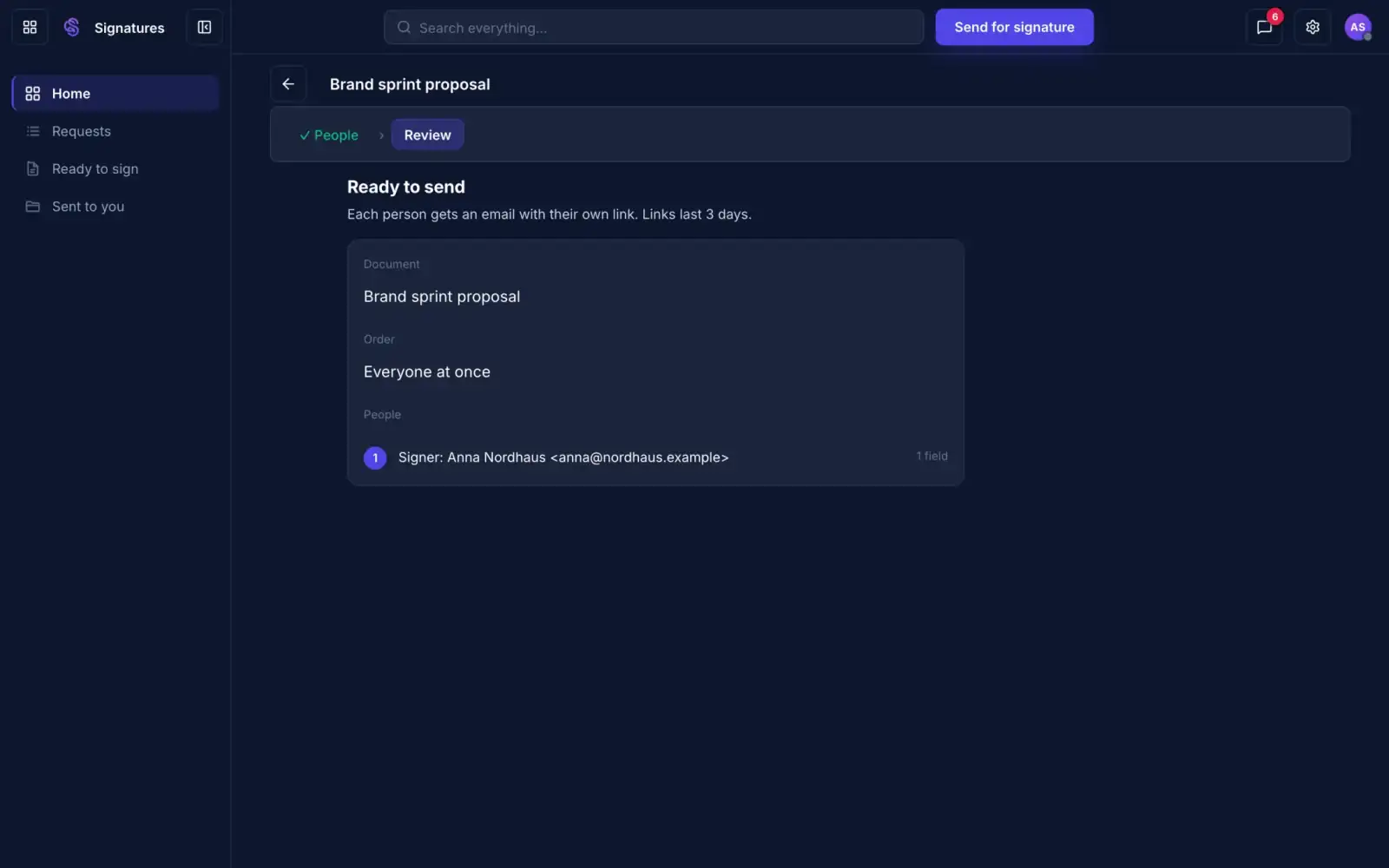
02
Send for signatureThree steps to send.
The review step before a signature request is sent
Pick the people. Send it in three steps.Roles and fields are saved with the document.Each person gets their own link, good for 3 days.
You choose who signs
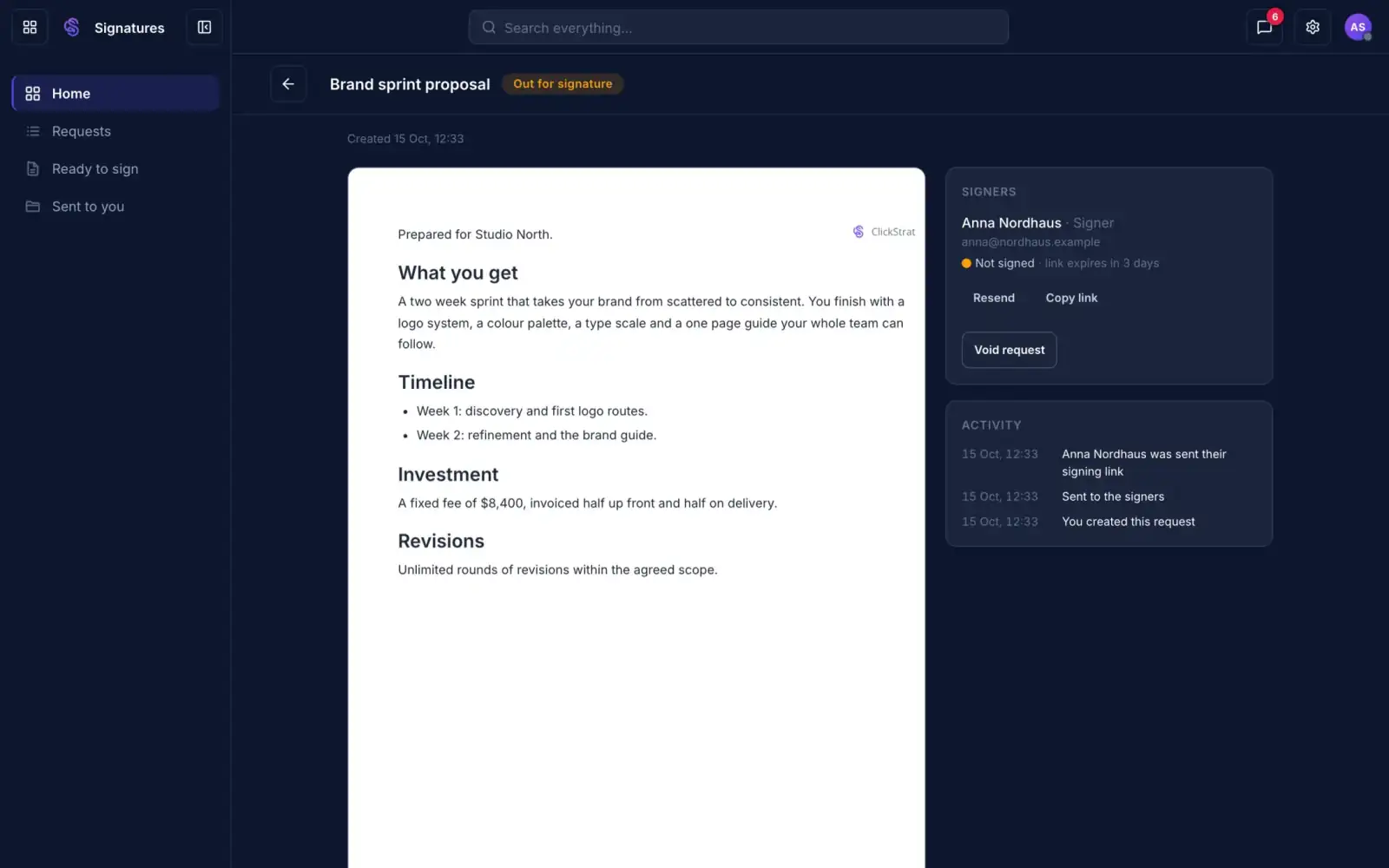
03
Request statusWho has signed, and who has not.
A request marked Out for signature with the signer and activity log
See who has signed, and who has not.Each person shows Not signed, or Signed with a time.Resend a link, or void a request, in one click.
Resend in one click
04
Signed copyEvery step on the record.
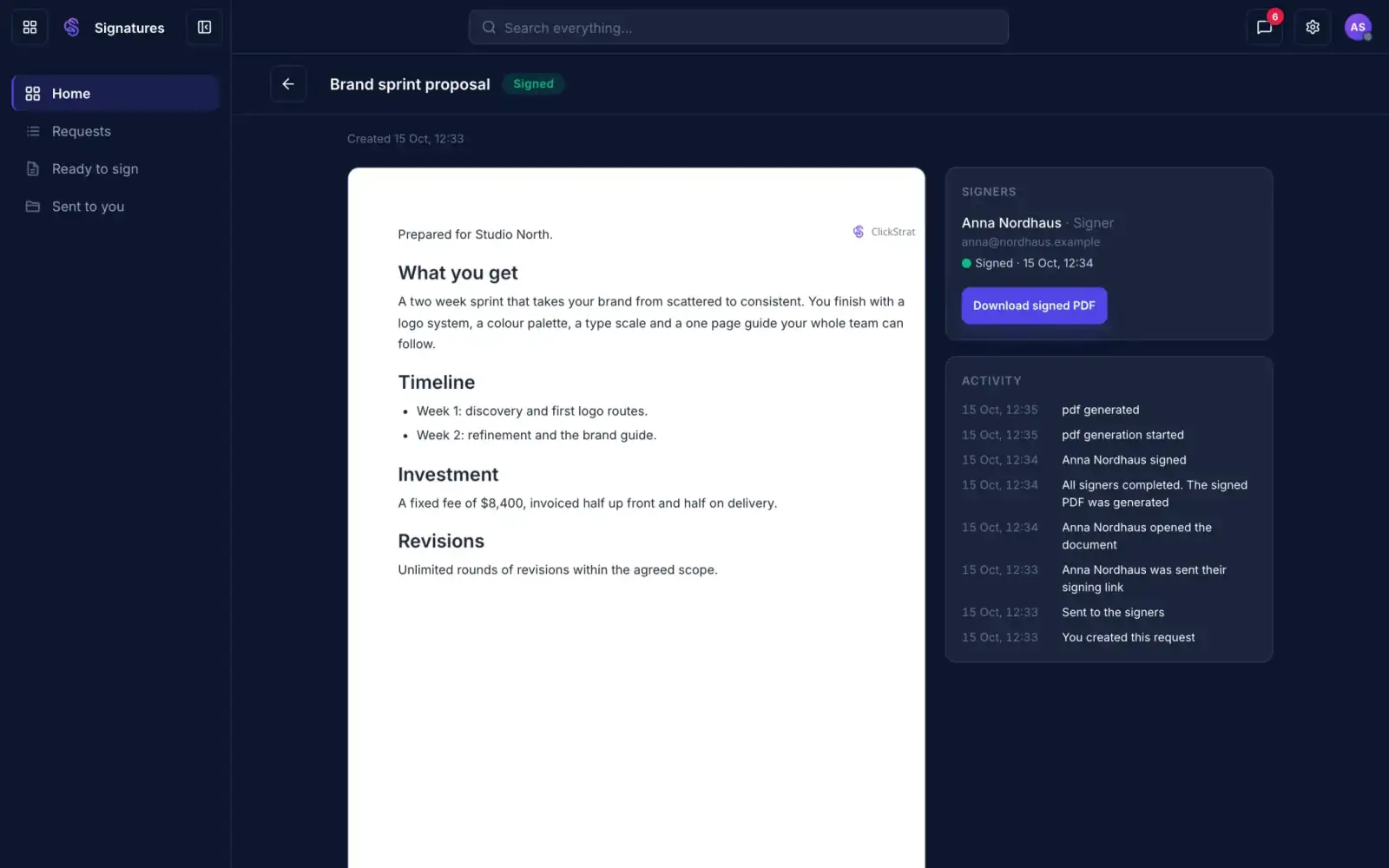
A signed request with the signed PDF ready to download and its activity log
Everyone signs. You get the signed PDF.The activity log records each step with a time.Sent, opened, signed, and the PDF, in order.
The signed copy is ready to download
05
Ready to signSet it up once.
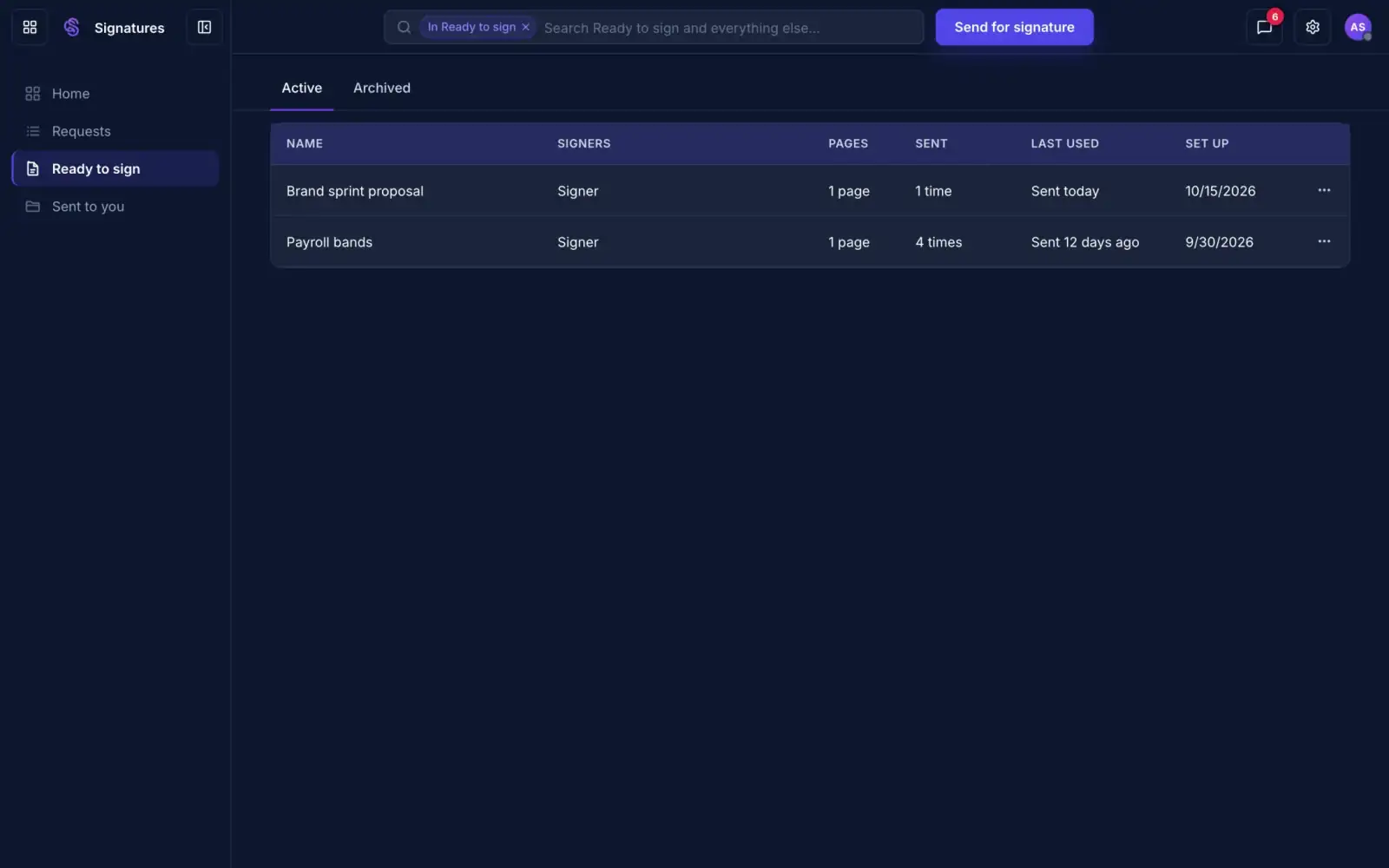
The Ready to sign list showing documents set up for repeat sending
Set a document up once. Send it again in seconds.Roles and fields are saved with it.See how many times it has been sent.
Reuse it for every client
Signing

Signed copies and a record of every step.

SendsTracksResendsKeeps the PDF
Discover Signing
08 · Get paid

You did the work. Billing it is the part you put off.

Invoicing. Create an invoice from the work you did, check it, then send it with a pay link.

Invoicing

Invoices drafted from your work.

Scroll to watch it work.
01
New invoiceThe client, the work, the total.
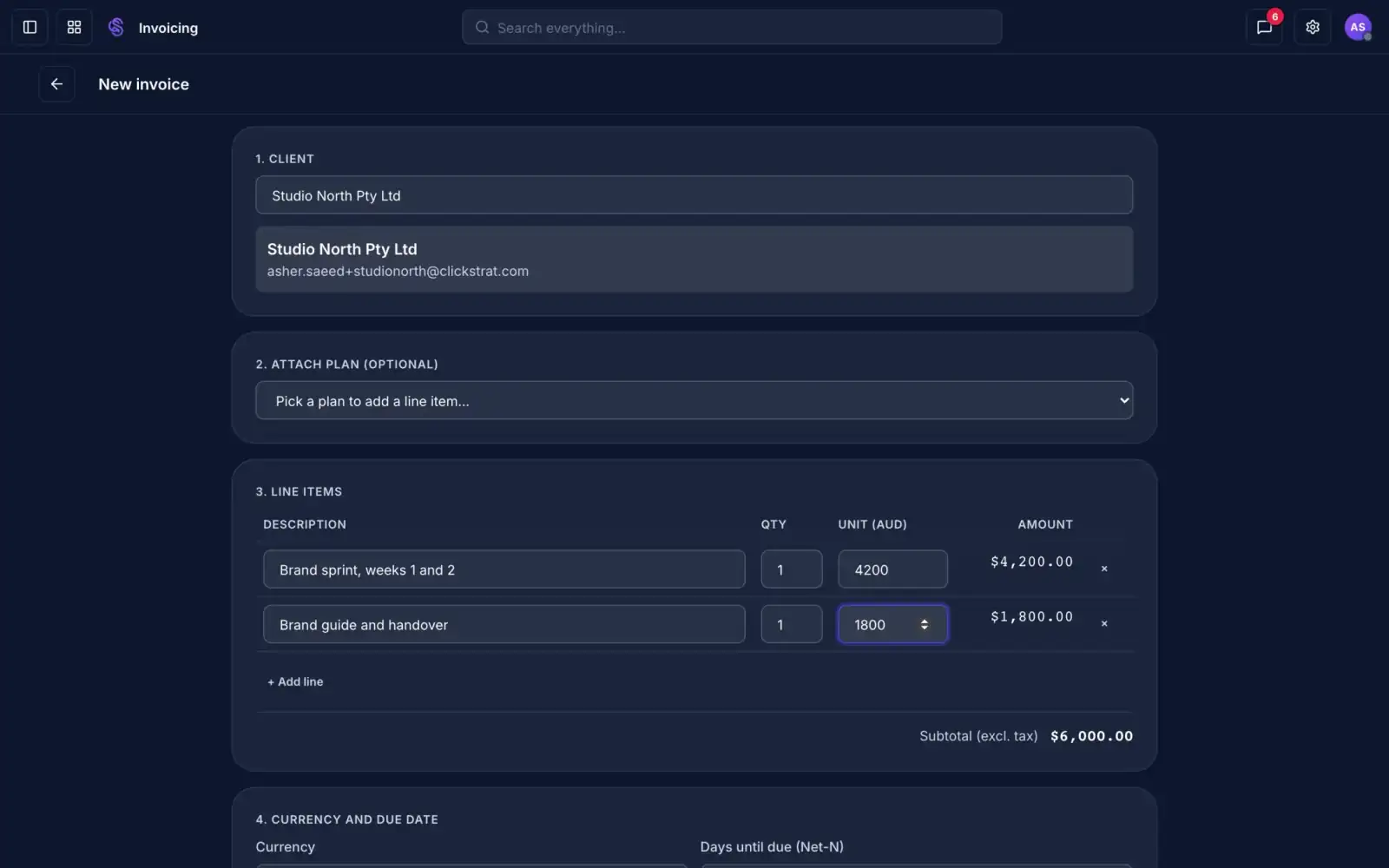
A new invoice with a client and two line items adding up to a subtotal
Add the client and the work. The total adds itself.Pick a client, then a plan or your own lines.Set the currency and the days until it is due.
Total worked out for you
02
DraftCheck it before it goes.
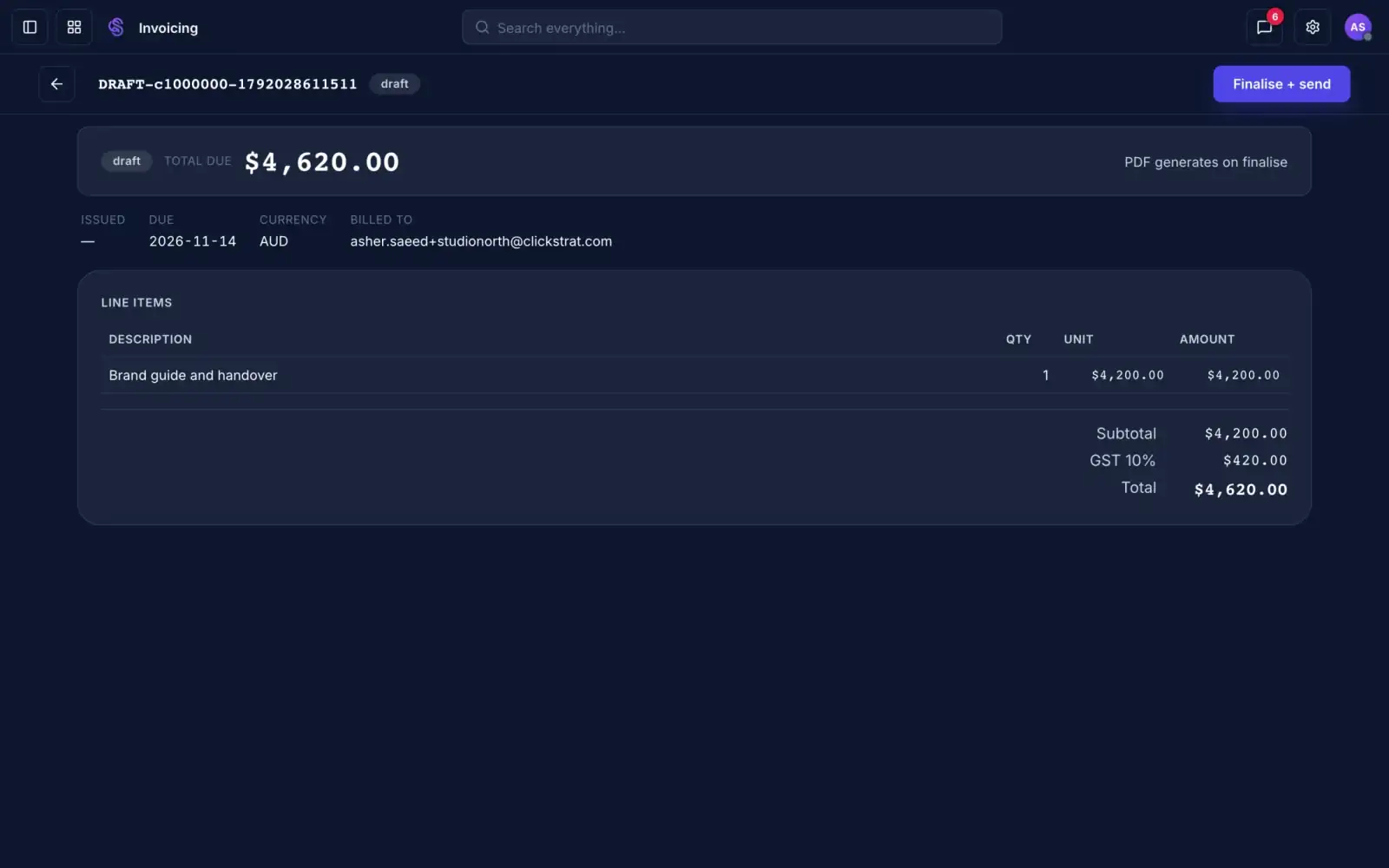
A draft invoice showing line items, GST and the total due
Tax is worked out before you send.See the lines, the tax and who it bills.The PDF is made when you finalise.
Nothing sends until you say
03
Finalise and sendOne click to send.
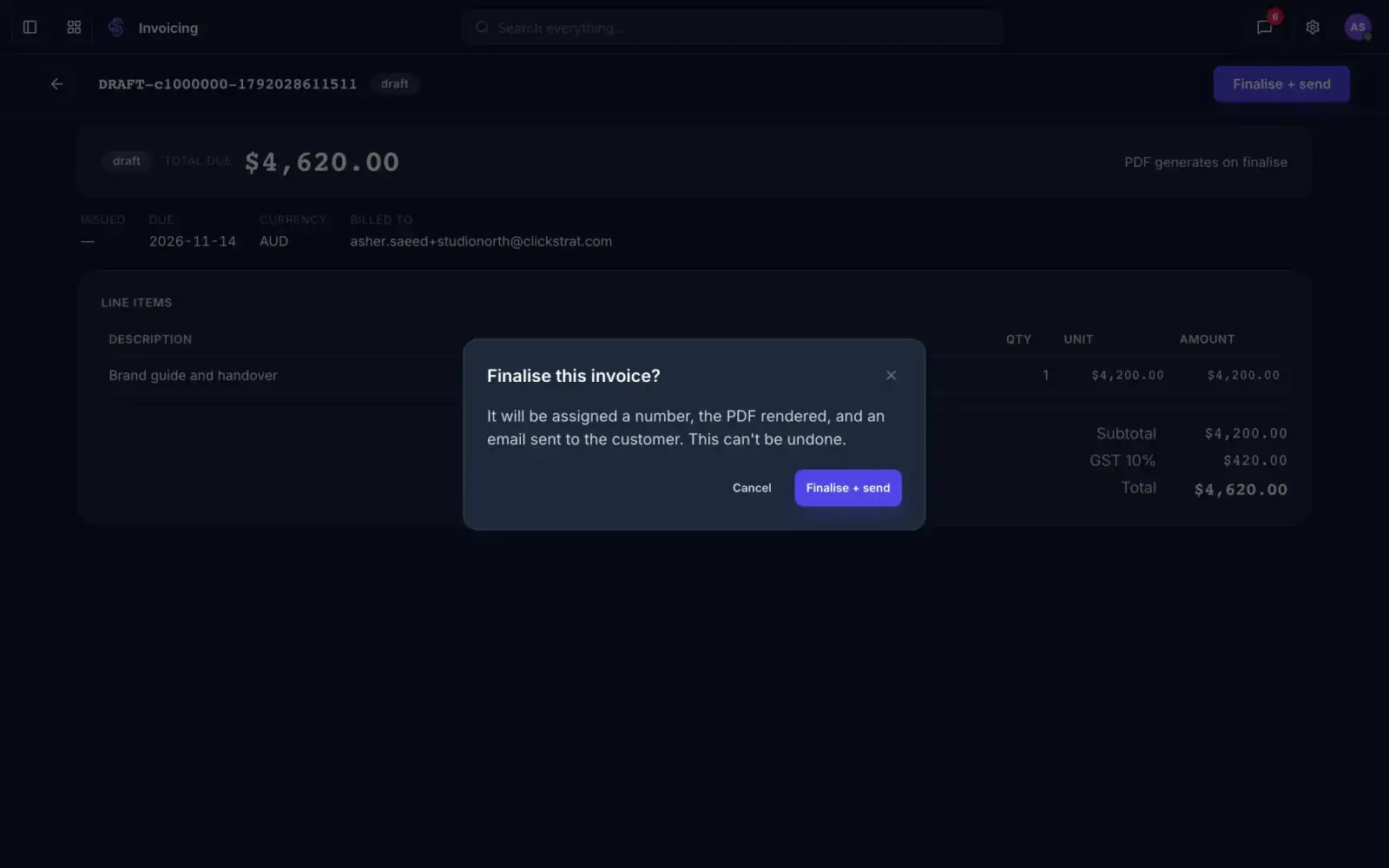
A confirmation asking to finalise and send the invoice
You decide when it goes. One click sends it.It gets a number, a PDF and an email to the client.A sent invoice can't be edited, so check it first.
Sent only when you confirm
04
Sent invoicePay link and PDF.
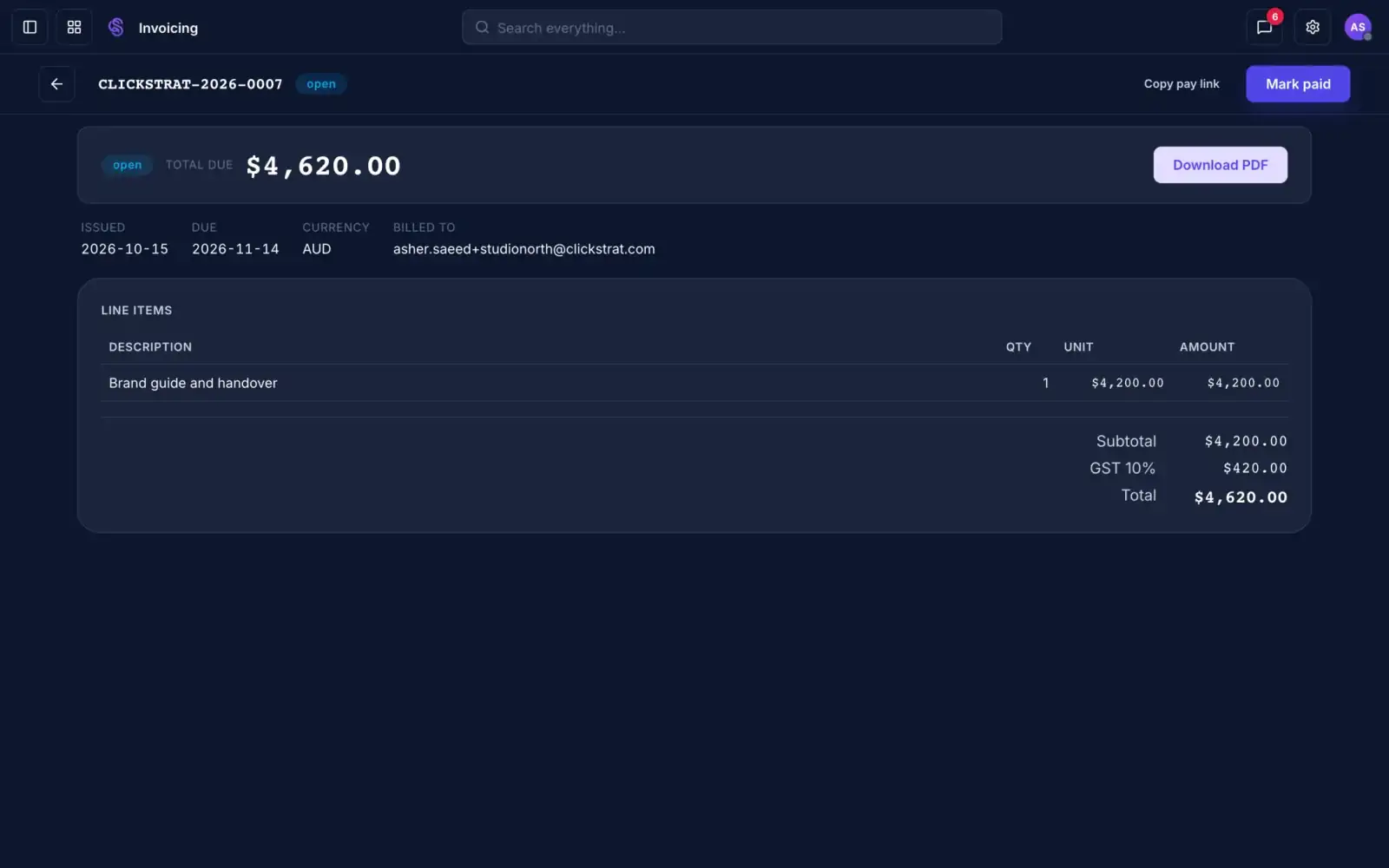
A sent invoice marked open with Copy pay link and Download PDF
Every invoice has a pay link and a PDF.Copy the link, download the PDF, or mark it paid.The status moves from open to paid.
The client gets it by email
05
InvoicesOpen and paid.
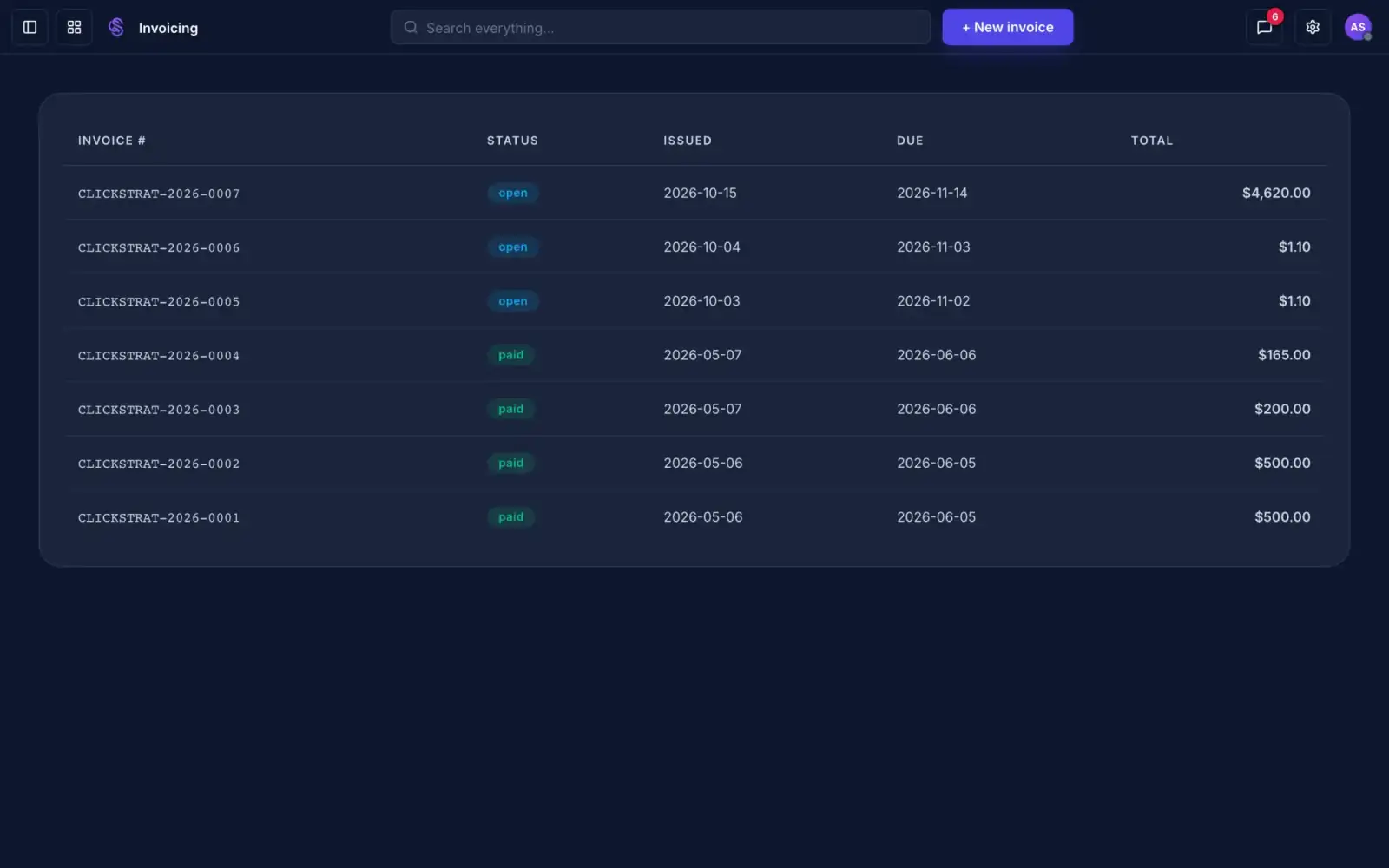
The invoices list with open and paid invoices
See what is open and what is paid.Every invoice with its status, dates and total.Open one to send, download or mark paid.
Nothing to retype
Invoicing

Tax worked out. Nothing sent until you say.

Drafts invoicesWorks out taxSends the PDFTracks payment
Discover Invoicing
09 · Deliver

The job starts when they say yes. The plan starts a week later.

Projects. One board per job, with the brief, the people and the payments on the same record.

Projects

One board per job, shaped to your kind of work.

Scroll to watch it work.
01
BoardEvery job, by stage.
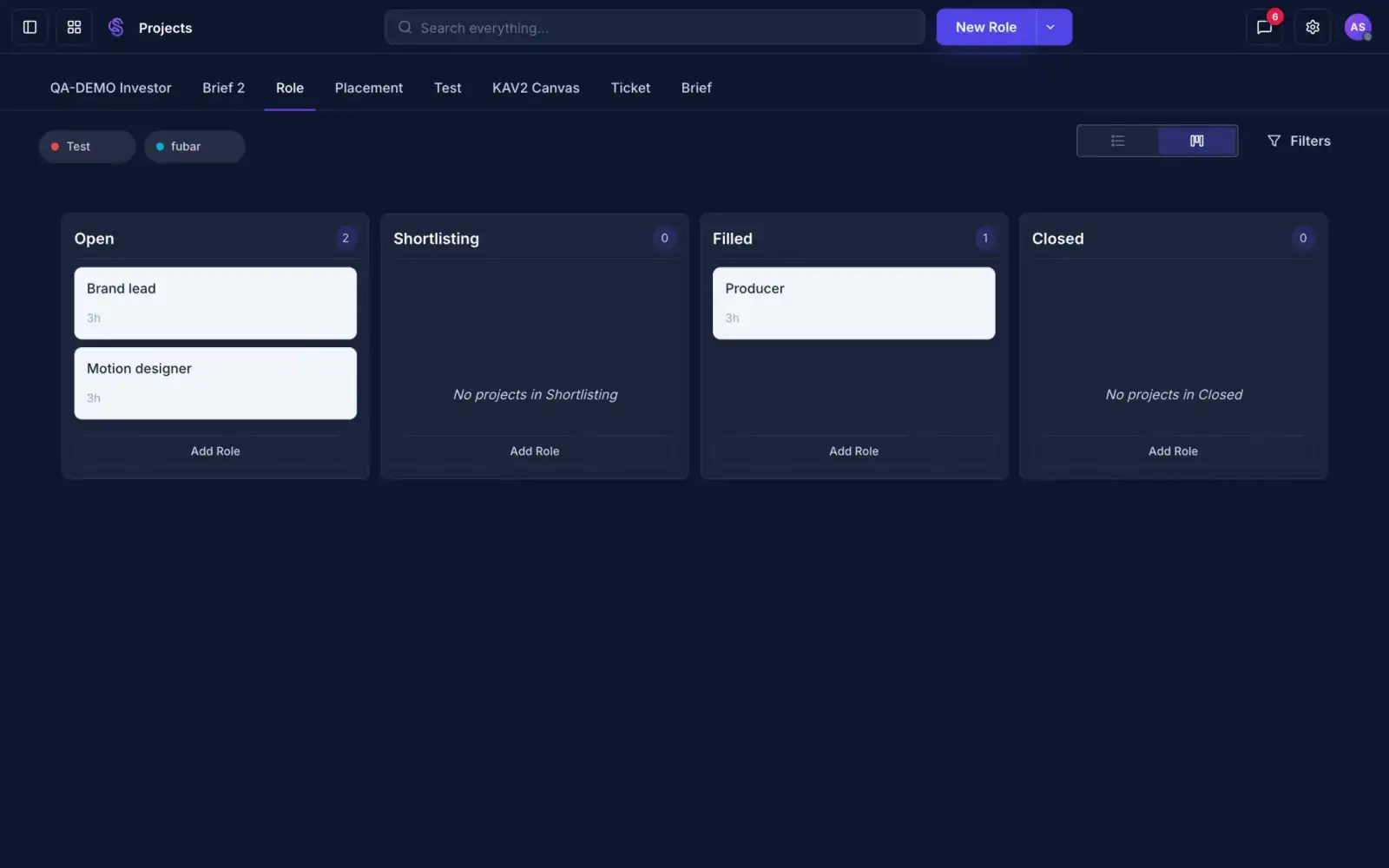
A board with roles in Open and Filled columns
See every job on a board. Move a card to move the job.Each kind of work gets its own stages.Switch between the board and a list any time.
Stages for each kind of work
02
Project recordThe brief and the details.
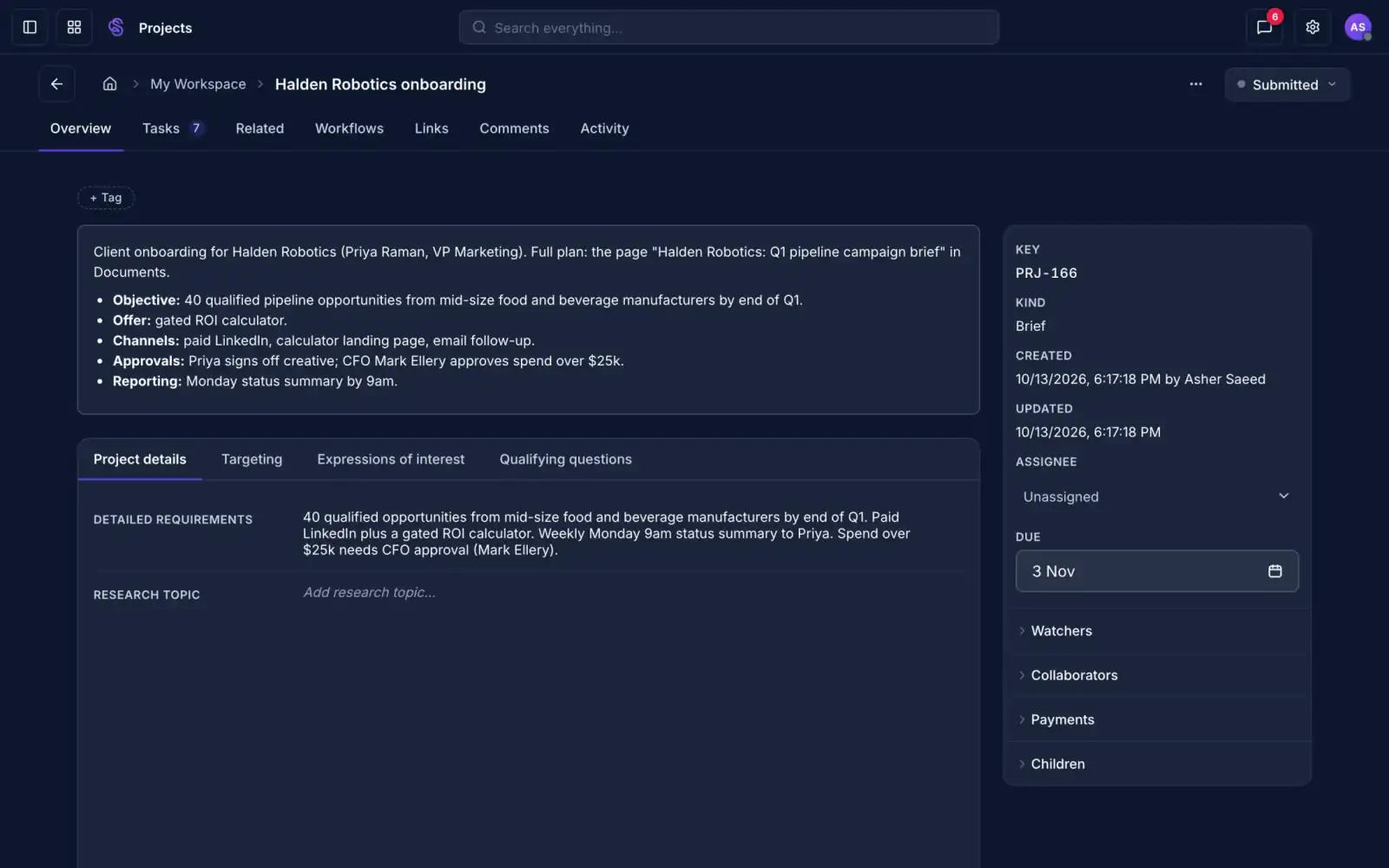
A project record with its brief, details and status
One record per job, with the brief on it.Owner, due date, collaborators and payments sit beside it.Change the stage from the top right.
Everything on one record
03
TasksWho does what, by when.
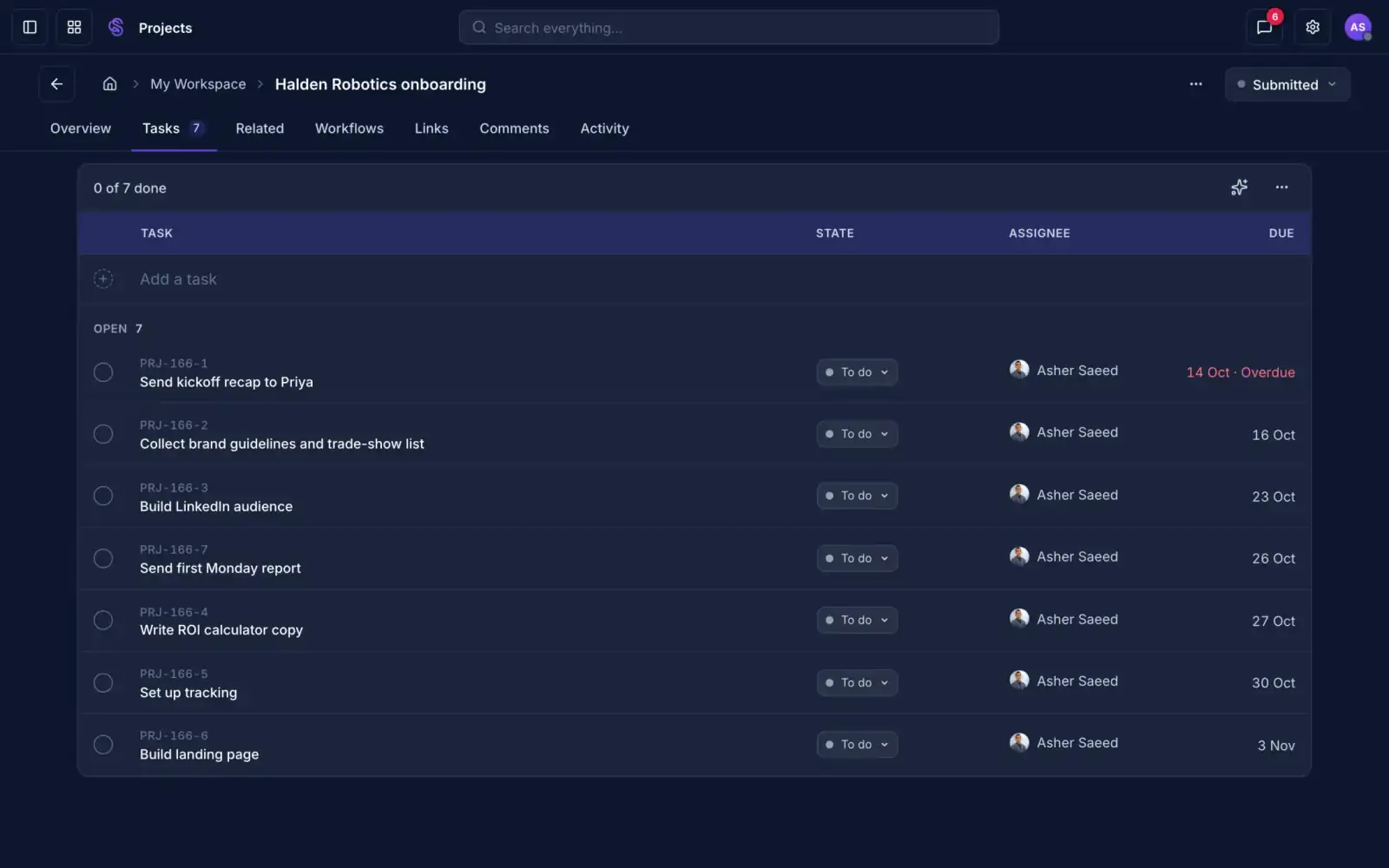
A project with seven tasks, owners and due dates
Break the job into tasks. Friday can do it for you.Give each one an owner and a due date.Overdue tasks show up in red.
Tasks with owners and due dates
04
CommentsTalk about it where it lives.
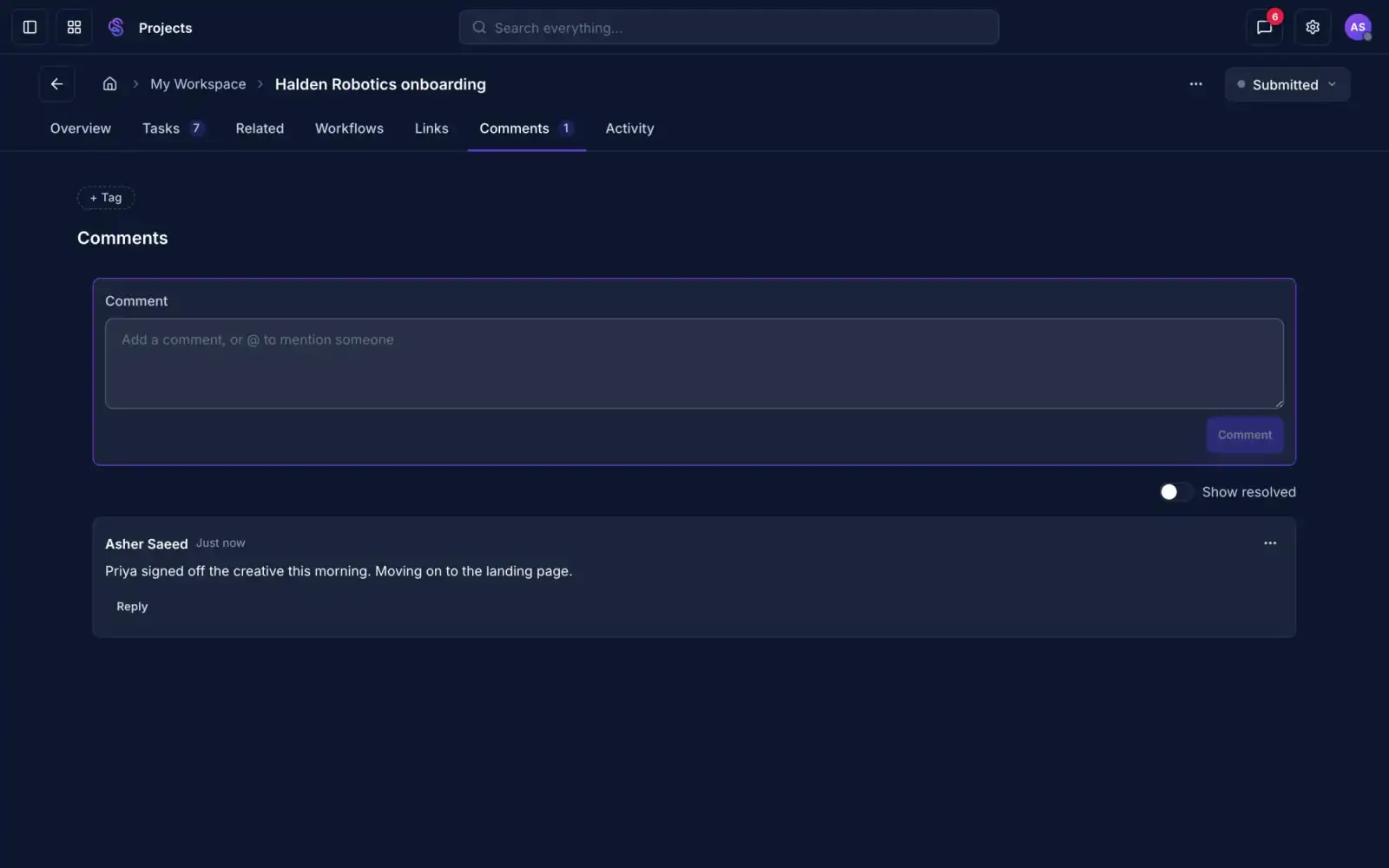
A comment on a project record
Keep the conversation on the job.Mention a teammate with an @.Resolve a thread when it is dealt with.
Comments stay on the job
05
ActivityWho did what.
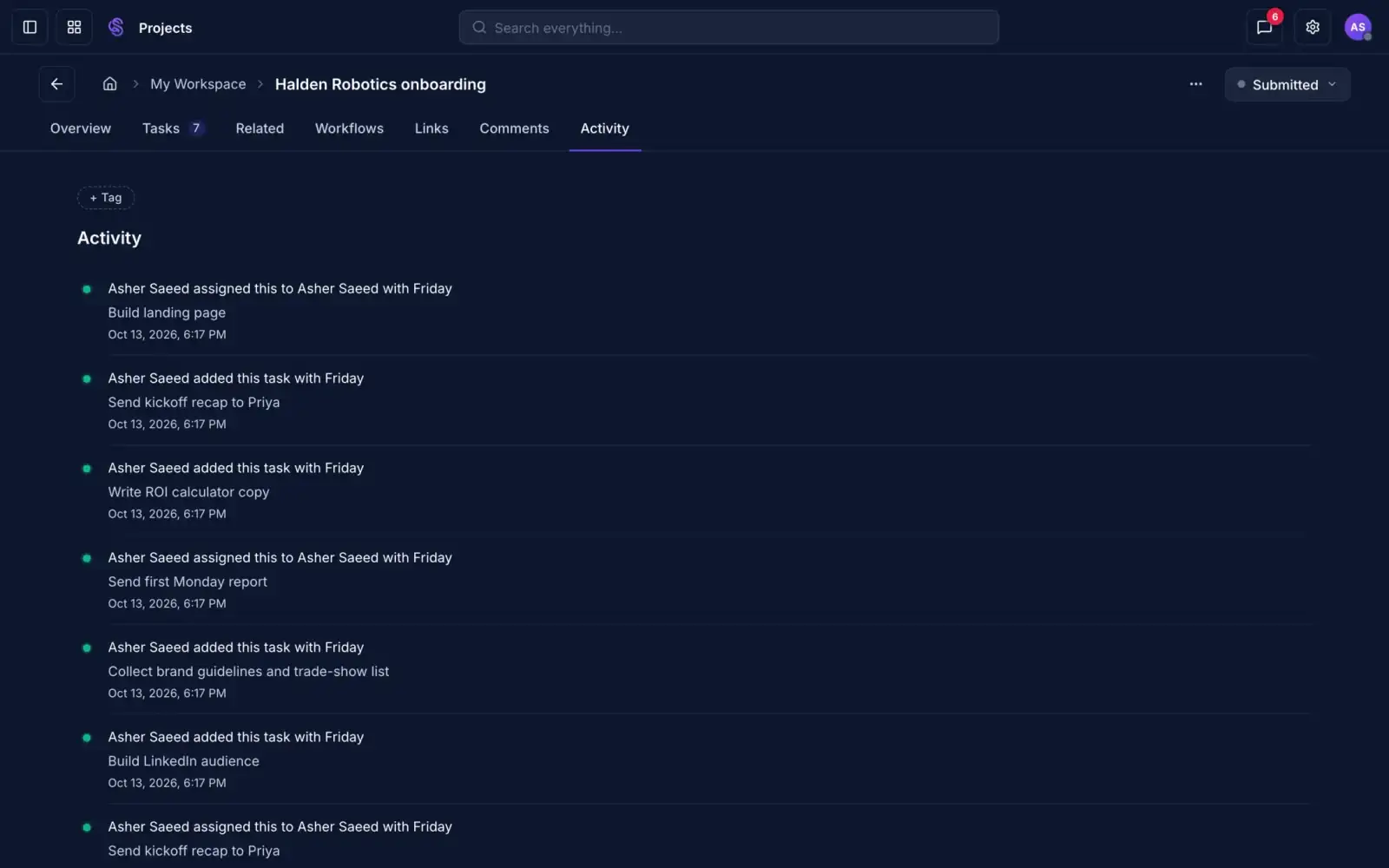
An activity log showing tasks added with Friday
See who did what, Friday included.Every task and change is on the record.Friday's work is labelled, so you can tell it apart.
Nothing happens off the record
Projects

Every job, with its people and payments.

Moves stagesBreaks down jobsAssigns tasksKeeps the record
Discover Projects
10 · Deliver

Every client starts differently, because nobody wrote the process down.

Workflows. Set out the steps a client goes through once, and every new client follows them.

Workflows

Steps your clients follow, in order.

Scroll to watch it work.

01
BuilderThe journey, step by step.
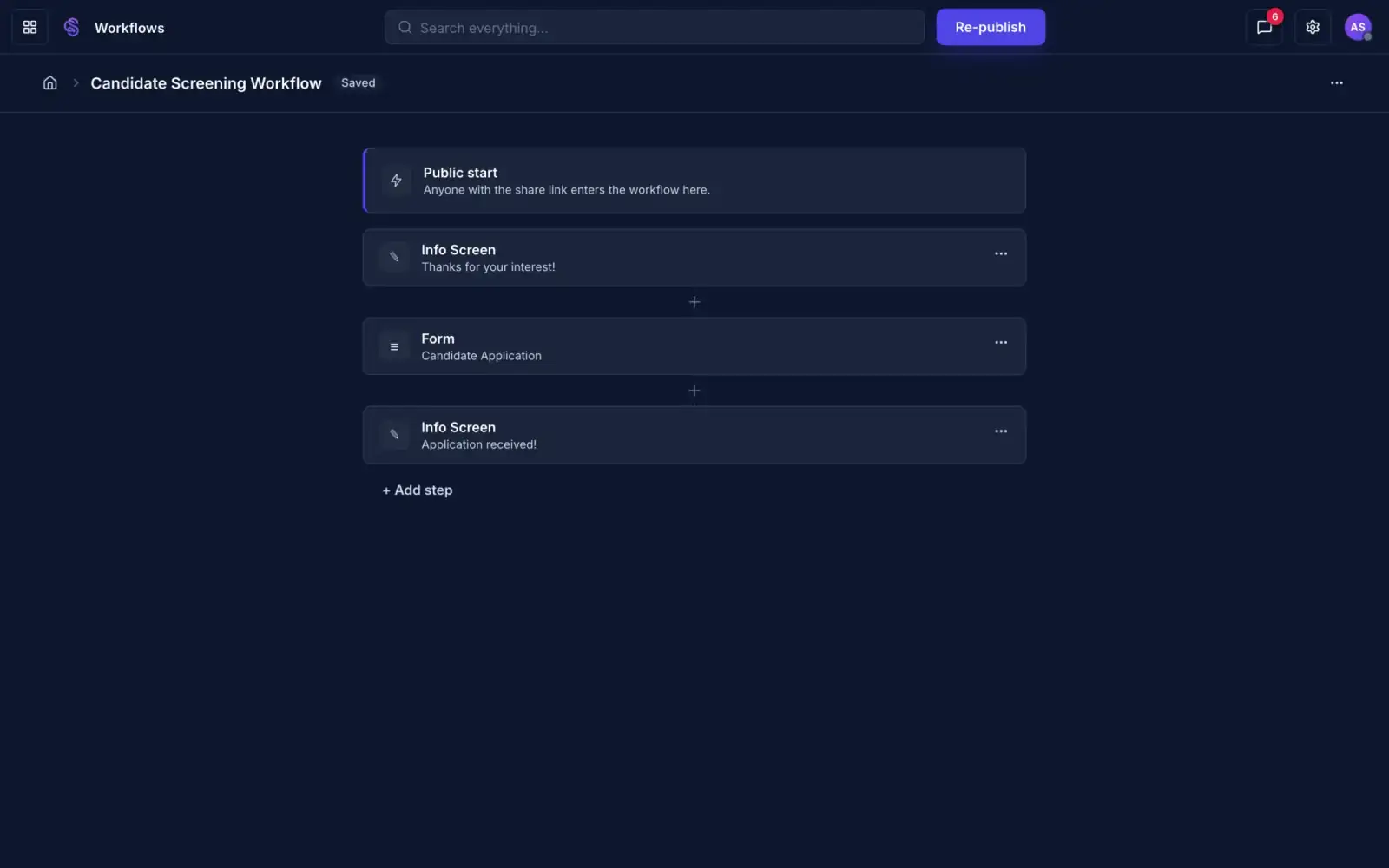
A workflow builder showing a public start and three steps
Build the journey as a list of steps. Add one at a time.Show information, ask questions, book a meeting or record a video.Reorder or remove steps whenever you like.
Steps in a simple list
02
Step typesReady-made steps.
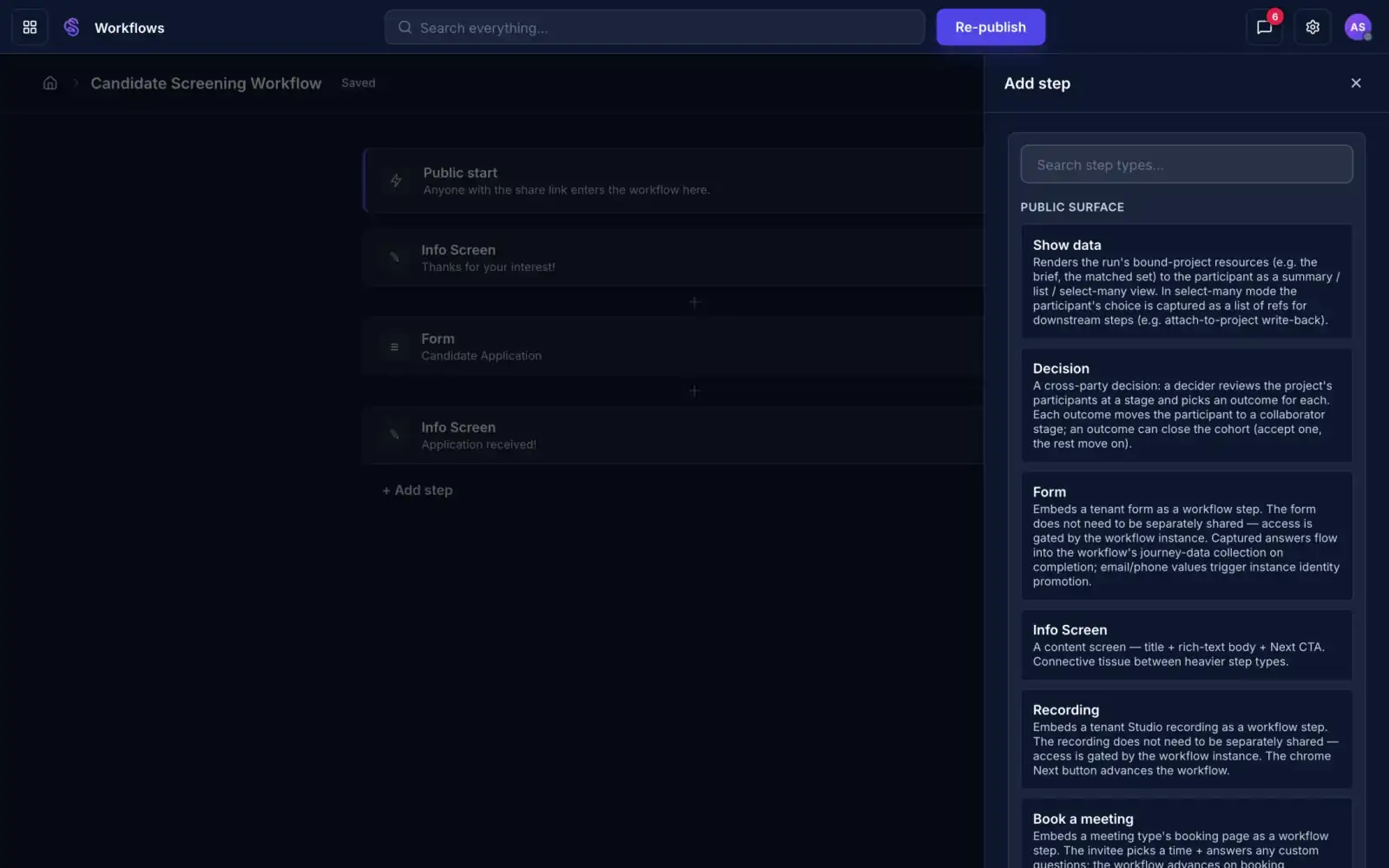
The Add step panel listing step types
Pick from ready-made steps. Forms, meetings and more.Info screens, forms, decisions, recordings and bookings.Search the list to find the one you need.
Nothing to build from scratch
03
Form stepUse a form you already built.
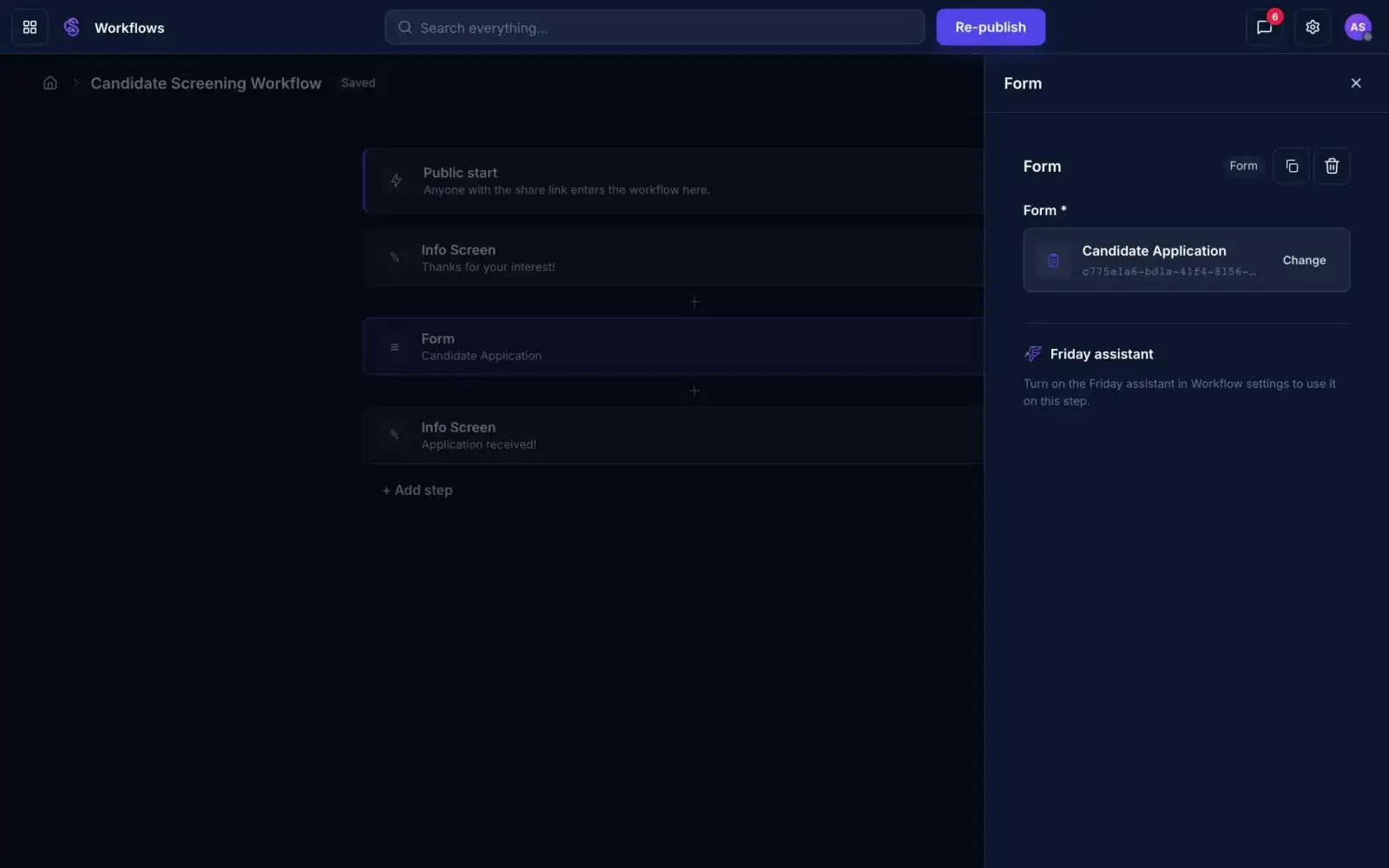
A form step set to the Candidate Application form
Drop in a form you already built. No rebuilding.Answers are saved when the person finishes.Pick a different form at any time.
One form, used again
04
Test itTry it before anyone else.
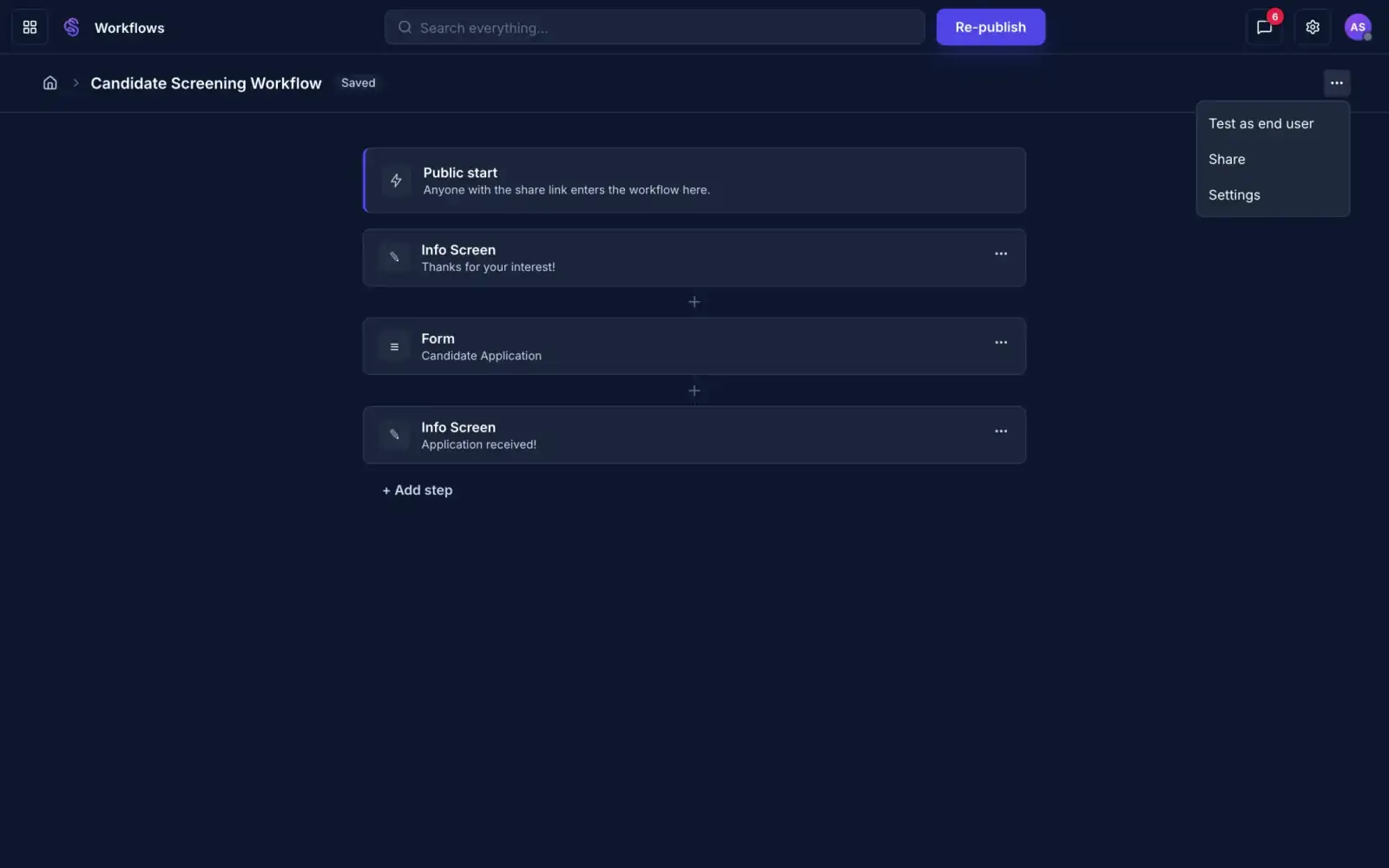
The workflow menu with Test as end user, Share and Settings
Try it as the person would, before you publish.Choose Test as end user from the menu.Share the link when it is ready.
Test before you publish
05
What they seeOne simple screen at a time.
The first screen a person sees when they open the workflow link
They get one simple screen at a time.Each step has a clear next button.They can go back and change an answer.
No account needed to start
Workflows

The same process for every new client.

Drafts the stepsCollects answersBooks meetingsRuns the journey
Discover Workflows
11 · Deliver

Follow-ups only happen when someone remembers.

Automations. Set a rule once, like sending a follow-up when a form comes in, and it runs every time.

Automations

Rules that run when something happens.

Scroll to watch it work.

01
BuilderA trigger, then steps.
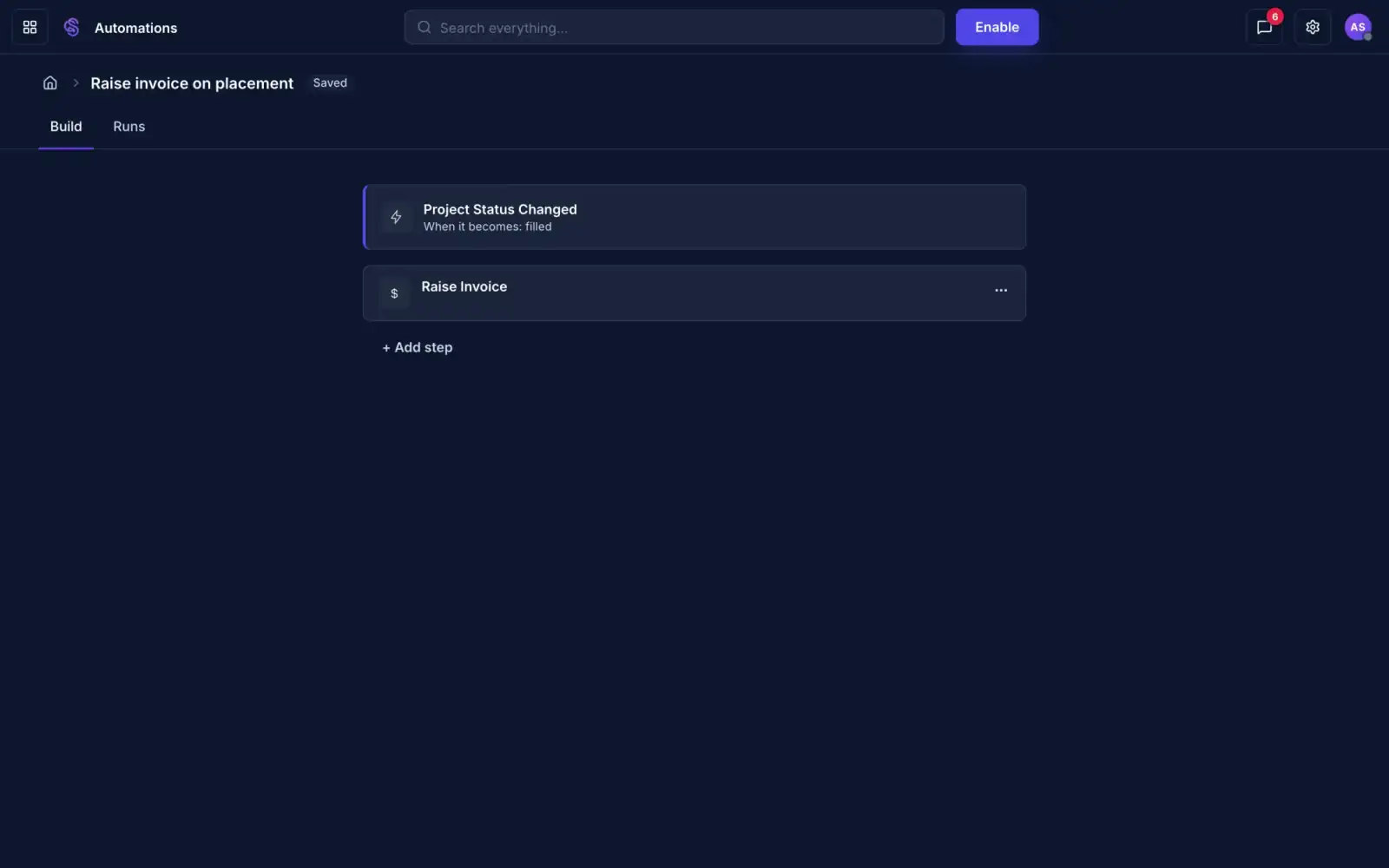
An automation that raises an invoice when a project is filled
Pick what starts it. Then add what should happen.A status change can raise an invoice on its own.Automations start switched off until you enable them.
Off until you switch it on
02
TriggersWhat starts a rule.
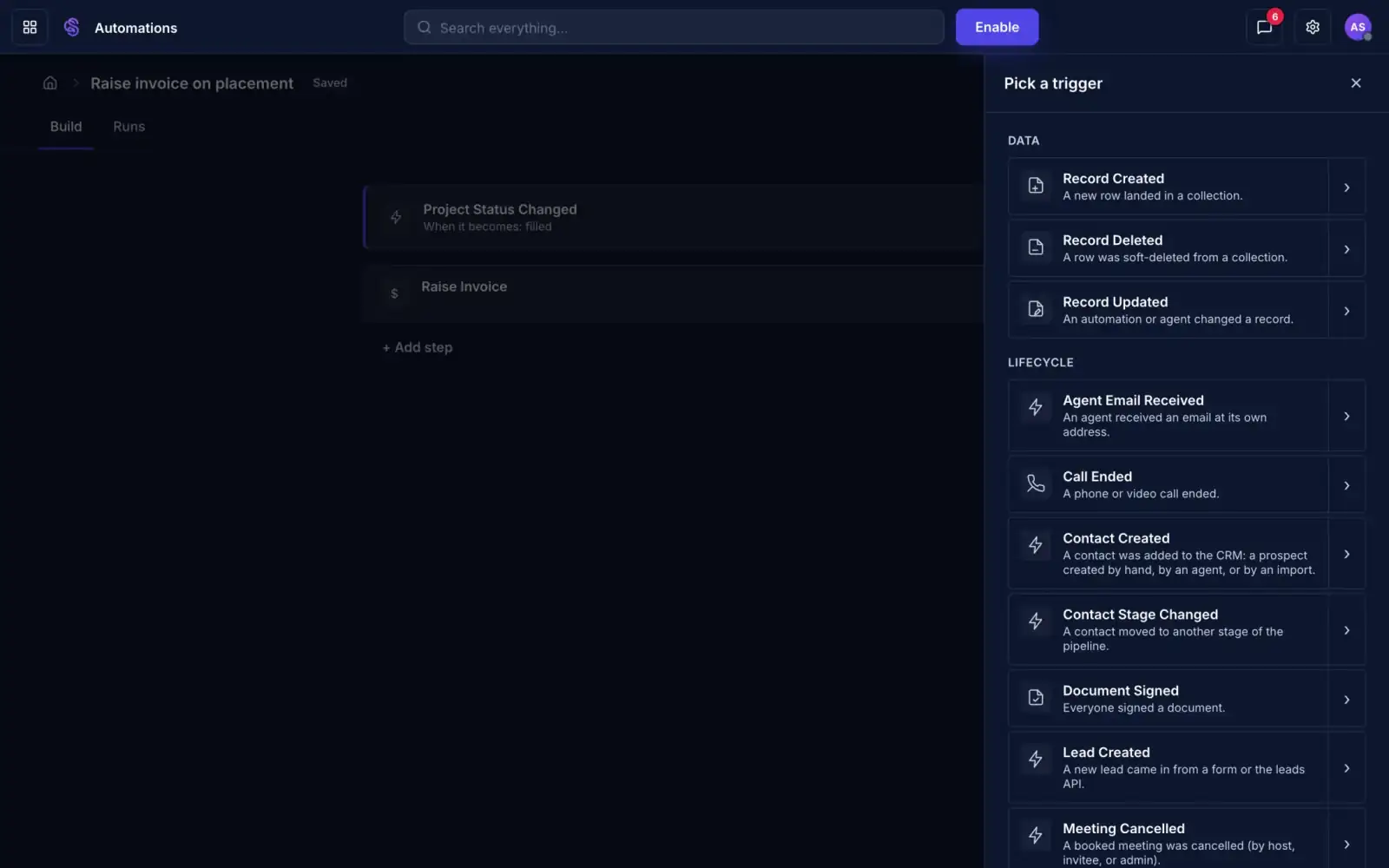
The trigger picker listing events such as Document Signed and Lead Created
Start from what happens. A signature, a lead, a payment.Records, meetings, calls, tasks and more.Each trigger passes its details to the steps.
Triggers from events in your business
03
ActionsWhat happens next.
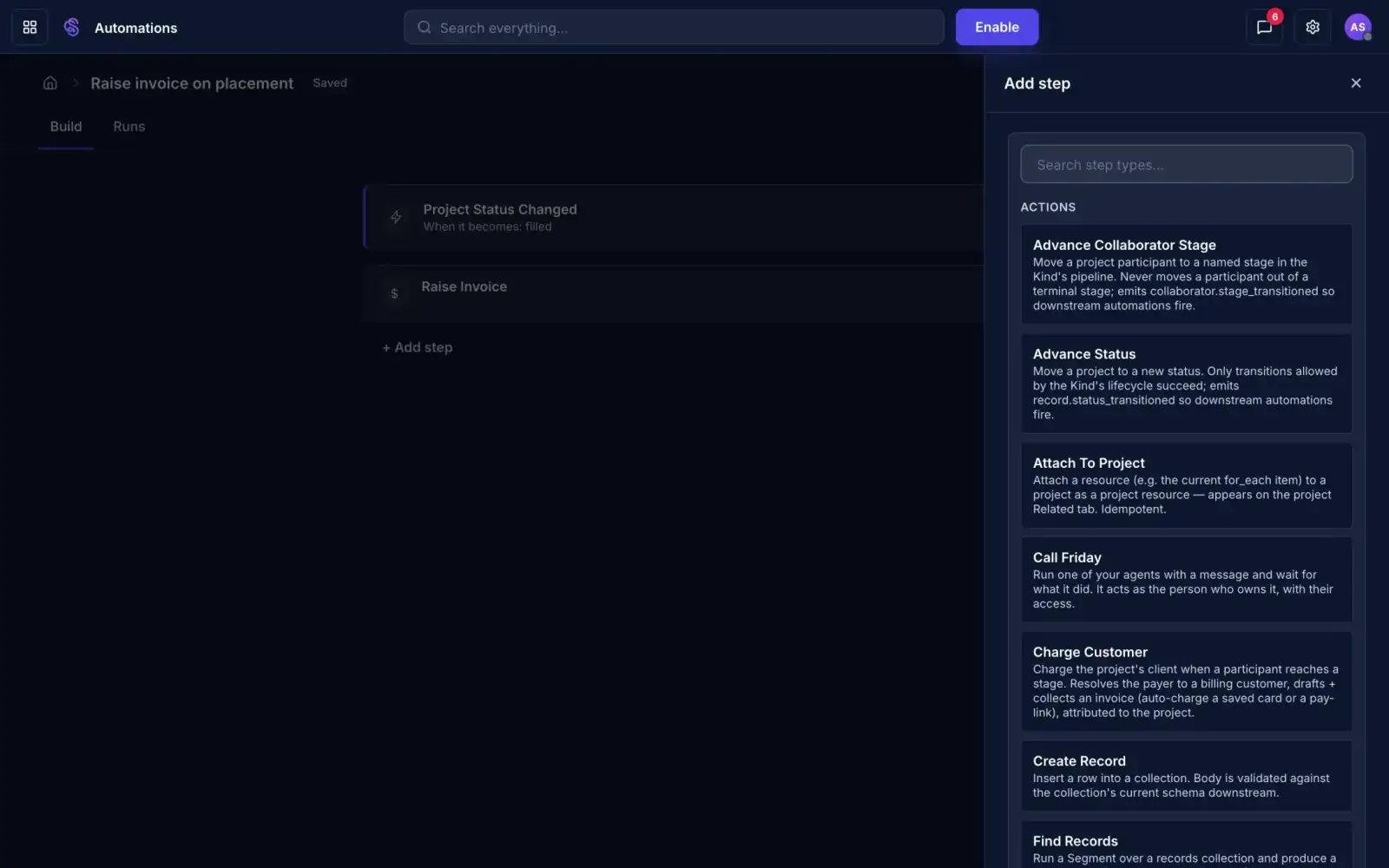
The Add step panel listing actions such as Call Friday and Create Record
Choose what it does. Send, update, invoice or ask Friday.Search the list for the step you need.Add as many steps as the job takes.
As many steps as the job needs
04
RunsEvery time it fired.
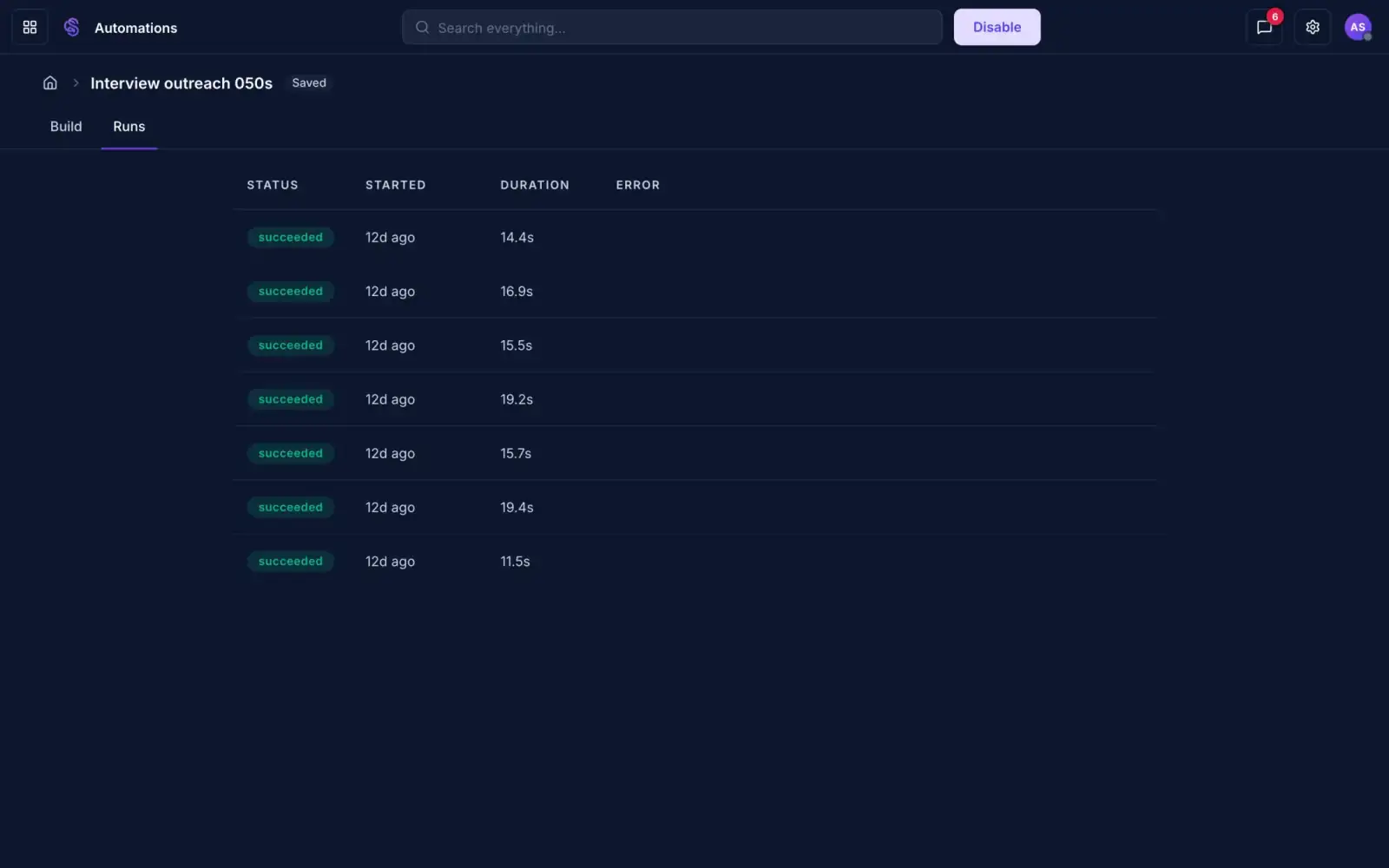
A list of automation runs, all succeeded, with start time and duration
Every run is on the record. See when and how long.Each run shows succeeded or failed.Failed runs show the error.
Nothing runs in secret
05
All automationsEnabled or off.
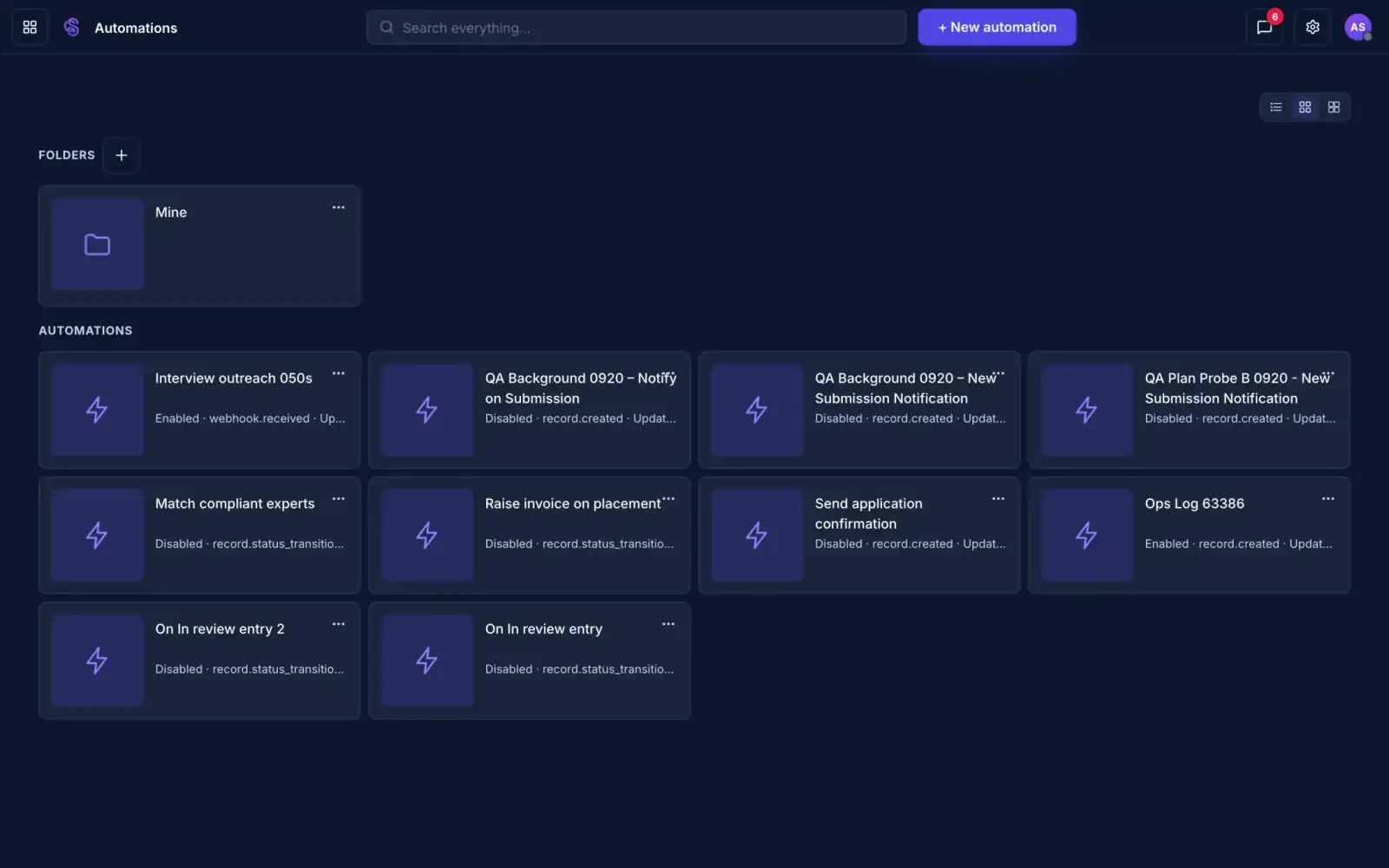
A list of automations showing enabled and disabled
See what is on and what is off.Each one shows its trigger and when it changed.Start a new one from the top right.
You switch them on
Automations

Follow-ups that go out every time.

Writes the rulesWatches for eventsTakes the actionLogs every run
Discover Automations
12 · Deliver

Clients email you to ask where things are.

Client portals. Give each client one place to find what they need, without emailing you.

Client portals

One place for each client.

Scroll to watch it work.

01
Their homeWhat is pinned for them.
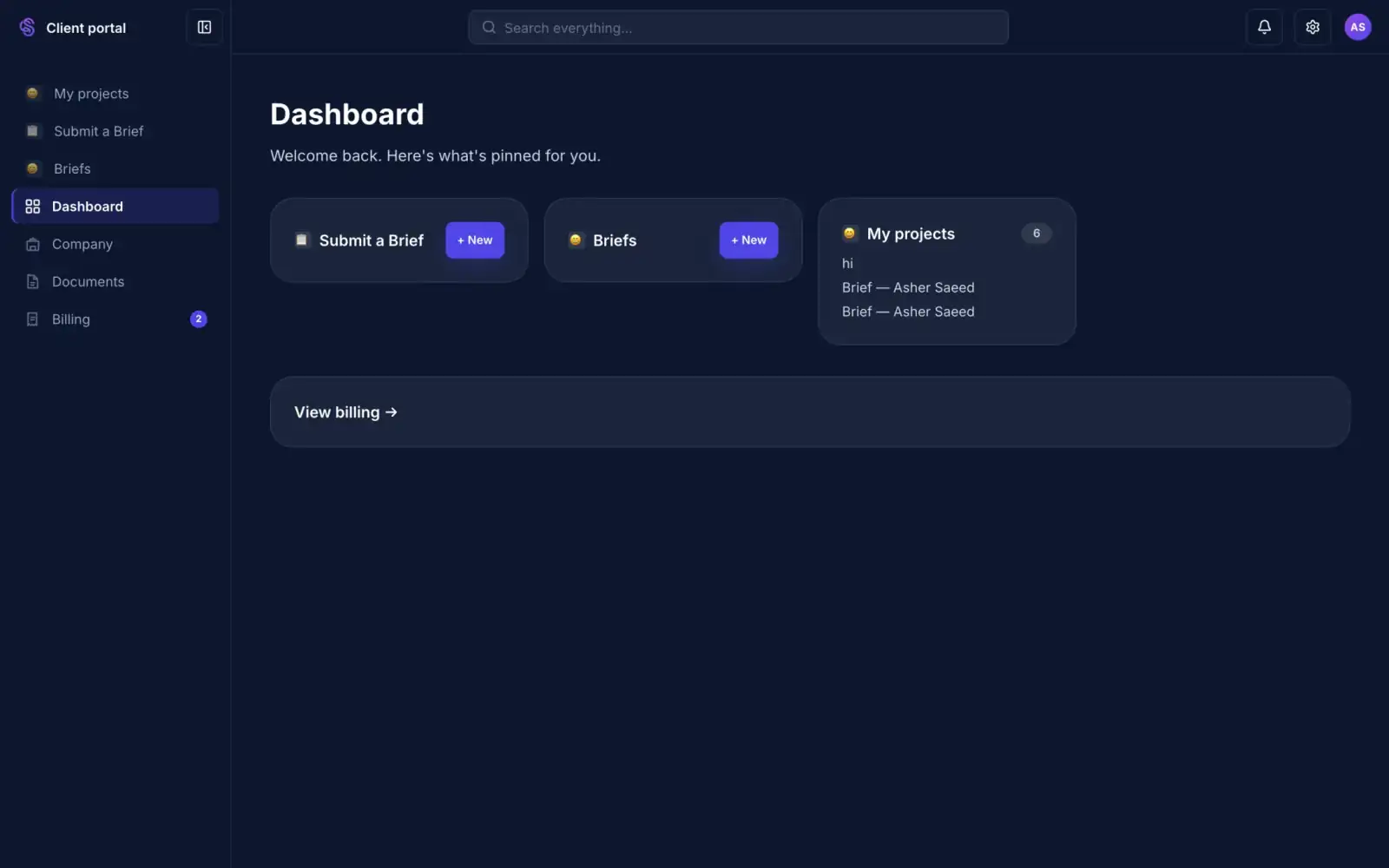
A client portal dashboard with pinned projects and a billing link
Clients land on what matters to them.Their projects, briefs and billing, pinned on one page.They sign in with their own login.
One page for each client
02
InvoicesSee it, pay it.
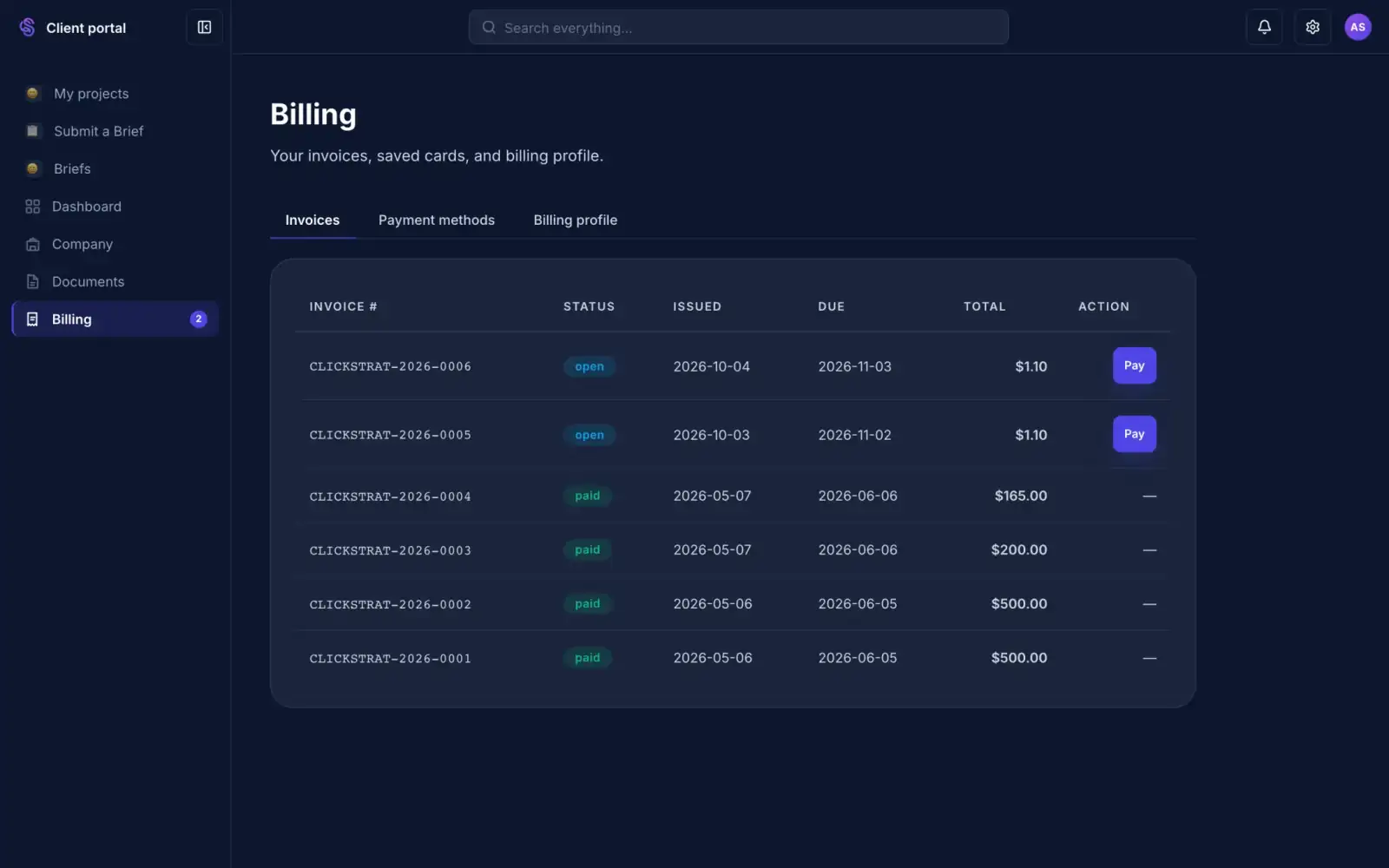
A client's billing page with open and paid invoices and a Pay button
Clients see their invoices and pay in one click.Open invoices have a Pay button.Paid ones stay on the record.
No chasing by email
03
Saved cardsPay without retyping.
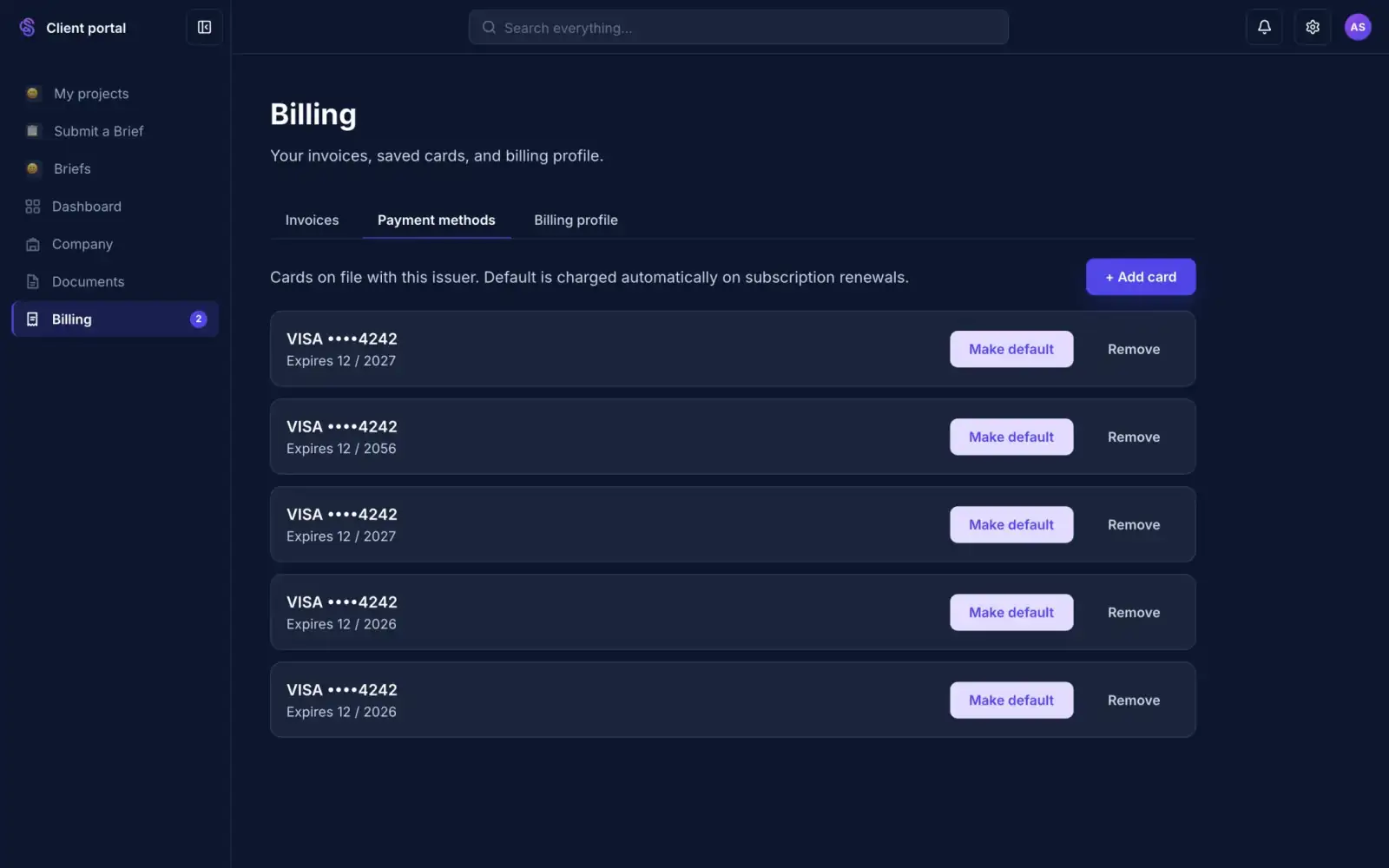
A client's payment methods with saved cards and an Add card button
Clients keep their cards on file. Renewals go through.The default card is charged on renewal.They can add or remove a card any time.
They manage their own cards
04
DocumentsSigned copies, ready to download.
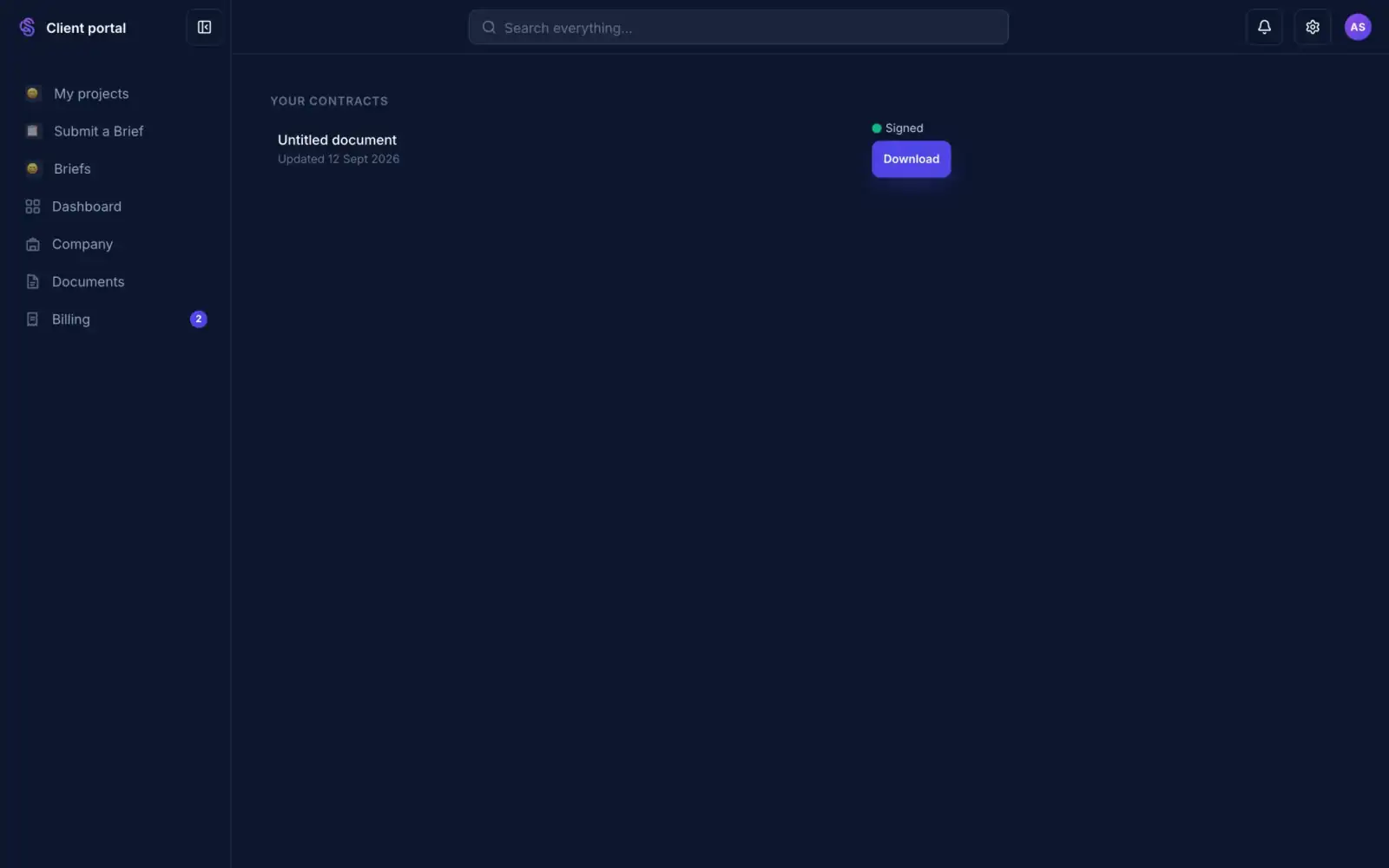
A client's contracts list with a signed document and a Download button
Every signed contract is in their portal.Clients download their own copy.Nothing gets lost in an inbox.
Filed when it is signed
05
Company profileWho they are to you.
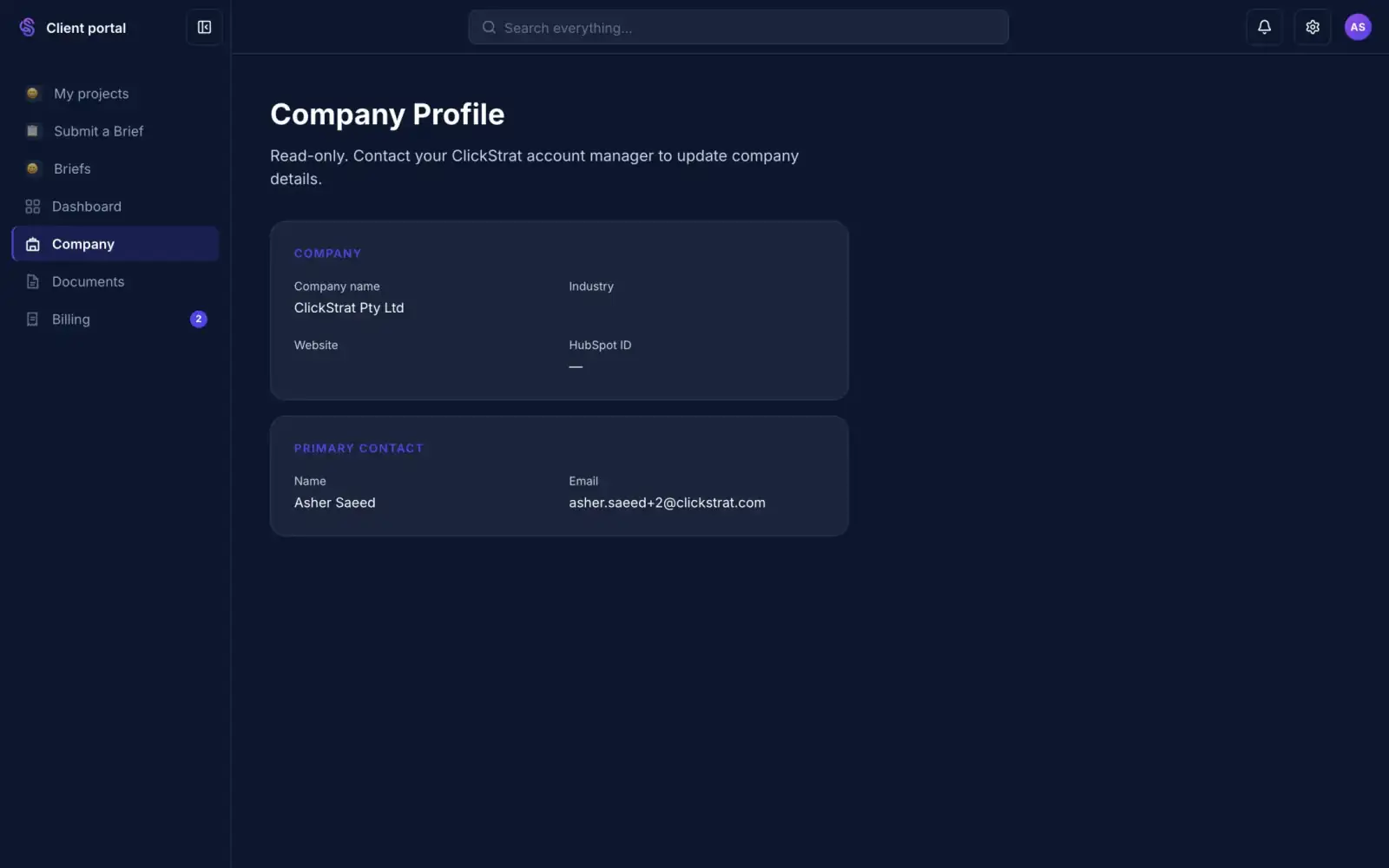
A client's company profile with company name and primary contact
Their company details are on file.Company and primary contact in one place.Changes go through you.
One record per client
Client portals

Clients find what they need without emailing you.

One loginTheir own projectsTheir invoicesTheir documents

Run your whole client journey in one place.

Join the waitlist and be among the first to use every surface.

Your work emailGet started

Join the waitlist for early access.

Apps | HelloFriday · HelloFriday