
Forms

Tell Friday what to ask.

Describe the form you need and Friday builds it. When a response arrives, an automation or an agent can pick it up and carry on.

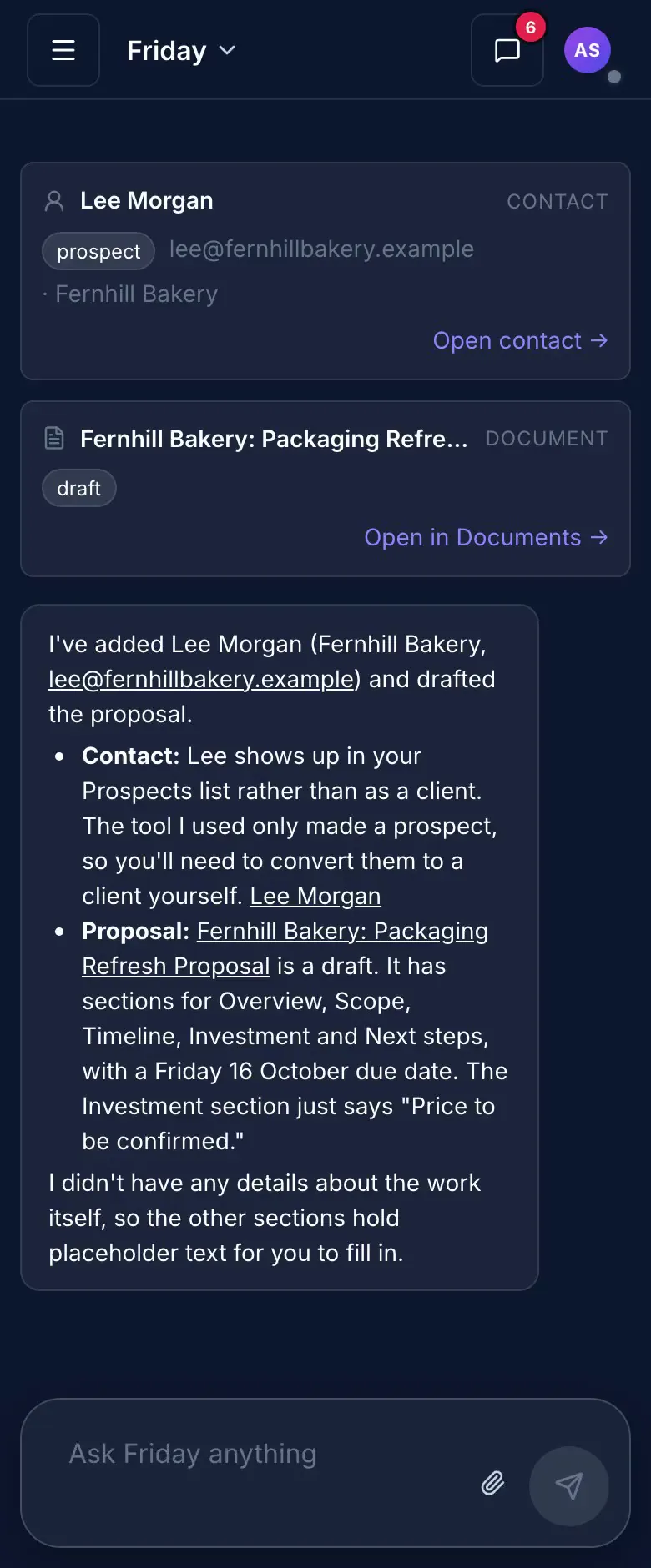
A phone recording of Friday. A request is typed and Friday carries it out, reporting back in the chat.
What changes

A form that starts the work.

Most forms end as an email that someone has to read, copy and act on. With Forms, a response is where the job begins. It can set an automation running or hand the next step to an agent.

How it usually goes

  • Someone reads each enquiry and decides what to do with it.
  • Following up depends on someone remembering.
  • A missing detail means another round of emails.
  • Attachments get lost in email threads.
  • Building a new form is a job for whoever knows the tool.

With Forms

  • An automation or an agent picks up each response and carries on.
  • A reply, a draft or a booking can start the moment a response arrives.
  • Required questions, and questions that only appear when they apply, so the brief arrives complete.
  • Clients upload files on the form, of the types and size you allow.
  • Describe the form to Friday, then edit any question yourself.

Ask only what applies

Questions that change with the answers.

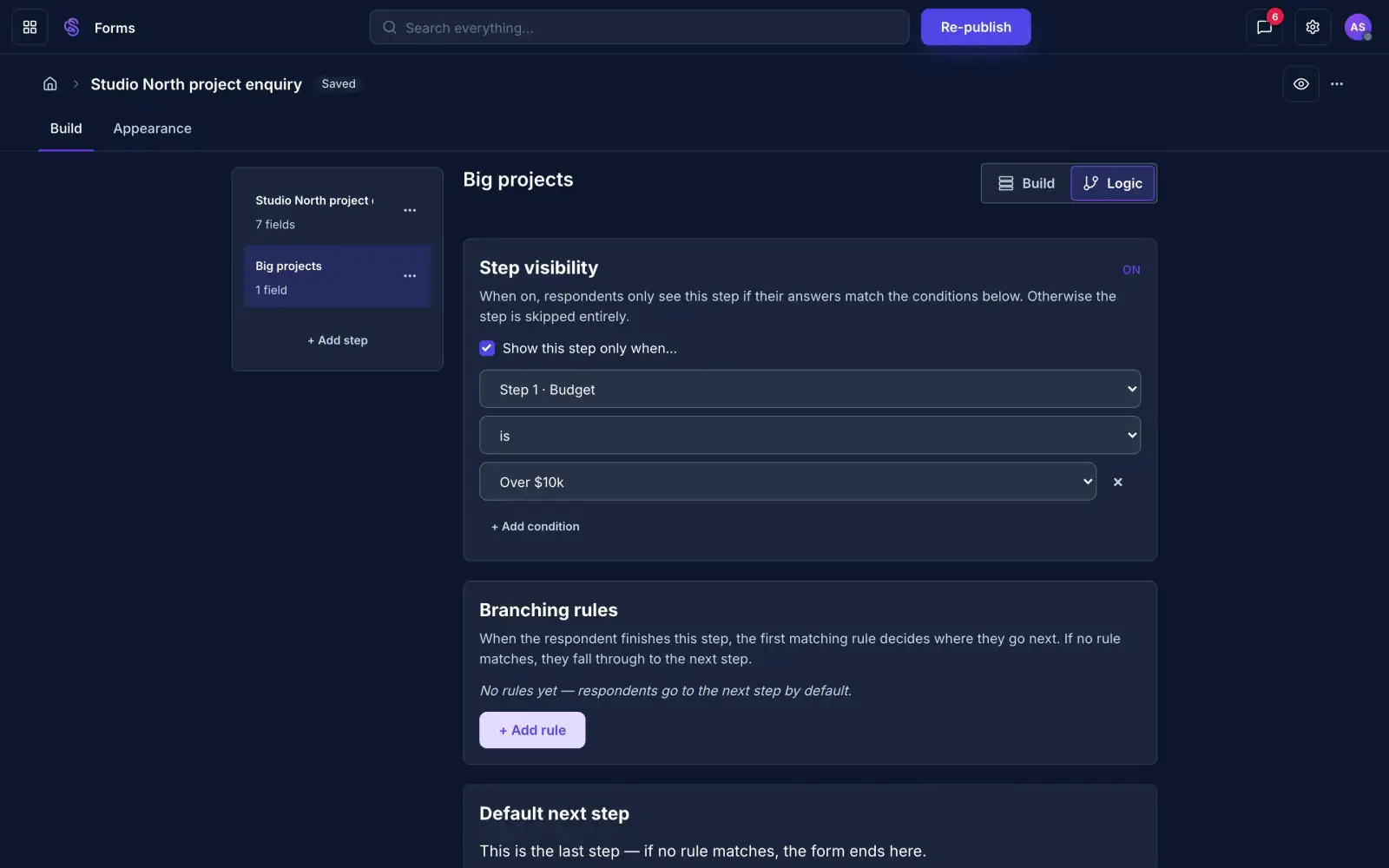
Show a step only when an earlier answer calls for it, or send people to a different step. Nobody is asked about things that do not apply to them.

  • Show or hide a whole step, or a single question
  • Branching rules that send people to the step that fits
  • A logic view that shows how the steps connect
The Logic view of a form in the builder, with a step shown only when the budget answer is over a set amount
Step visibility and branching rules in the Logic view.

Collect files

Let clients send the brief with the form.

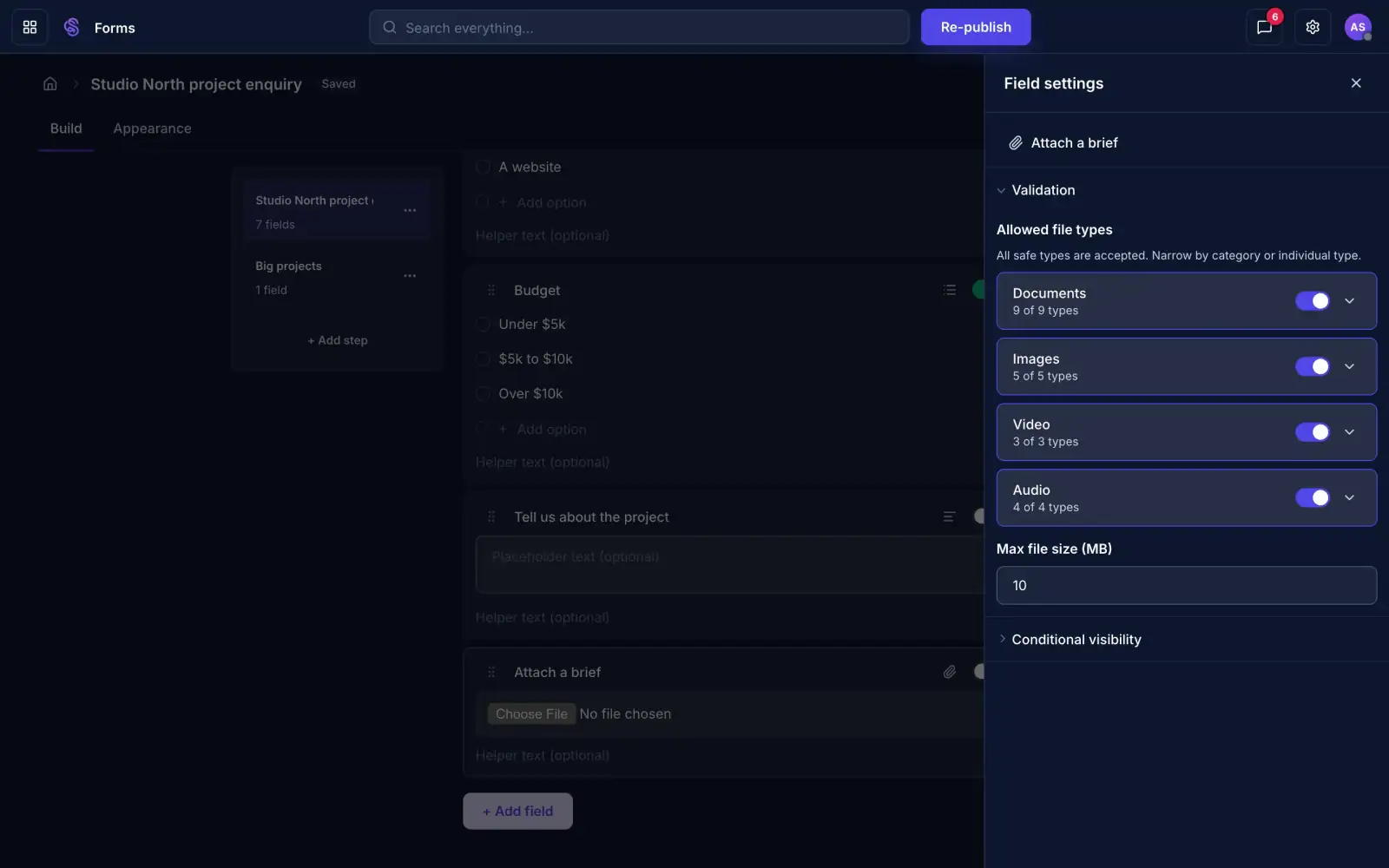
Add an upload question and choose which kinds of file are allowed and how large. Uploaded files are scanned before anyone can download them.

  • Documents, images, video or audio, or just the types you pick
  • A size limit you set
  • Files kept with the response they came in
The settings for a file upload question, with allowed file types and a maximum file size
Settings for an upload question.

Responses

Every response is a row you can work with.

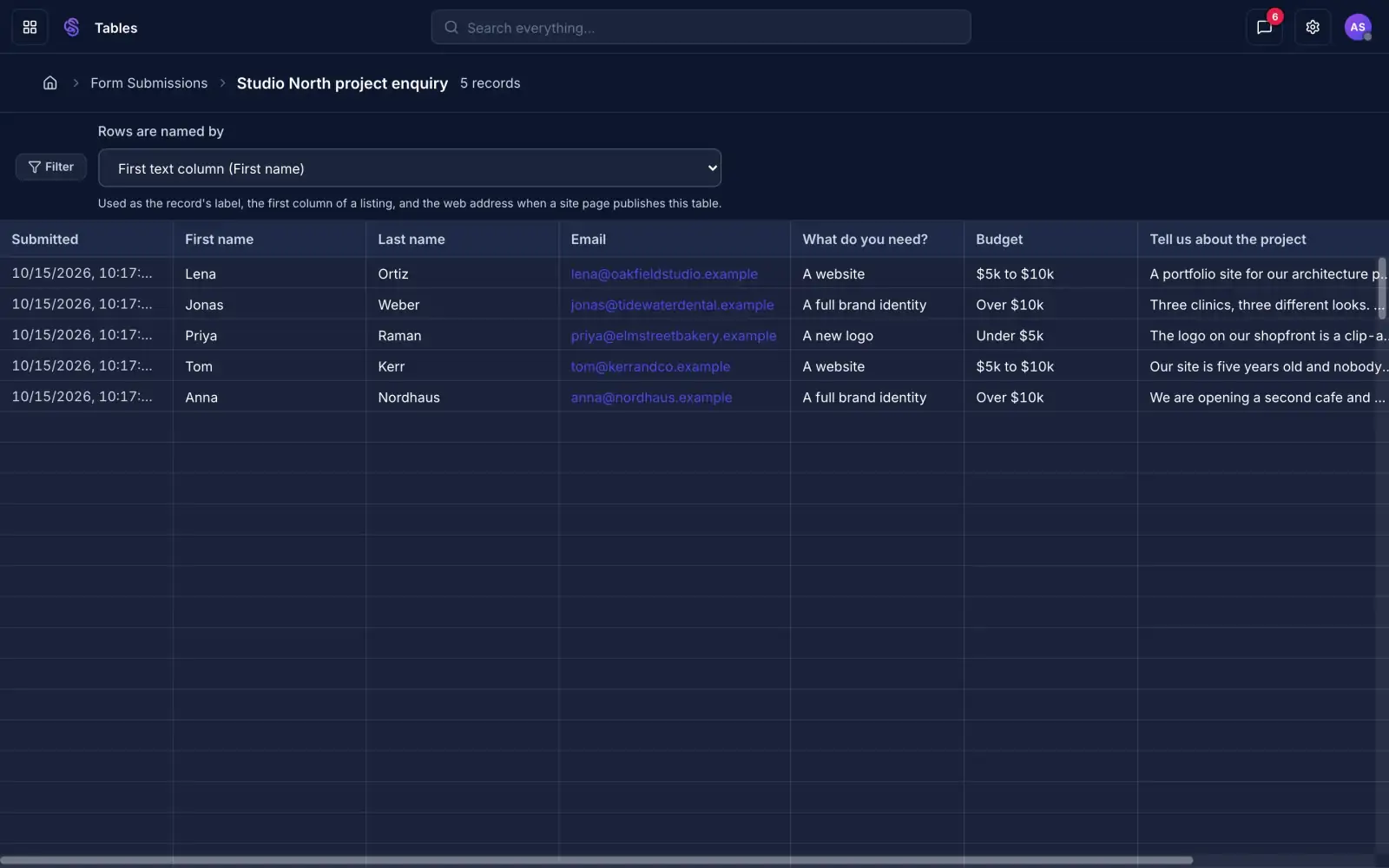
Responses collect in a table with a column for each question. Filter it to find what you need and open any response in full.

  • A column for every question
  • Filter the table by any column
  • Each response kept with the time it came in
A table of form responses with a column for each question and a row for each response
Five responses in the table.

What happens next

Every response can start something.

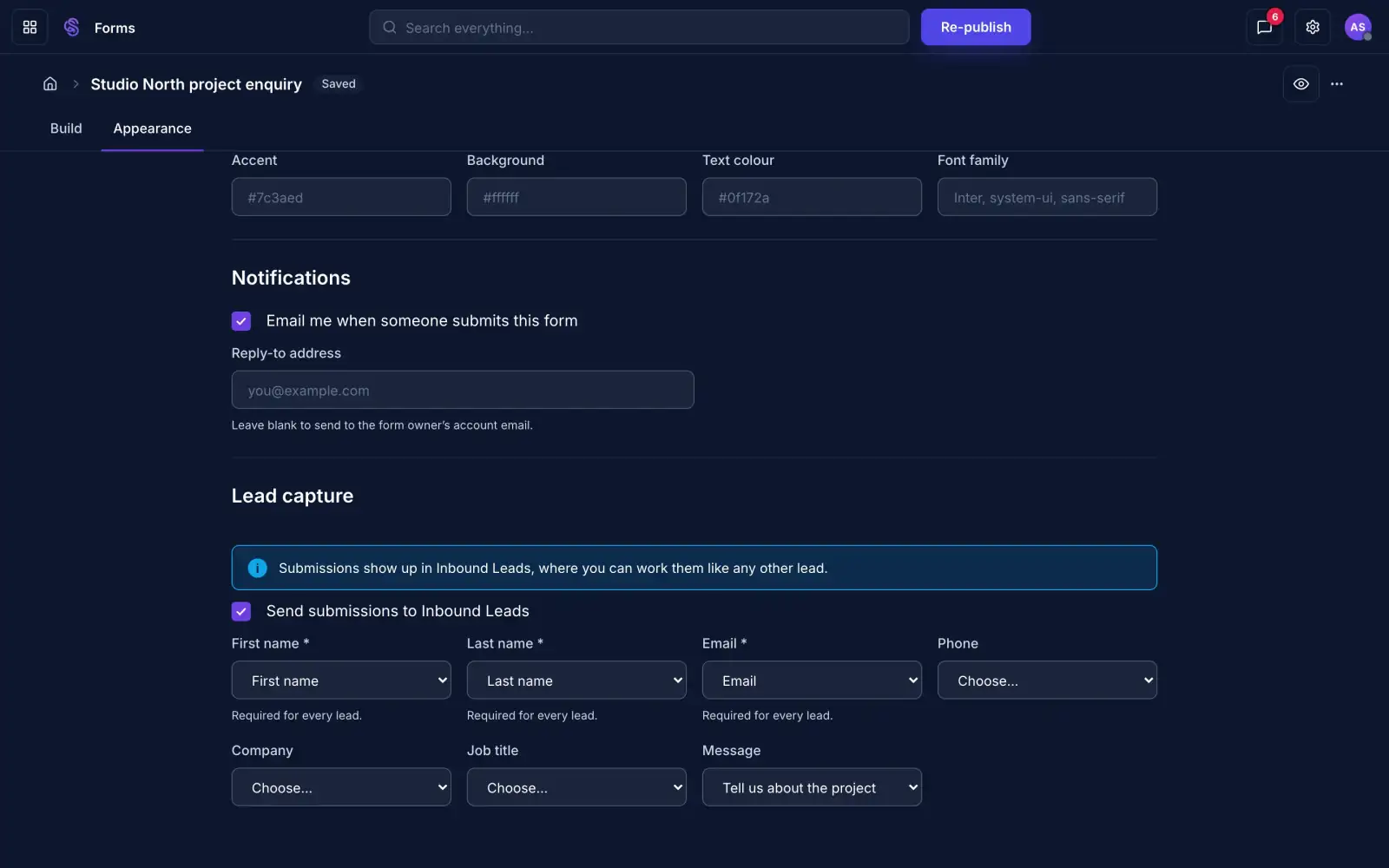
A new response can set an automation running, or wake an agent that reads the answers and decides what to do next. You can also get an email for each submission, or send enquiries to your leads.

  • Start an automation when a response arrives
  • Hand the response to an agent
  • An email for each submission, or a lead for each enquiry
The form's settings, with email notifications and the lead capture field mapping
Notification and lead settings for a form.

Share it

A link, or an embed on any page.

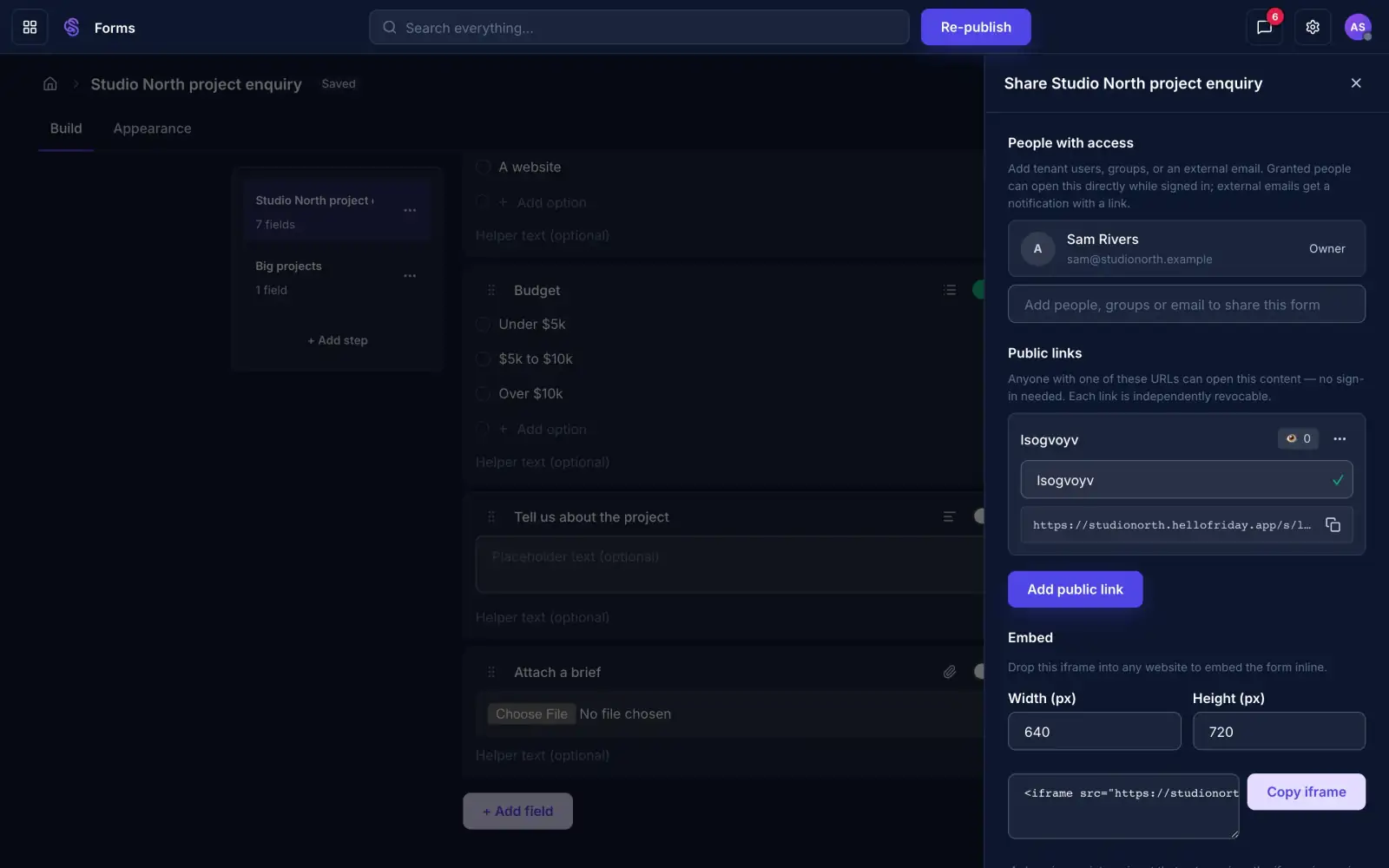
Share the form by link, or copy the embed code to put it on your own site. Each link can be switched off on its own.

  • Public links anyone can open without an account
  • An iframe with the width and height you set
  • Named people or groups given access to the form
The share panel for a form, with public links and an embed code
Public links and embed code.
All features

Every feature in Forms.

The full list, grouped by what you are trying to do.

Build formsStart from a description, then edit it the way you would any form.
  • A first draft from a descriptionTell Friday what you need to ask and review the form it builds.
  • Common question typesText, email, phone, number, date, choices, yes or no, rating and file upload.
  • Required questions and checksMark a question required and set limits on what can be entered.
  • StepsSplit a long form into steps, with a progress bar and back and next buttons.
  • Repeating groupsLet people add another row, such as a second contact or a list of items.
Ask only what appliesQuestions and steps appear based on earlier answers.
  • Show or hide a questionSet a condition on any question so it appears only when it applies.
  • Show or hide a stepSkip a whole step unless the answers match the conditions you set.
  • Branching rulesSend people to a different step depending on what they chose.
  • Logic viewSwitch between building the form and seeing how its steps connect.
Collect filesLet people send documents with their answers.
  • Upload questionsAdd a file upload to any step.
  • Allowed file typesAllow documents, images, video or audio, or narrow it to individual types.
  • Size limitSet the largest file a person can send.
  • Scanned before downloadUploaded files are scanned, and one that fails the scan cannot be downloaded.
Share itPut the form where your clients already are.
  • Public linksAnyone with the link can fill the form in without an account. Each link can be switched off on its own.
  • Embed on any siteCopy an iframe and set its width and height.
  • On your Sites pagesPlace the form on any page of a website built with Sites.
  • Who has accessGive named people, groups or an outside email access to the form.
  • Your colours and fontSet the accent, background, text colour and font so the form matches your site.
Act on responsesA response is something your automations and agents can act on.
  • Start an automationA new response can set off any automation you have built.
  • Hand it to an agentAn agent can pick up a response, read the answers and take the next step.
  • A table of responsesEvery response is a row, with a column for each question. Filter by any column.
  • Email on submitGet an email for each submission, to the address you choose.
  • Send to leadsMatch answers to a lead's name, email, phone, company, job title and message.
  • Spam protectionA hidden trap field, a limit on how fast one address can submit, and a check visitors never see.
How Forms compares

Forms vs other form tools

Typeform, Jotform and Google Forms are good at building forms, and each has some AI. Forms is built for what happens after a response arrives: an agent that works across your clients, documents and projects can pick it up and carry on.

FormsTypeformJotformGoogle Forms
Builds the form from a descriptionYes, Friday builds itYesYesYes, with Gemini on eligible plans
Questions that depend on earlier answersYesYesYesSection branching
File uploadsYesYesYesYes, respondents sign in to Google
Sends enquiries to a CRMBuilt in, to your own leadsIntegrations such as HubSpot and SalesforceIntegrations such as HubSpot and SalesforceThrough add-ons
Starts automations from a responseYesWebhooks, integrations and an automation add-onWorkflows and approvalsThrough scripts or add-ons
An AI agent that acts on the responseYes, across your clients, documents and projectsEmail and text follow-ups on the top planChat and voice agents for supportGemini helps build forms and summarise answers
Proposals, signing and invoices in the same workspaceYesNoSigning and payments onlyNo

Forms is the obvious choice for service businesses.

How it works

From your first question to a lead in your records.

Five steps, and a form is public only when you publish it.

Say what you need to ask

A sentence or two on the form you want, who fills it in and what you need back. If Friday needs more, it asks.

You

The form is built

Friday writes the questions, sets which are required and adds steps and conditions where they help.

Friday

Check the questions

Edit any question yourself, or ask Friday to change it. Set the look and decide who gets an email.

You

Publish and share

The form is public when you publish it. Share the link, embed it, or place it on a page of your site.

You

Responses start the work

Each response is saved as a row. An automation can start, or an agent can pick it up and take the next step.

Automatic
Examples

What you can build

Sales

A quote request that answers itself

Someone fills in

The job, the deadline, a rough budget and any files.

  1. The agent reads the brief and the attached files
  2. It drafts the proposal from your past work
  3. It offers the client times for a call
  4. It comes to you only for the price
You review one draft instead of starting from nothing.
Funnel

A funnel that talks back

Someone fills in

Five questions about the person's situation and goals.

  1. The agent scores the answers against who you work best with
  2. A strong fit gets a tailored reply and a booking link
  3. Others get the right guide, written for their answers
  4. It follows up on its own if they go quiet
Every lead gets a personal reply, not a template.
Courses

A quiz that places and teaches

Someone fills in

Short written answers and a self-rating on each topic.

  1. The agent marks the answers against your rubric
  2. It puts each person in the right group
  3. It sends a first lesson that starts where they are
  4. It flags anyone who is struggling to you
Nobody starts on the wrong level.
Onboarding

A new client who is ready on day one

Someone fills in

Company details and the documents you need.

  1. The agent checks each file is the one you asked for
  2. It chases anything missing by email or text
  3. It opens the project and sets the first tasks
  4. It books the kickoff when everything is in
You meet a client whose paperwork is done.
Support

A request that gets the right answer

Someone fills in

What went wrong, with a screenshot if they have one.

  1. The agent reads it and works out how urgent it is
  2. It answers from your own documents when it can
  3. It hands over to a person with a short summary when it cannot
Simple questions close in minutes, hard ones arrive explained.
Feedback

A rating that leads somewhere

Someone fills in

A score and one line on how the project went.

  1. The agent reads the comment, not just the number
  2. A happy client is asked for a review
  3. An unhappy one is contacted the same day with a plan
Problems reach you while they can still be fixed.

Questions about Forms

What can happen when someone submits?

The response is saved as a row. An automation can start, or an agent can pick it up. You can also get an email, and send enquiries to your leads.

Can I put a form on my own website?

Yes. Copy the embed code and set the width and height, or share the form as a link. On a Sites page you can place it as an element.

Who can see the responses?

The people you give access to the form. Add named people, groups or an outside email from the share panel.

Can people upload files?

Yes. You choose which kinds of file are allowed and how large they can be. Uploaded files are scanned, and a file that fails the scan cannot be downloaded.

Can questions change depending on earlier answers?

Yes. Show or hide a step or a single question, or send people to a different step based on what they chose.

Will I be told when someone submits?

If you turn it on, you get an email for each submission, sent to the address you choose.

Can I make it match my brand?

Yes. Set the accent colour, background, text colour and font in the form's appearance settings.

How do you deal with spam?

Each form has a hidden trap field, a limit on how fast one address can submit, and a check that visitors never see.

Works with the rest of your workspace

Sites

Place a form on any page of your website.

CRM

Send each enquiry to your leads as it comes in.

Automations

Start an automation each time a response arrives.

Agents

Let an agent read each response and act on it.

Tell Friday what to ask.

Join the waitlist for early access.

Your work emailGet started

Join the waitlist for early access.