
Tell Friday who you met.
Friday adds the contact, logs the call and moves them to the next stage. Every client's history sits on one page.
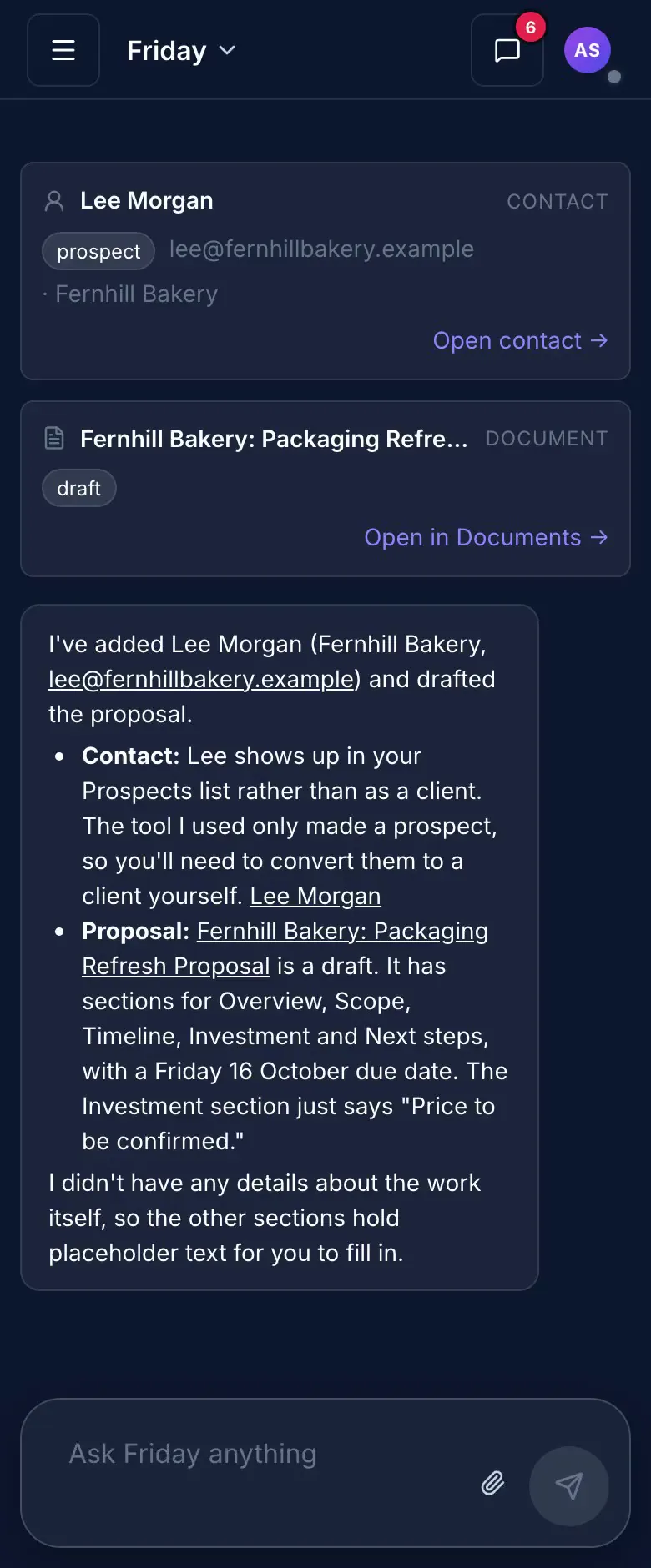
Every client in one place.
Client details end up in inboxes, notes and spreadsheets. With CRM, each client has one page that holds the calls, notes and stage changes.
How it usually goes
- A client's history is spread across inboxes, notes and a spreadsheet.
- Nobody can say which stage a client is in.
- Adding a field means a settings project or a developer.
- Proposals and signed agreements live in another tool.
- Follow-ups depend on someone remembering.
- Form enquiries sit in an inbox until someone copies them out.
With CRM
- Calls, notes and stage changes sit on the client's page.
- Every client's stage shows on one board, in stages you define.
- Add your own fields to a contact, or ask Friday to add them.
- Documents and signatures are linked to the contact they are for.
- A new lead, a stage change or a signed document can start an automation.
- Each enquiry arrives as a lead, with its message and the form it came from.
Client page
The whole history in one place.
Calls, notes and stage changes all land on the client's page. Open it before a call and you are caught up.
- Calls, notes and stage changes on one timeline
- Contact details alongside
- The stage history, so you can see how they got here
Stages
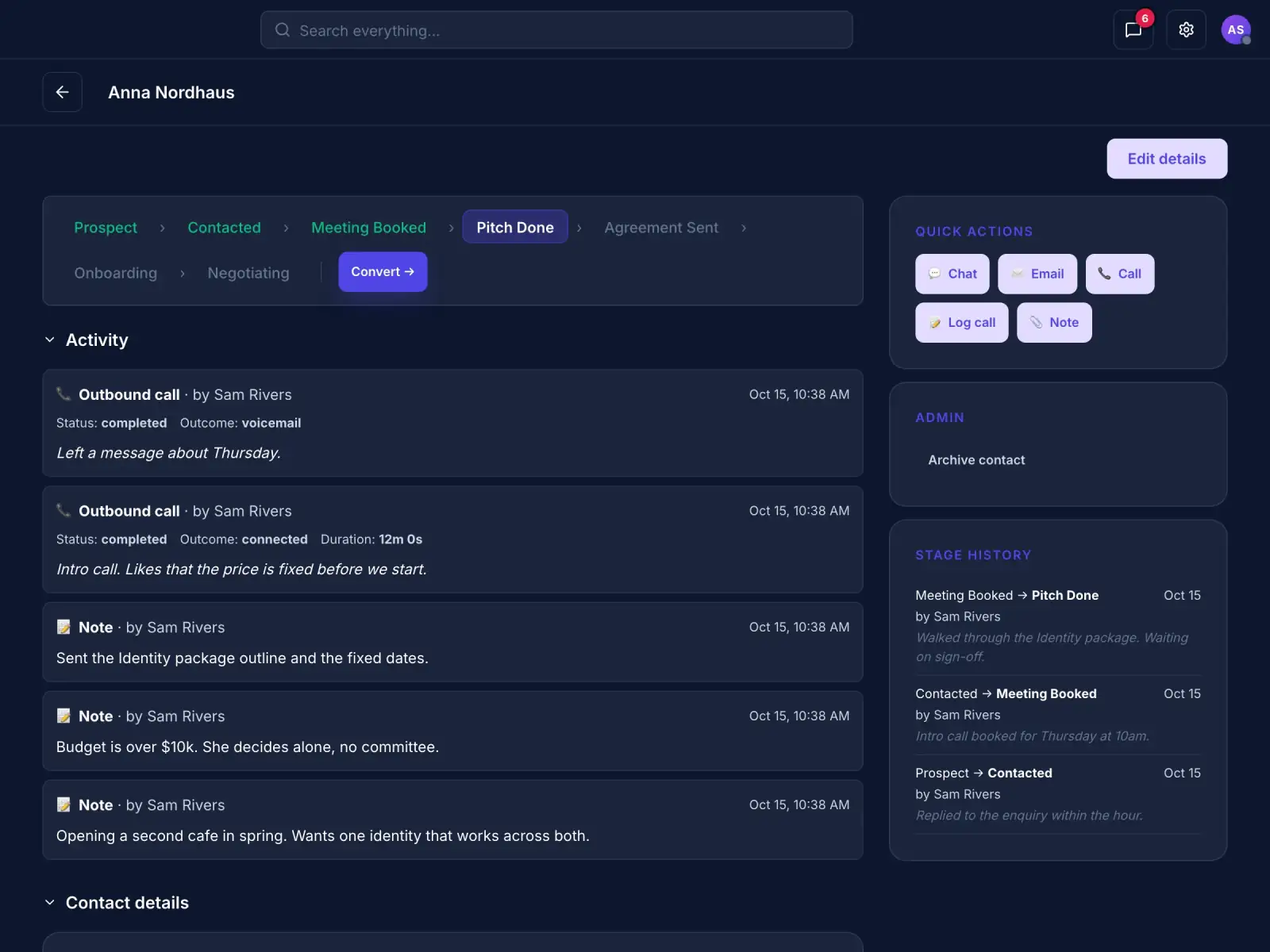
Move clients through your own stages.
See every client's stage on one board. Each move records who made it and why.
- Stages you define
- A board of clients grouped by stage
- Who moved a client, and why, kept with every move
Quick actions
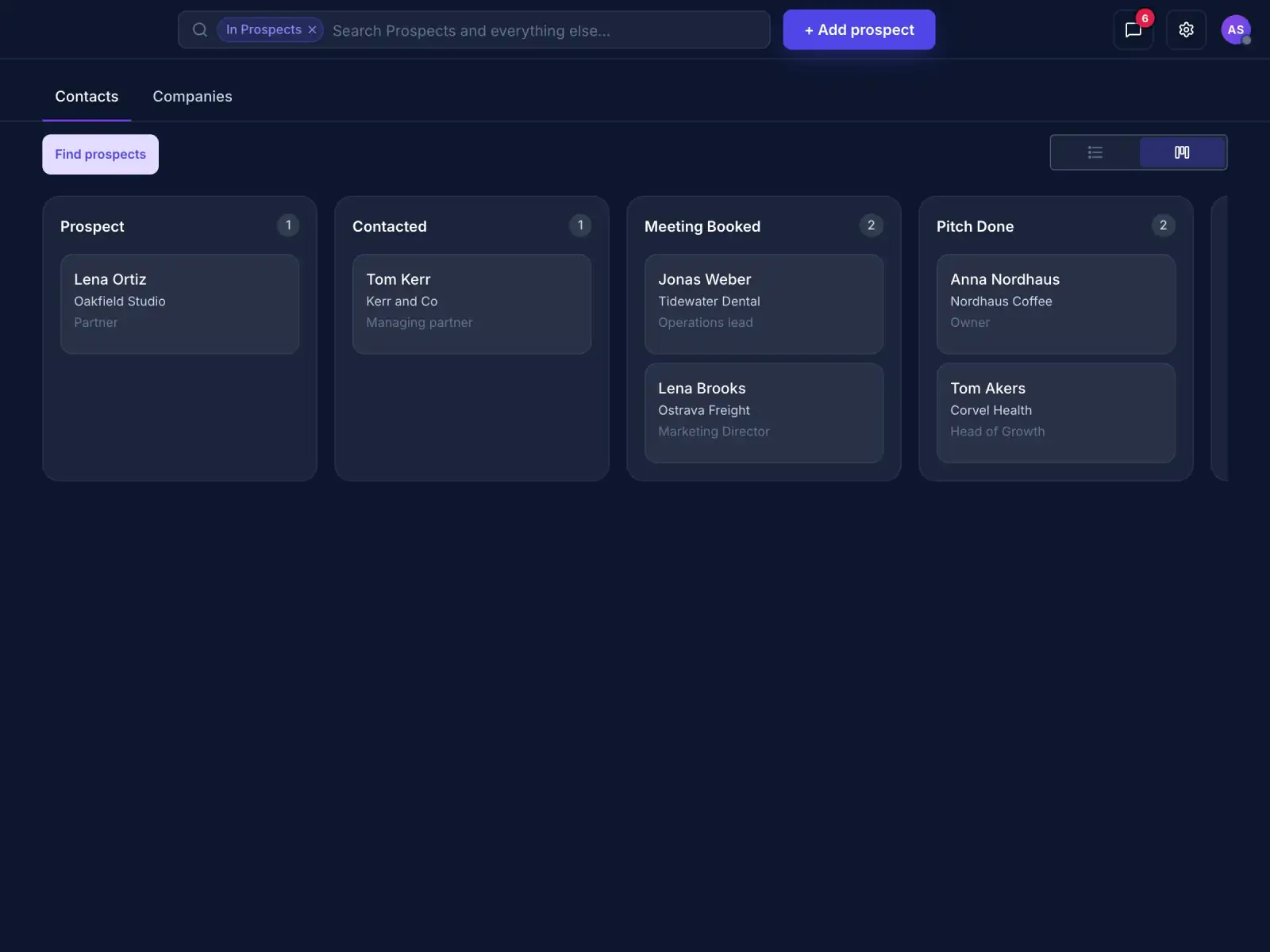
Reach out from the client's page.
Start a chat, an email or a call without leaving the page. Calls and notes land on the same timeline.
- Chat, email or call from one place
- Log a call you made yourself, with an outcome and a note
- Everything on the same timeline
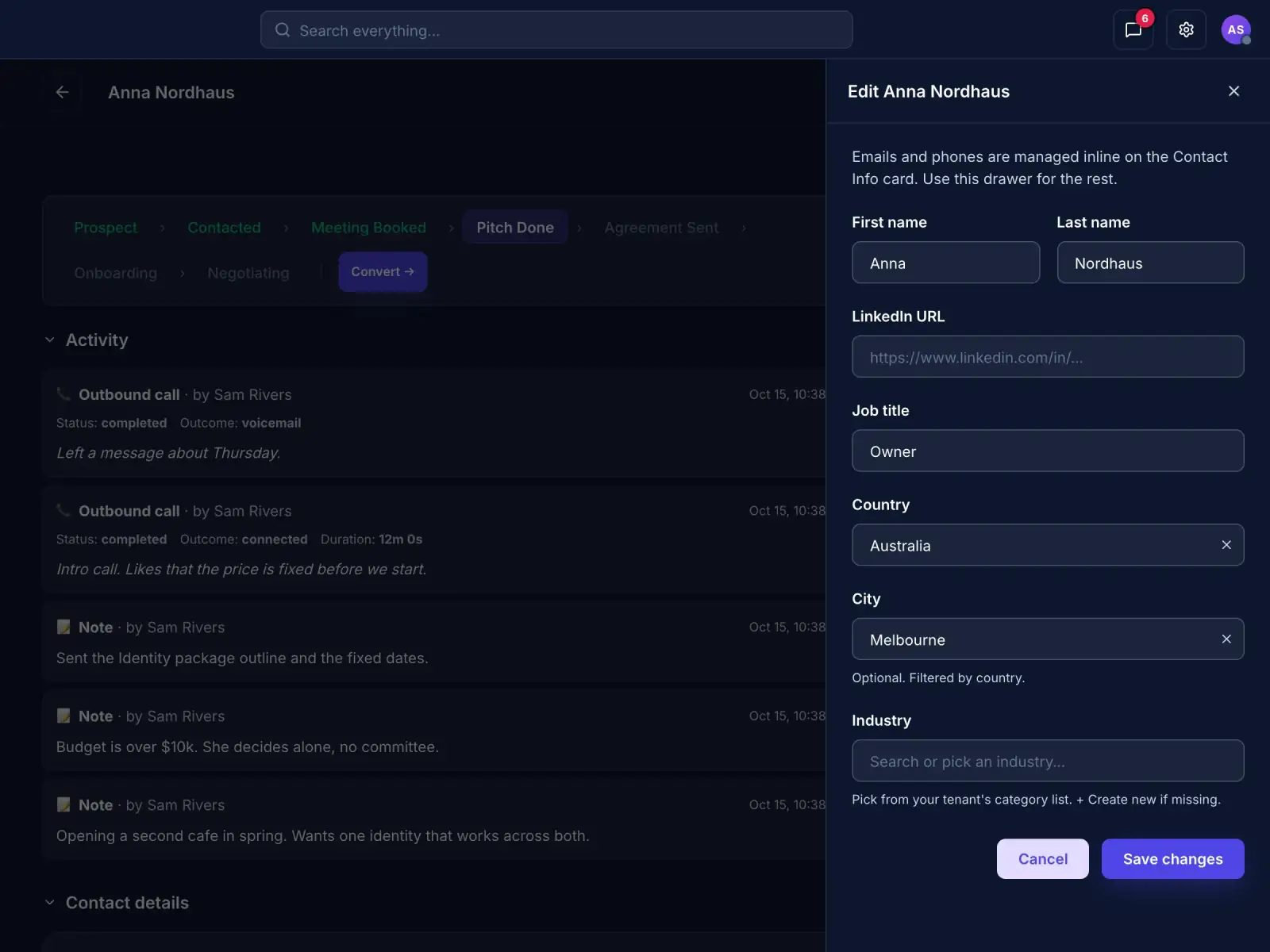
Contact details
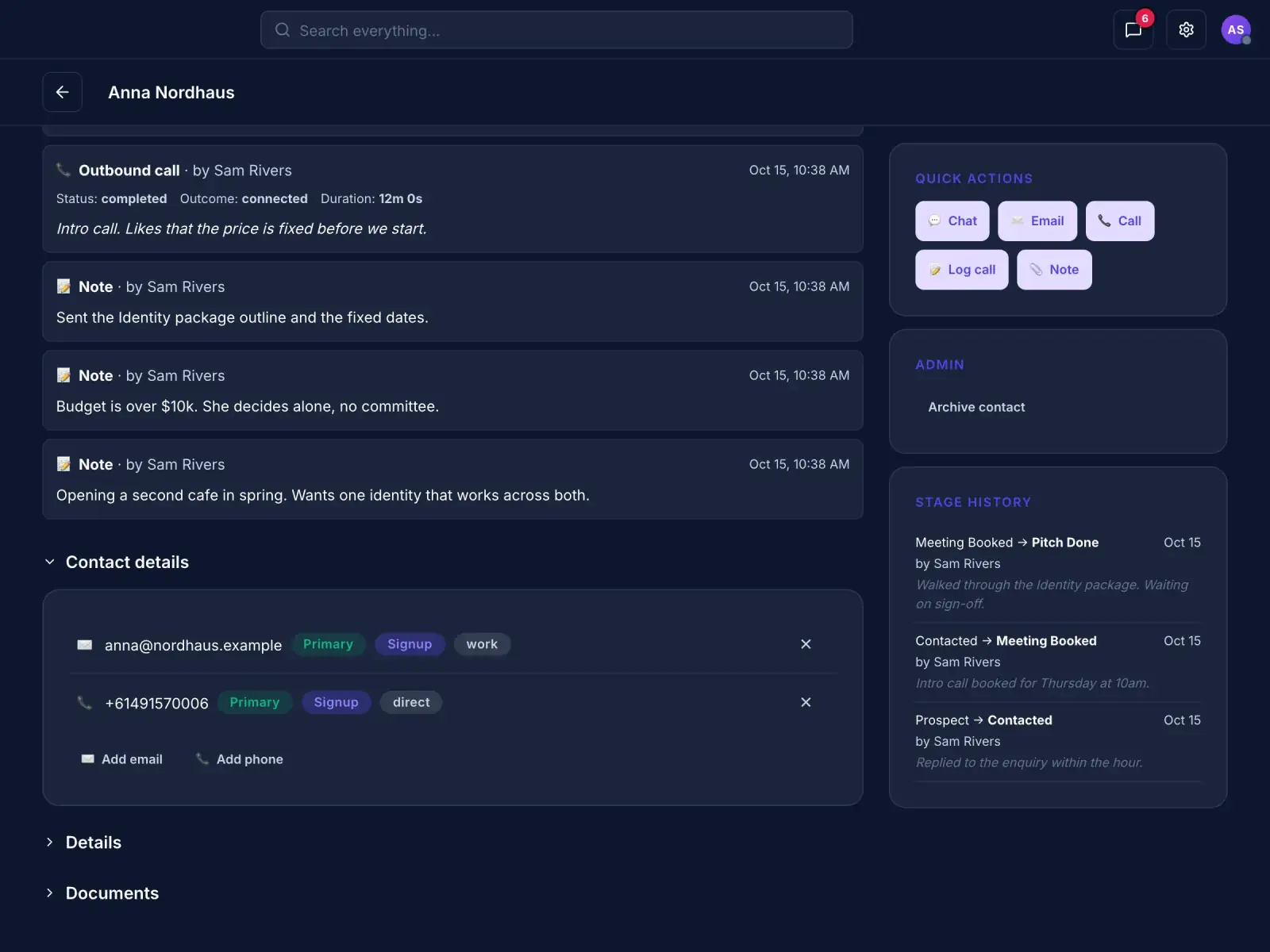
Add what you learn as you learn it.
Keep a job title, location, industry and LinkedIn on the contact. Emails and phone numbers sit on the contact card.
- Job title, location and industry
- A LinkedIn link
- Emails and phone numbers on the contact card
Inbound leads
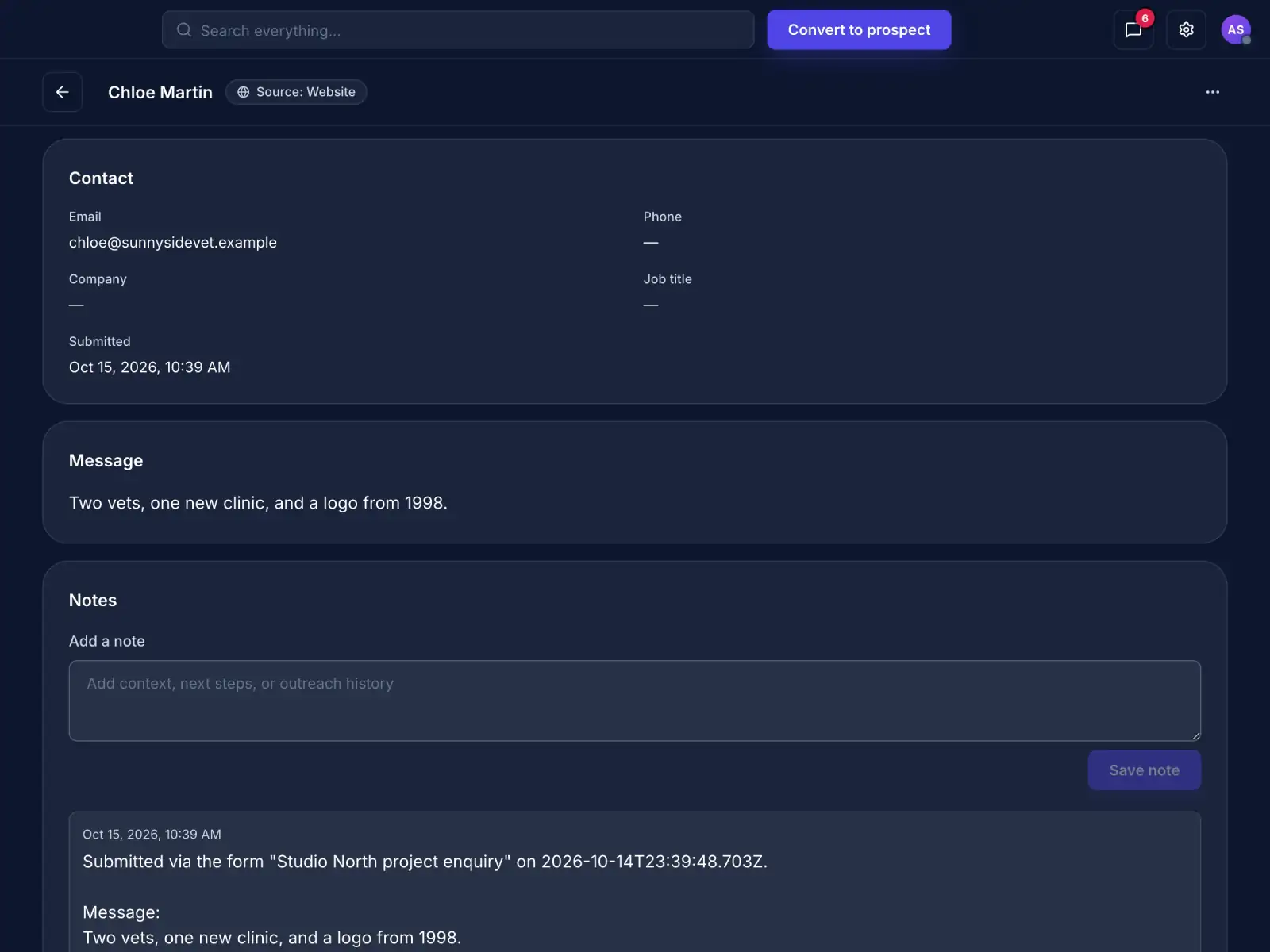
Every form enquiry arrives as a lead.
Each lead keeps the message and the form it came from. Convert it to a prospect when it is worth chasing.
- The message, as it was sent
- The form it came from
- One click to convert it to a prospect
Documents
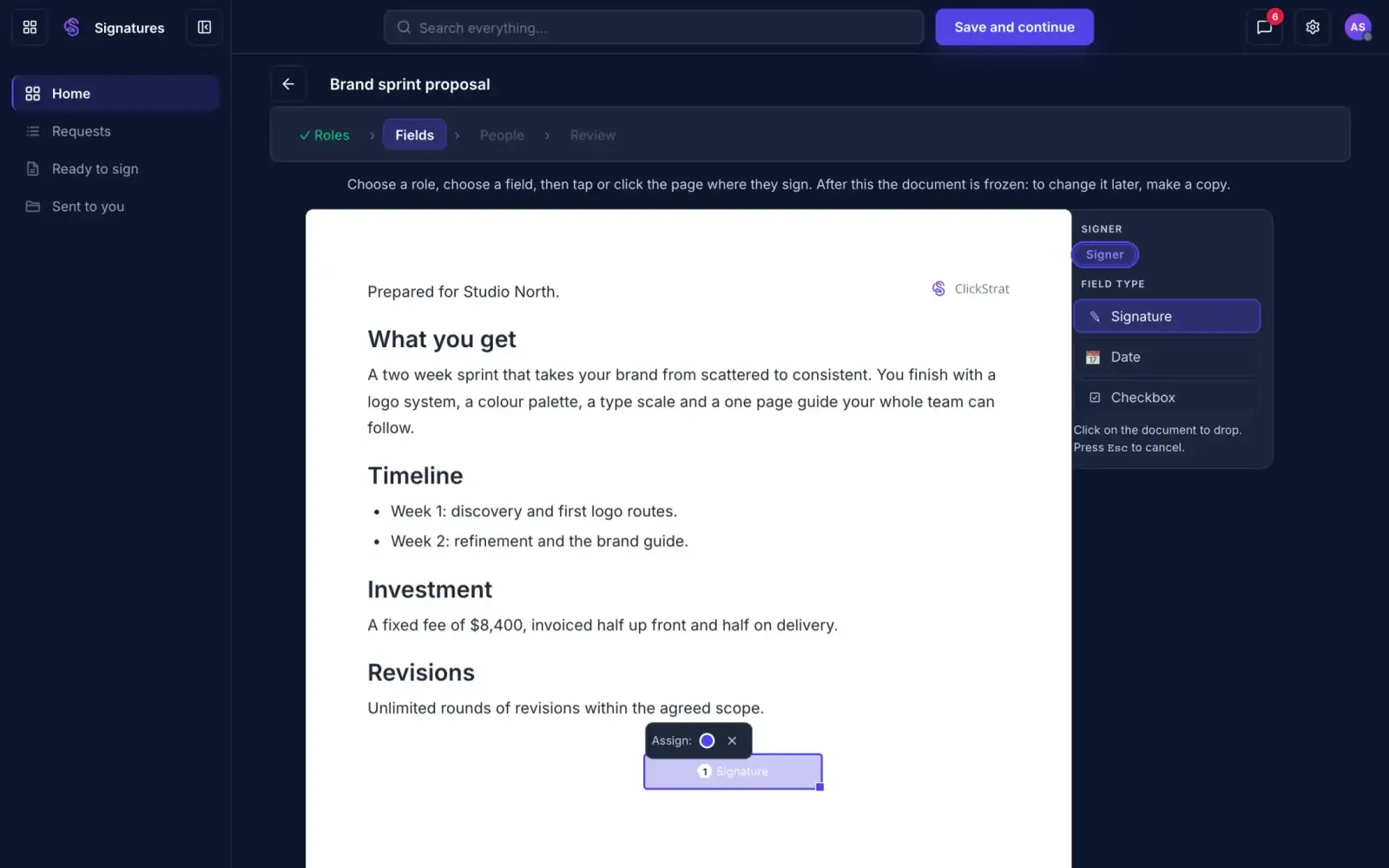
Proposals and signatures stay with the client.
A document can be linked to a contact, so the proposal, the agreement and who signed it are found from the client's record. Signing is built in, so there is no second tool to chase.
- Documents linked to the contact they are for
- Signatures recorded against the contact who signed
- A signed document can start an automation
Automations
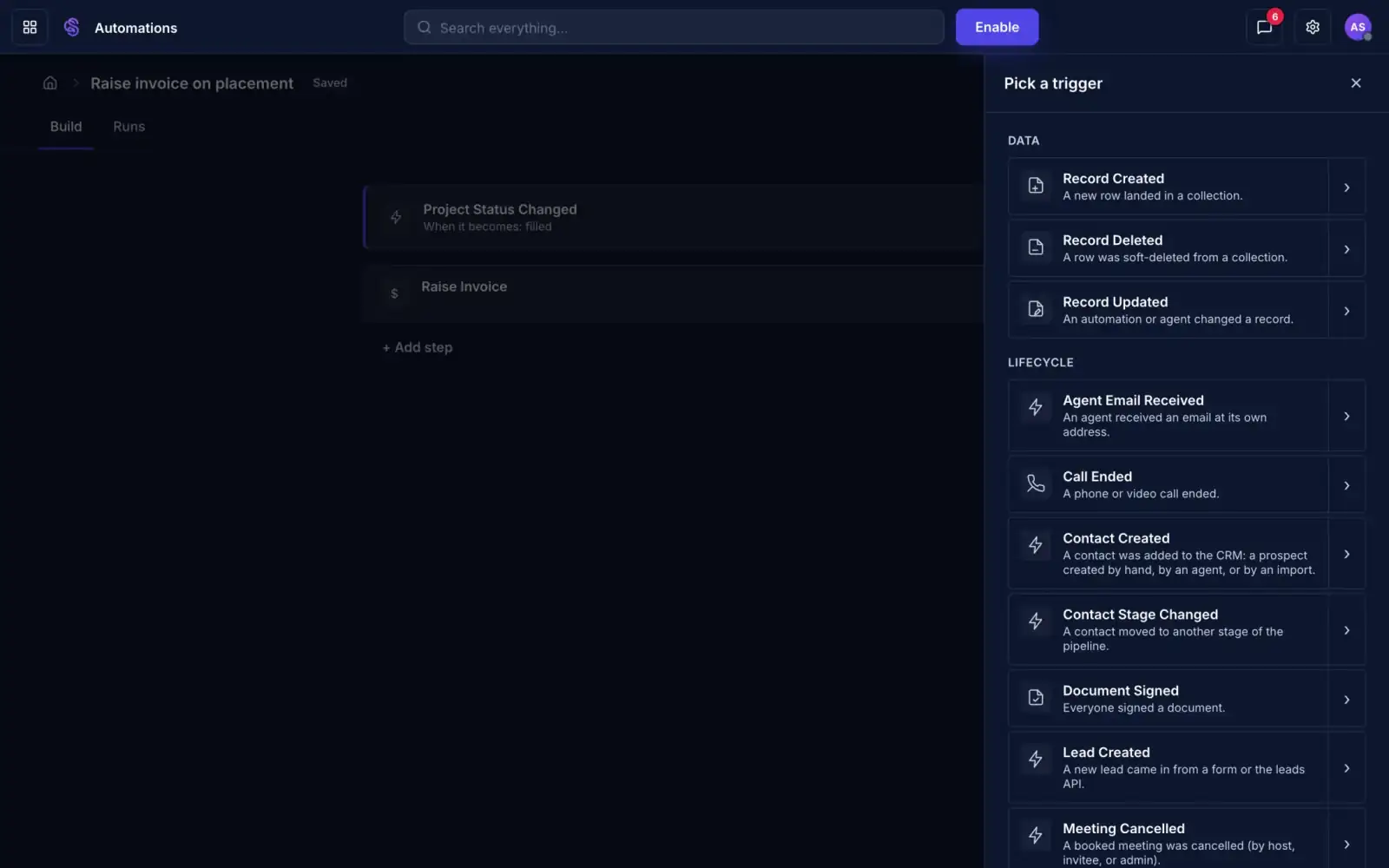
Let the record start the work.
A new contact, a new lead, a stage change or a signed document can each set an automation running. No export, no second tool, no integration to maintain.
- Triggers for a new contact, a new lead, a stage change and a signed document
- Steps that update the contact, send an email, raise an invoice or book a meeting
- Or hand the next step to one of your agents
Every feature in CRM.
Keep the historyEverything about a client, on their page.
- One timelineCalls, notes and stage changes in one place.
- Stage historySee how a client got to where they are.
- Contact detailsJob title, location, industry and LinkedIn.
- Several emails and numbersKeep more than one email and phone, with one marked as primary.
- CompaniesRelate a contact to the company they work for.
Shape it to your businessSet it up the way you work, without a developer.
- Your own stagesDefine the stages that fit how you work.
- Your own fieldsAdd fields to the kinds of contact you keep, such as providers and customers.
- Fields that check themselvesFields use the same types and checks as Forms, so bad data is caught on the way in.
- TagsTag contacts so you can group and find them.
- Ask Friday to set it upDescribe a field or a stage and Friday adds it.
Run your pipelineYour stages, on one board.
- A board of clientsEvery client grouped by stage.
- Moves are recordedEach move keeps who made it and why.
- Stage changes can start workA move to another stage can set an automation running.
Reach outContact people without leaving their page.
- Chat, email or callStart any of them from the client's page.
- Log a callAdd the outcome and a note for a call you made yourself.
- NotesNotes land on the same timeline as calls.
Capture enquiriesEnquiries from your forms become leads.
- Inbound leadsEvery form enquiry arrives as a lead.
- The message and its sourceEach lead keeps what was sent and the form it came from.
- Convert to a prospectMove a lead on when it is worth chasing.
Documents and signingThe paperwork stays with the person it is for.
- Documents linked to a contactFind a client's proposals and agreements from their record.
- Signing built inSend a document for signature without another tool.
- Who signedSignatures are recorded against the contact who signed.
Run it automaticallyLet the record start the work.
- Contact and lead triggersA new contact, a new lead or a stage change can start an automation.
- A signed document as a triggerStart work the moment a document is signed.
- Update the contactA step can set field values on the contact.
- Email, invoice or meetingSteps can send an email, raise an invoice or book a meeting.
- Hand it to an agentA step can call one of your agents to carry on.
Ask FridayRun the record by asking.
- Add contacts and notesTell Friday who you met and what was said.
- Move stagesAsk Friday to move a client to the next stage.
- Add fieldsAsk Friday to add a field to a kind of contact.
- Your own AI toolsThe same CRM tools are open to your own AI assistants through MCP.
CRM vs other CRMs
HubSpot, Pipedrive and Salesforce are strong CRMs, and each has some AI. CRM is built so an agent that works across your clients, documents and projects can keep the record for you.
| CRM | HubSpot | Pipedrive | Salesforce | |
|---|---|---|---|---|
| Your own pipeline stages | Yes | Yes | Yes | Yes |
| Your own fields on a contact | Yes, checked with the same field types as Forms | Yes | Yes | Yes |
| Set up fields and stages by asking | Yes, ask Friday | Through settings | Through settings | Through setup |
| Calls and notes on one client timeline | Yes | Yes | Yes | Yes |
| Form enquiries arrive as leads | Yes, built in | Yes, with its forms | Through its web forms | Through web-to-lead |
| Automations that start from a contact, lead or stage change | Yes, in the same workspace | Workflows, on some plans | Automations, on some plans | Through Flow |
| Documents and signatures linked to the contact | Yes, built in | Quotes and e-signature on some plans | Smart Docs, on higher plans or as an add-on | Through add-ons |
| An AI agent that works the record | Yes, Friday adds contacts, logs notes and moves stages | AI assistant features | AI assistant features | AI agents |
| Invoices in the same workspace | Yes | Through payments tools | Through integrations | Through add-ons |
CRM is the obvious choice for service businesses.
From first enquiry to a client on the board.
An enquiry becomes a lead
Each form enquiry arrives as an inbound lead with its message and the form it came from.
Convert it when it is worth chasing
Review the lead and convert it to a prospect.
Friday keeps the record
Ask Friday to add a contact, log a note or move a client to the next stage.
Reach out from the client's page
Start a chat, an email or a call, and log any call you made yourself.
Move them through your stages
Drag the client along the board. The move is recorded with who made it and why.
Questions about CRM
Where do leads come from?
Every form enquiry arrives as an inbound lead, with the message and the form it came from.
Can I set my own stages?
Yes. You define the stages, and the board shows every client grouped by stage.
Can I add my own fields?
Yes. Add fields to the kinds of contact you keep. They use the same field types and checks as Forms, and you can ask Friday to add one.
Is a stage change recorded?
Yes. Each move keeps who made it and why, and the stage history sits on the client's page.
Can I contact someone from their page?
Yes. Start a chat, an email or a call from the client's page. A call you made yourself can be logged with an outcome and a note.
Are documents linked to contacts?
Yes. A document can be linked to a contact, and a signature is recorded against the contact who signed.
Can the CRM start an automation?
Yes. A new contact, a new lead, a stage change or a signed document can each start one. Steps can update the contact, send an email, raise an invoice or book a meeting.
What can I keep on a contact?
Job title, location, industry and LinkedIn, several emails and phone numbers with one marked primary, tags, and the company they work for.
Works with the rest of your workspace
Tell Friday who you met.
Join the waitlist for early access.
Join the waitlist for early access.